
Quickstart
Create an account, link your WhatsApp and schedule a first message. It takes about five minutes.
These steps use the hosted instance at whatomato.habibium.com. On your own instance they are the same at your own address; to set one up, see Run it with Docker Compose.
-
Create an account.
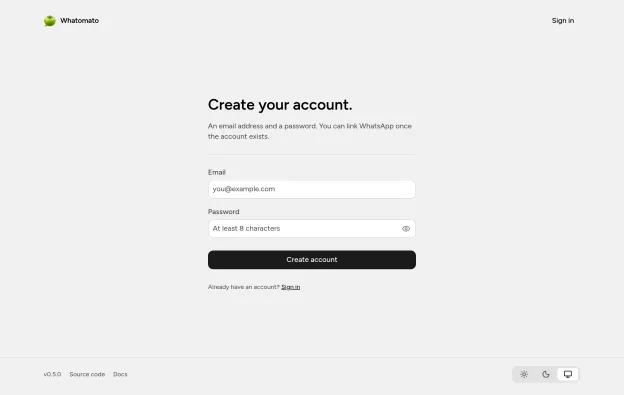
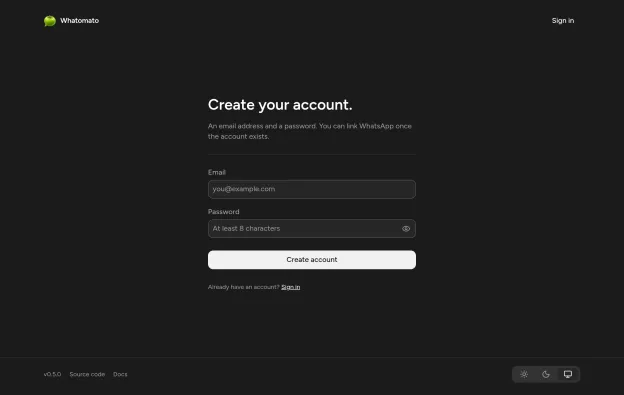
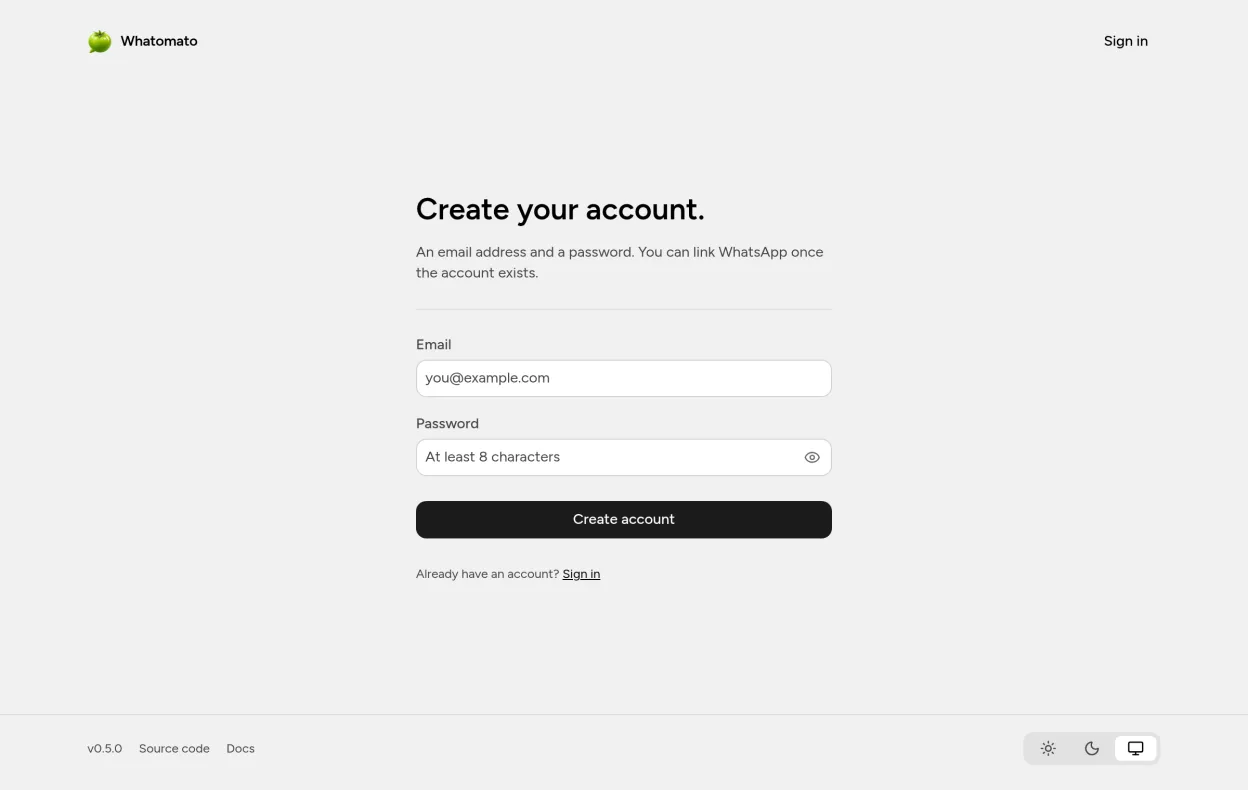
Open the app and choose Create account. Enter an email address and a password of at least 8 characters. A password that appears in a known data breach is refused, so pick one you don’t use elsewhere.
-
Verify your email.
Whatomato emails you a link that works for 24 hours. Open it in the browser you signed up in and you’re signed in straight away. Opened anywhere else, it verifies the address and then asks you to sign in.
-
Link your WhatsApp.
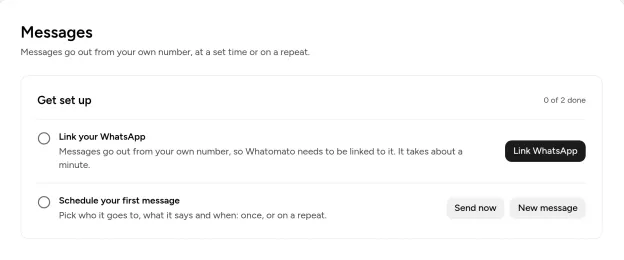
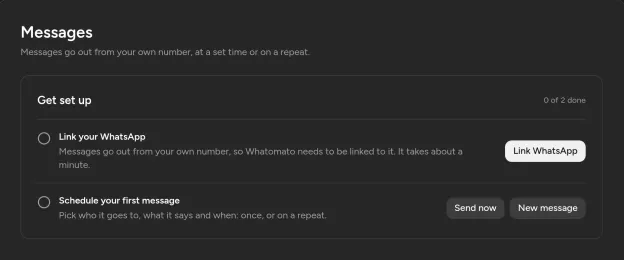
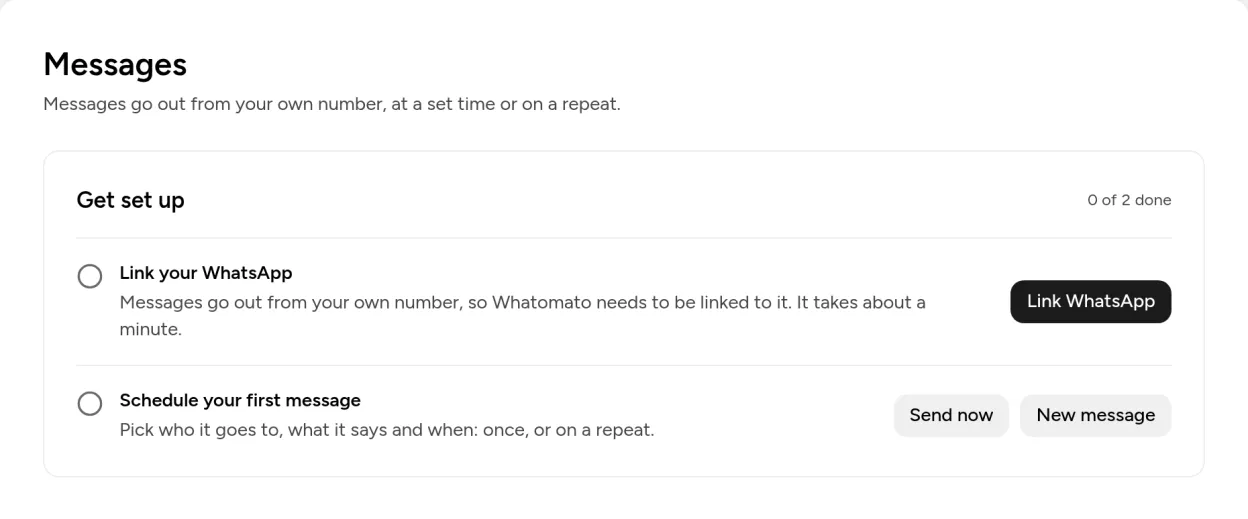
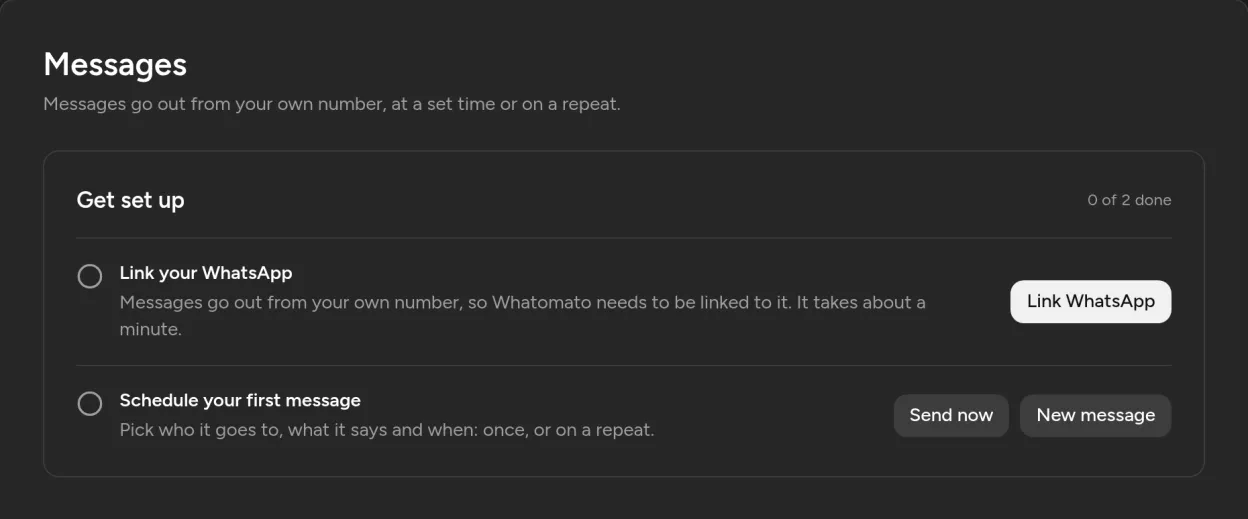
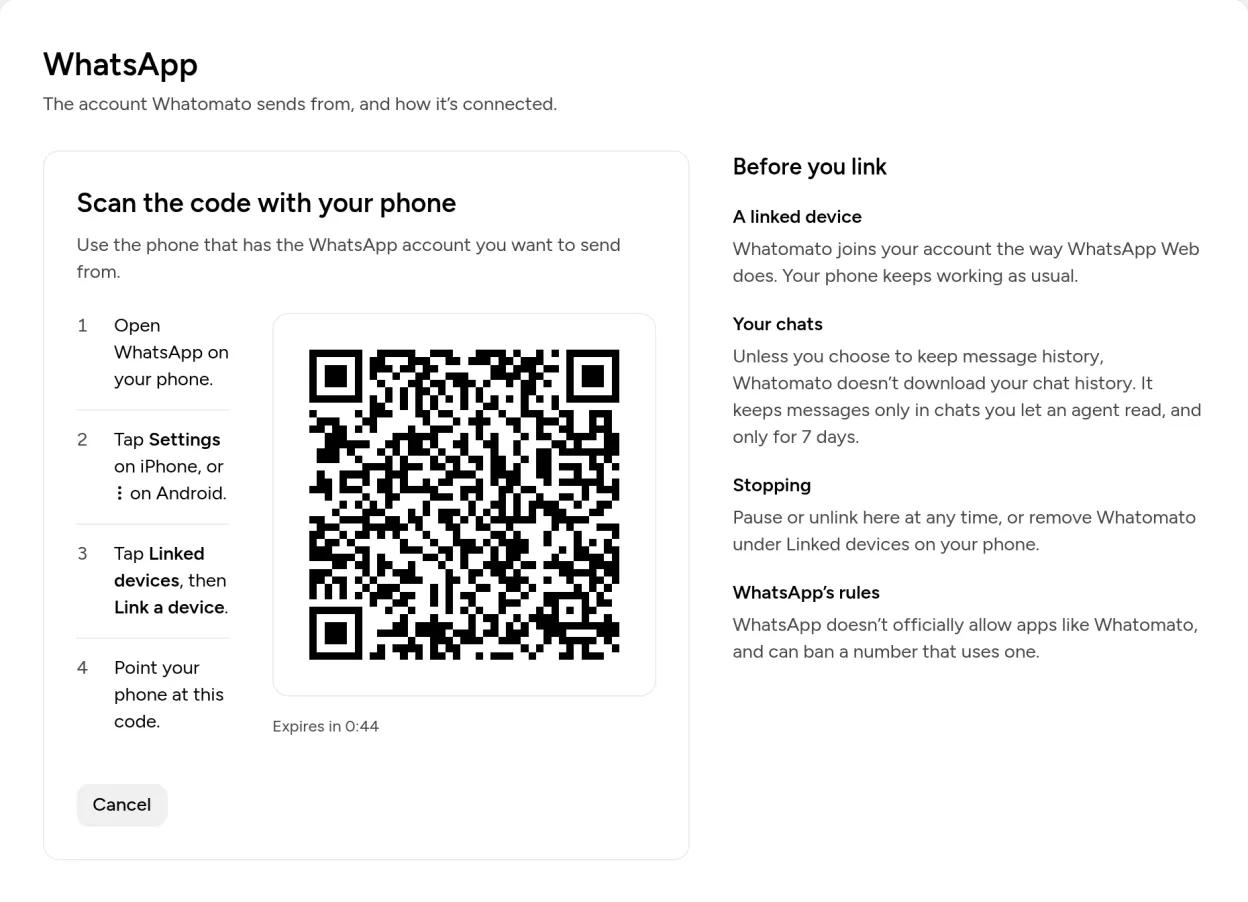
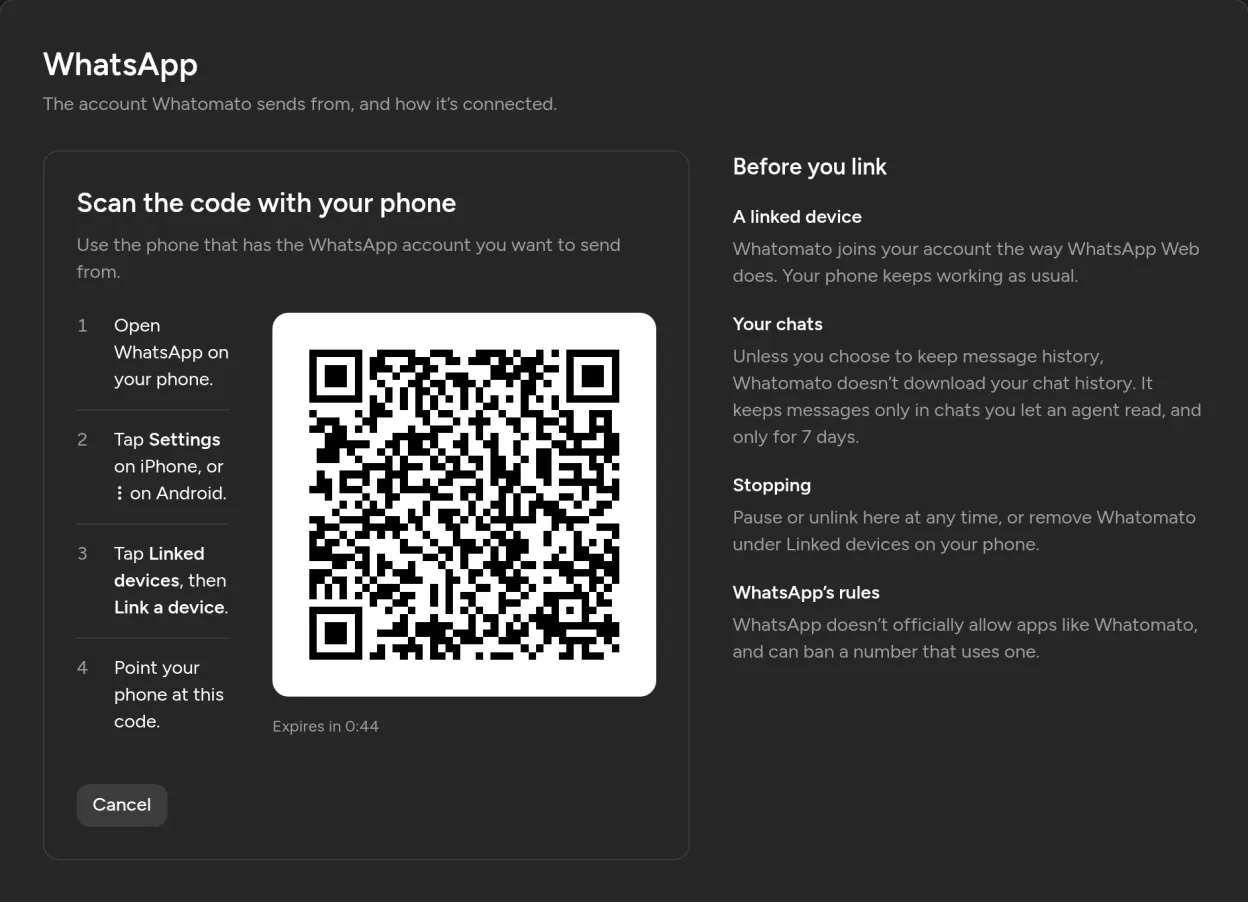
A new account shows a Get set up panel. Choose Link WhatsApp, then Link with QR code, and enter your password. On your phone, open WhatsApp, go to Linked devices, tap Link a device and point the phone at the code.
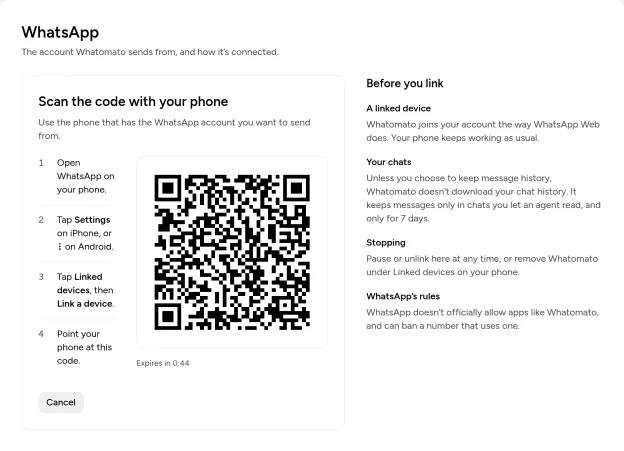
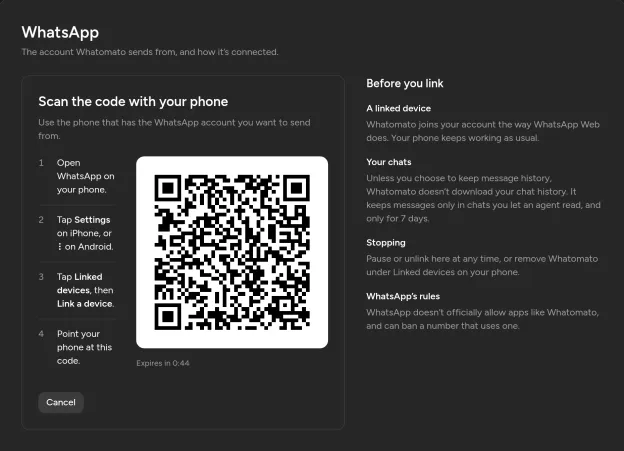
On the phone that has WhatsApp, with no second screen to show the code? Choose Link with phone number instead. Both ways are described in Link your WhatsApp.
-
Check that it can send.
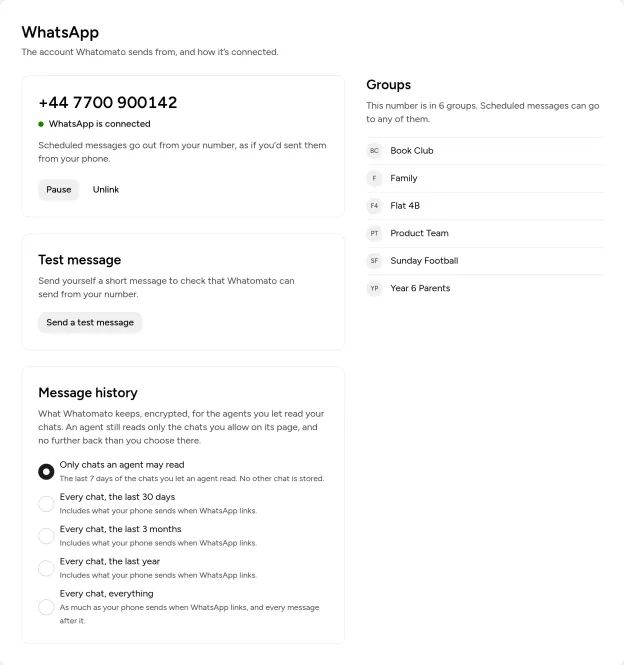
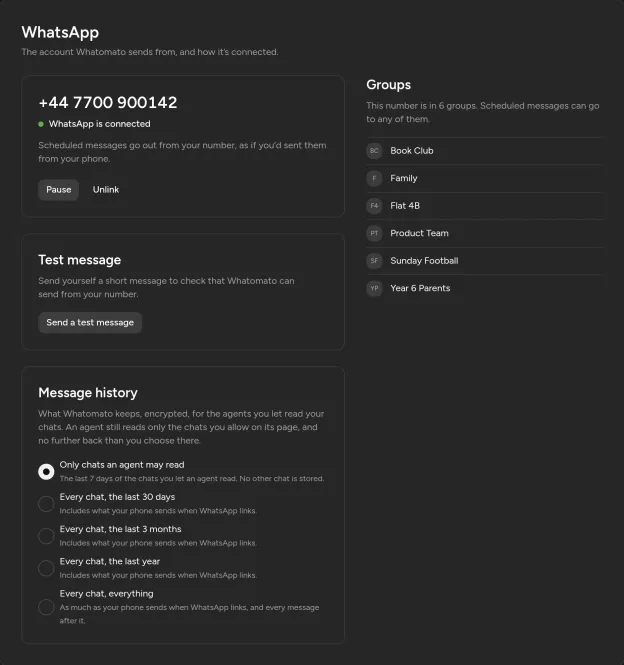
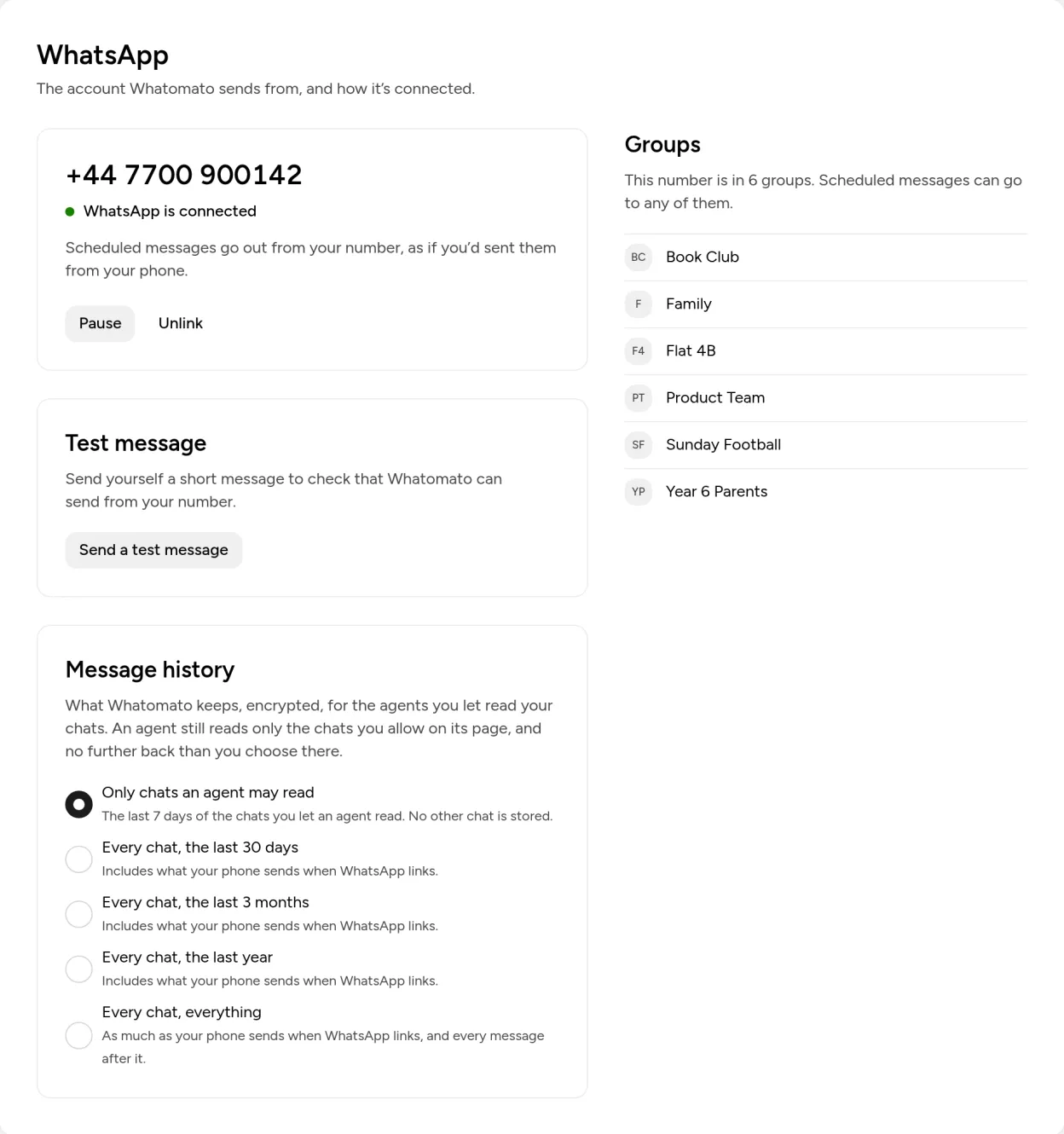
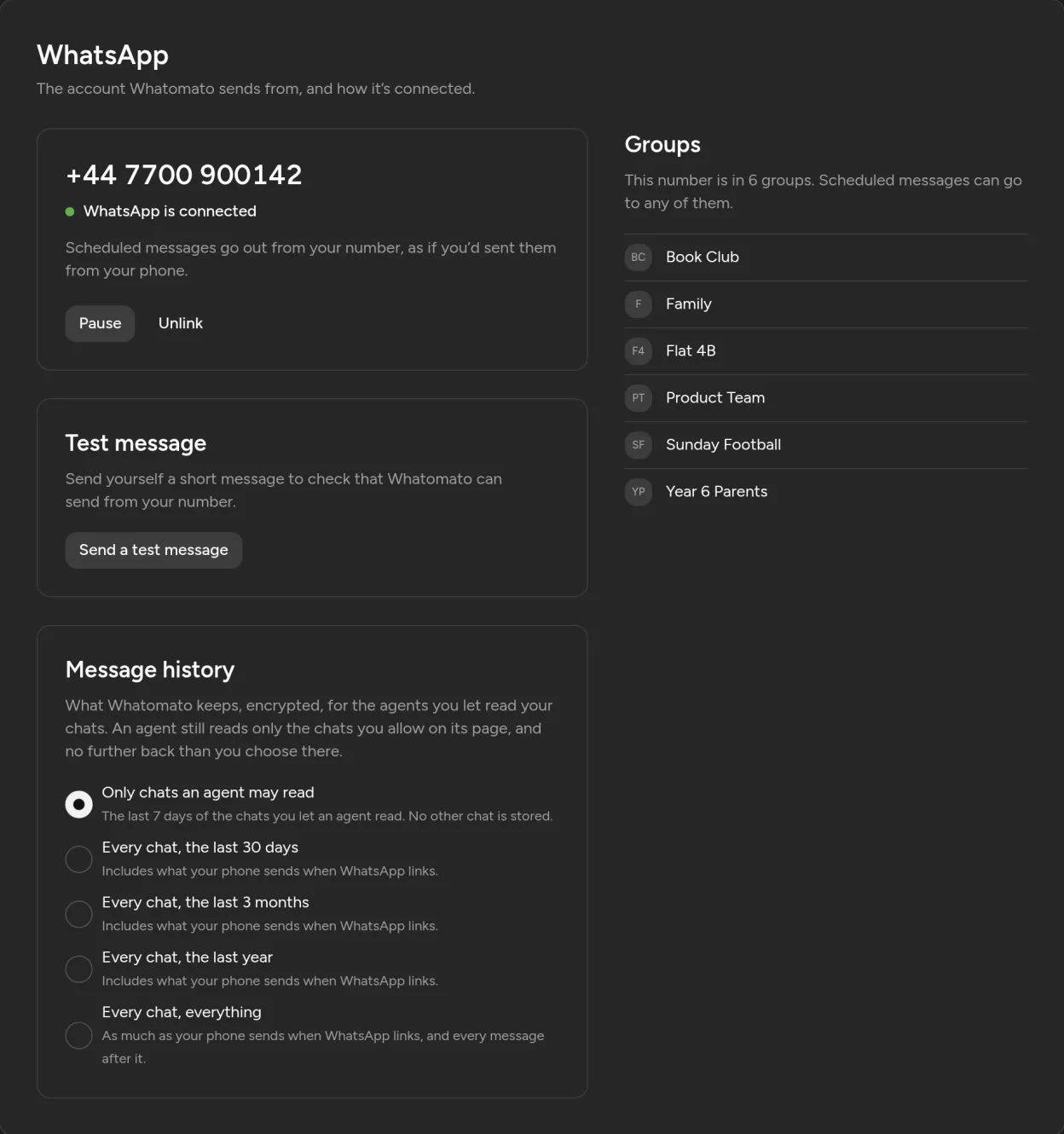
Once the WhatsApp page says WhatsApp is connected, choose Send a test message. It arrives in your own “Message yourself” chat.
-
Schedule a message.
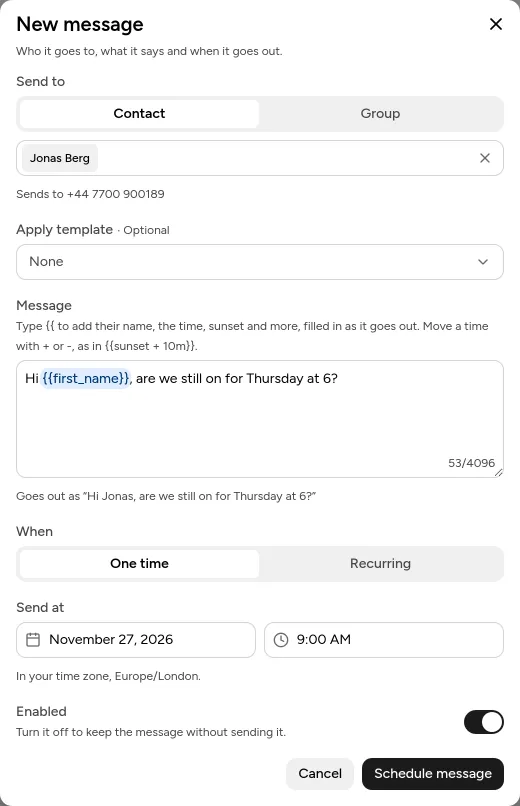
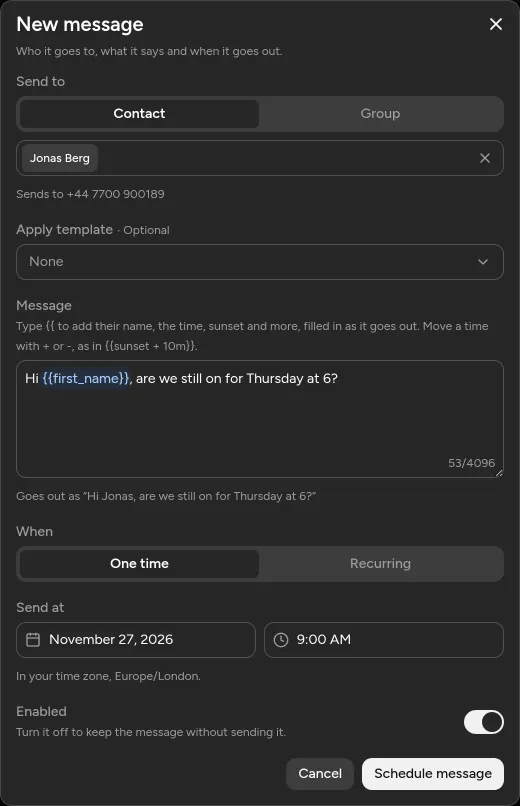
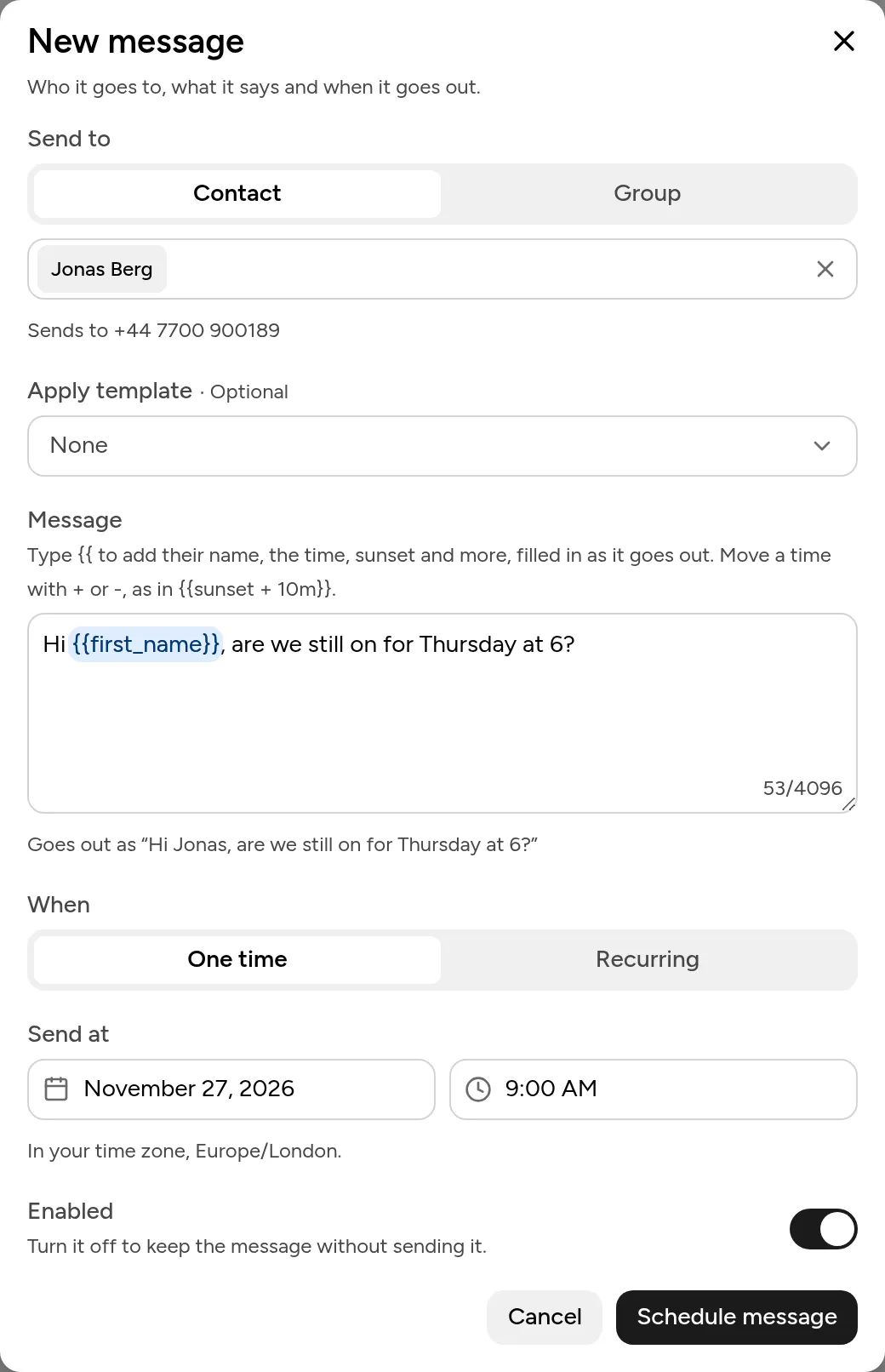
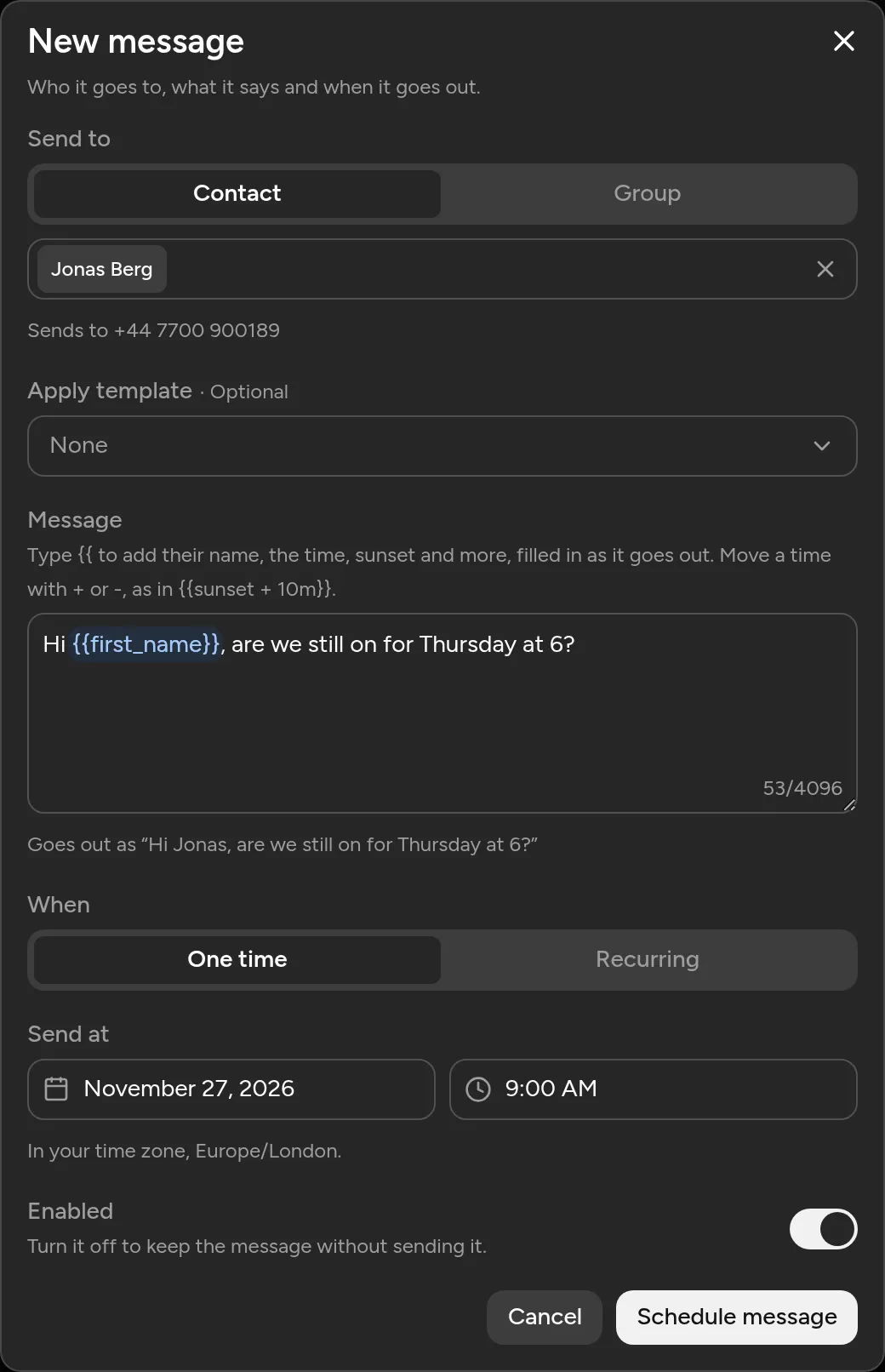
Go to Messages and choose New message. Pick who it goes to, write the text, and set when it goes out: One time, or Recurring. Then choose Schedule message.
-
See how it went.
When the time comes, the send appears under History. Sent means WhatsApp accepted the message.
Where to go next
Section titled “Where to go next”- Schedule a message covers repeats, sunrise and sunset, and what happens when a send fails.
- Templates and variables shows how to greet each person by name.
- Account and security explains two-step verification and passkeys. Whoever gets into your account can send from your number, so turn one of them on.
- Connect an agent lets an AI agent send and schedule for you.