
How agent access works
Let an AI agent such as Claude, ChatGPT, Codex or Cursor use your Whatomato account, within permissions you choose and with every send waiting for your approval by default.
An AI agent can do in Whatomato what you’d otherwise do by hand: find a chat by name, send a message, schedule one for later, and check whether it went out. You decide how much of that each agent may do.
Agent access is optional. If you never connect an agent, nothing changes.
Connections
Section titled “Connections”Each agent you connect gets a connection: a name, a way to prove who it is, and its own permissions. An account can have up to 20. You create and manage them on the Agents page.
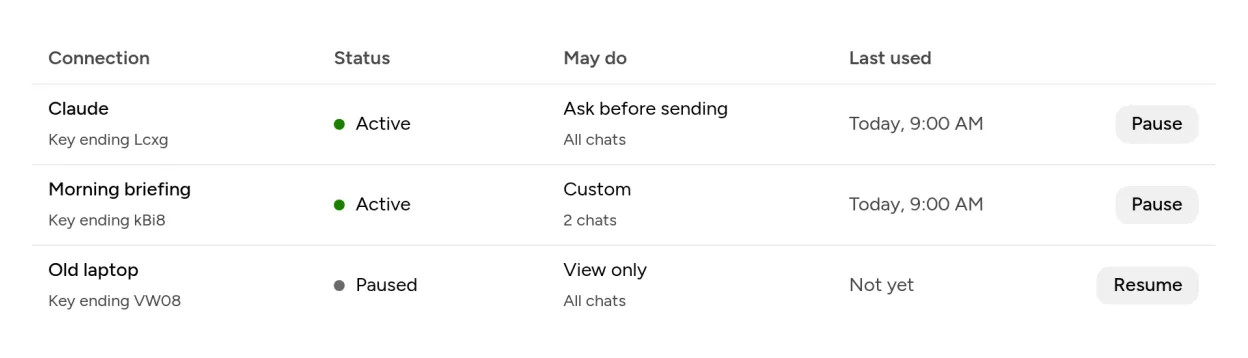
There are two ways to connect, and both end in the same kind of connection:
- An access key, which you paste into the agent’s configuration. Works with any agent that can reach a remote MCP server.
- Signing in, where the app sends you to Whatomato in your browser and you approve it there. Claude, ChatGPT, Claude Code and Codex connect this way.
Connect an agent has the steps for each.
Agents talk to Whatomato over MCP, the protocol these tools use to reach outside services, at your site’s address followed by /mcp.
What an agent can do
Section titled “What an agent can do”Depending on what you allow, an agent can:
- find your contacts and groups by part of a name;
- send a text message to a contact or a group;
- schedule a message, once or on a repeat, and change or delete scheduled messages;
- read your saved templates;
- see who a message went to, when, and whether it went out;
- on an instance with reading turned on, read and search recent messages in the chats you choose, reply to one of them, and tag people in a group.
The MCP tools reference lists each tool an agent gets.
You stay in charge
Section titled “You stay in charge”- Every send asks you first by default. A new connection starts as “Ask before sending”: the agent writes the message, and it waits for your approval before anything goes out.
- Each chat can have its own rule. No, ask me first, or yes, with an optional daily limit. A connection can cover all your chats or only the ones you select. See Permissions.
- Some limits can’t be lifted. No permission lets a connection send more than 200 messages in 24 hours, hold more than 50 scheduled messages, or schedule one more often than once an hour. See Limits.
- You can stop it at once. Pause one connection or all of them, or revoke one for good. See Pause, revoke and review.
- You can see what it did. The activity log lists every call an agent made, with the chat it named and the outcome, never the message text.
What an agent can never do
Section titled “What an agent can never do”Whatever you allow, an agent can’t:
- approve or reject its own requests;
- change its own permissions, name or key, or create connections;
- link or unlink WhatsApp;
- change your account or security settings;
- change your templates;
- see the text of messages in your history, or another connection’s requests;
- read your chats on an instance where reading is off, or in a chat you haven’t allowed.
On your own instance
Section titled “On your own instance”Agent access is on by default. Setting AGENT_ACCESS=off turns it off for the whole instance: the Agents page says so, /mcp and signing in answer 404, and no agent’s scheduled message runs. Reading is a separate switch, AGENT_READING, and is off by default. See Configuration.