
Connect an agent
Connect Claude, ChatGPT, Claude Code, Codex, OpenCode, Antigravity, Cursor or any other MCP client, by signing in or with an access key.
Agents reach Whatomato at your site’s address followed by /mcp. On the hosted instance that is:
https://whatomato.habibium.com/mcpThe examples below use it. On your own instance, put your own address in its place.
Which way to connect
Section titled “Which way to connect”| App | Connect by |
|---|---|
| Claude, on the web or in the desktop app | Signing in |
| ChatGPT | Signing in |
| Claude Code | Signing in, or an access key |
| Codex | Signing in, or an access key |
| OpenCode, Antigravity, Cursor | An access key |
| Anything else that speaks MCP | An access key |
Signing in is the shorter path and leaves no key to look after. An access key works everywhere.
Connect by signing in
Section titled “Connect by signing in”You give the app the address, and it sends you to Whatomato in your browser.
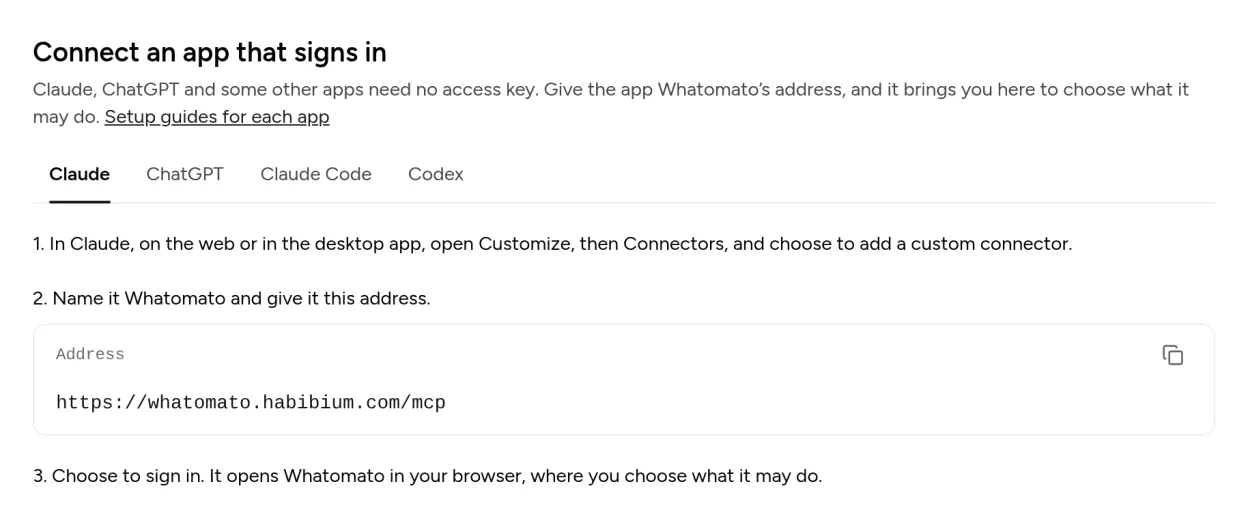
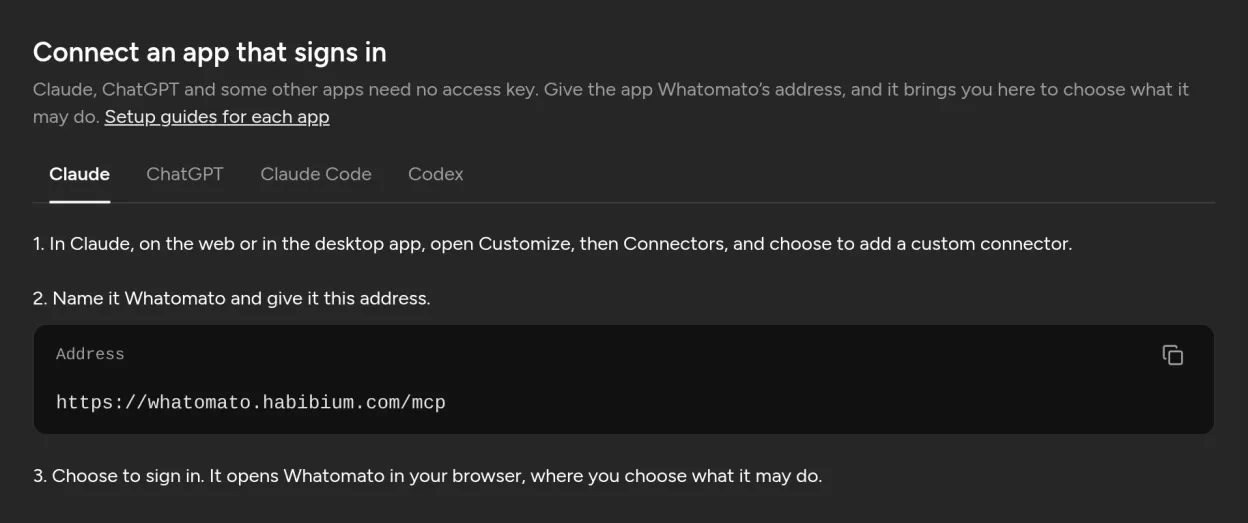
- In Claude, on the web or in the desktop app, open Customize, then Connectors, and choose to add a custom connector.
- Name it Whatomato and give it the address above.
- Choose to sign in. Whatomato opens in your browser.
- In ChatGPT on the web, with developer mode on, open Plugins, choose +, then Add custom MCP server.
- Name it Whatomato and give it the address above.
- Choose OAuth as the way to sign in, then create it. Whatomato opens in your browser.
-
Run this in a terminal:
claude mcp add --scope user --transport http whatomato https://whatomato.habibium.com/mcp -
Start Claude Code, type
/mcp, pickwhatomatoand sign in. Whatomato opens in your browser.
-
Run these in a terminal:
codex mcp add whatomato --url https://whatomato.habibium.com/mcpcodex mcp login whatomato -
Whatomato opens in your browser.
What you see in Whatomato
Section titled “What you see in Whatomato”The page is titled Connect followed by the app’s name. Before you allow anything, check Who is asking:
- Calls itself is the name the app gives. Anyone can claim a name.
- Published at is the address the app publishes its details at, such as
claude.ai. This is the part Whatomato can check. - Sends you back to is where your browser goes afterwards.
An app that runs on your own computer carries a warning, because any program there can claim to be it. Go on only if you started the sign-in yourself, just now.
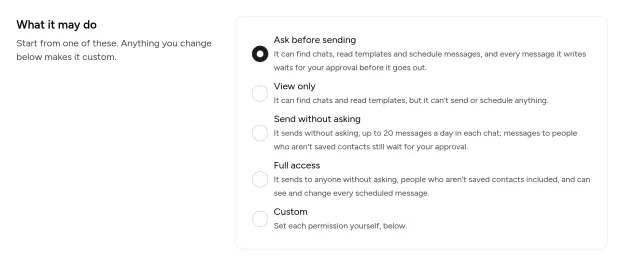
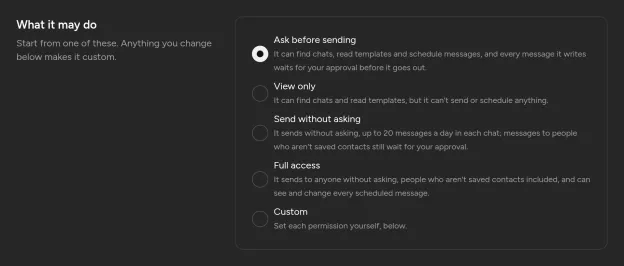
Then give the connection a name, choose its permissions, choose Allow and enter your password. The connection starts as “Ask before sending”. Don’t allow sends you back to the app with nothing connected.
If the app has connected before, you can choose Sign in again to keep that connection’s permissions and activity, or make a new connection.
How long a sign-in lasts
Section titled “How long a sign-in lasts”An app that signs in holds tokens in place of a key: an access token that lasts an hour, and a refresh token that is replaced each time it’s used and runs out after 90 days without use. An app left unused for 90 days has to sign in again; choosing Sign in again keeps its permissions.
If a spent refresh token or a used sign-in code shows up again, Whatomato signs the connection out, since that is what a stolen token looks like. The app has to sign in again, and its permissions stay.
Apps that can’t sign in
Section titled “Apps that can’t sign in”Whatomato knows an app by the address it publishes its details at. An app that only registers itself on request, the older method Cursor uses, can’t sign in, and Whatomato says so. Connect it with a key.
Connect with an access key
Section titled “Connect with an access key”-
Open Agents and choose New connection.
-
Give it a name that says what the agent is, such as “Claude Code on my laptop”.
-
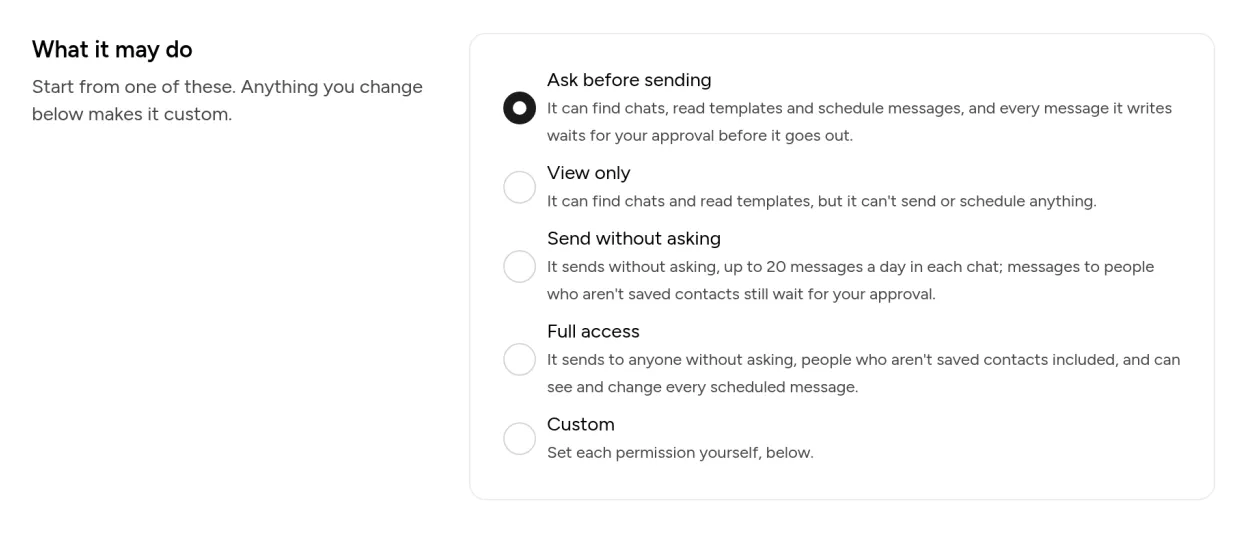
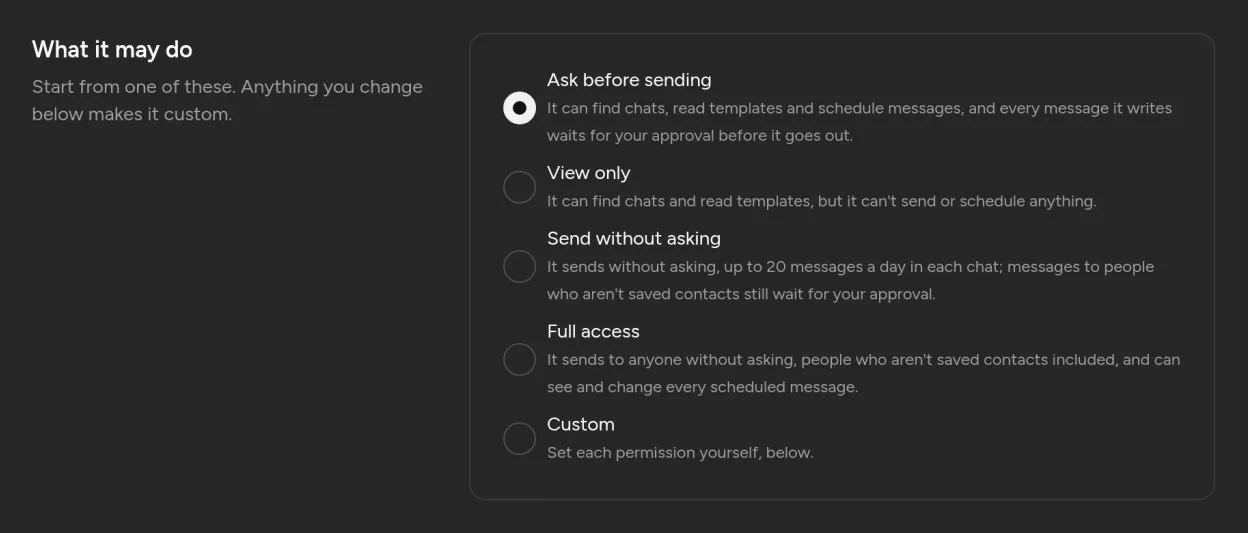
Choose its permissions. It starts as “Ask before sending”.
-
Under Expiry, leave the key to work until you revoke it, or have it stop after a number of days, from 1 to 365.
-
Choose Create connection and enter your password.
-
Copy the access key. It’s shown once: Whatomato keeps only its last four characters.
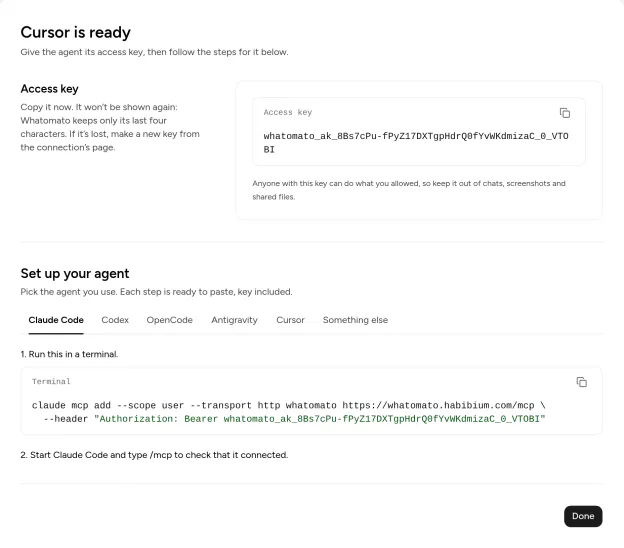
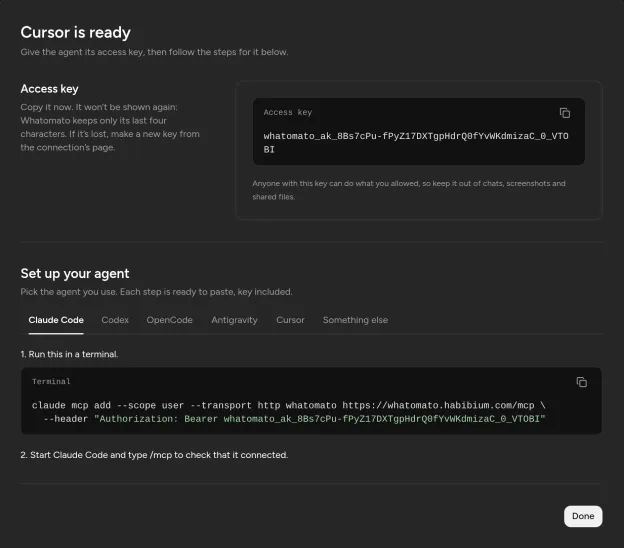
The key in the picture belongs to a demo account and opens nothing.
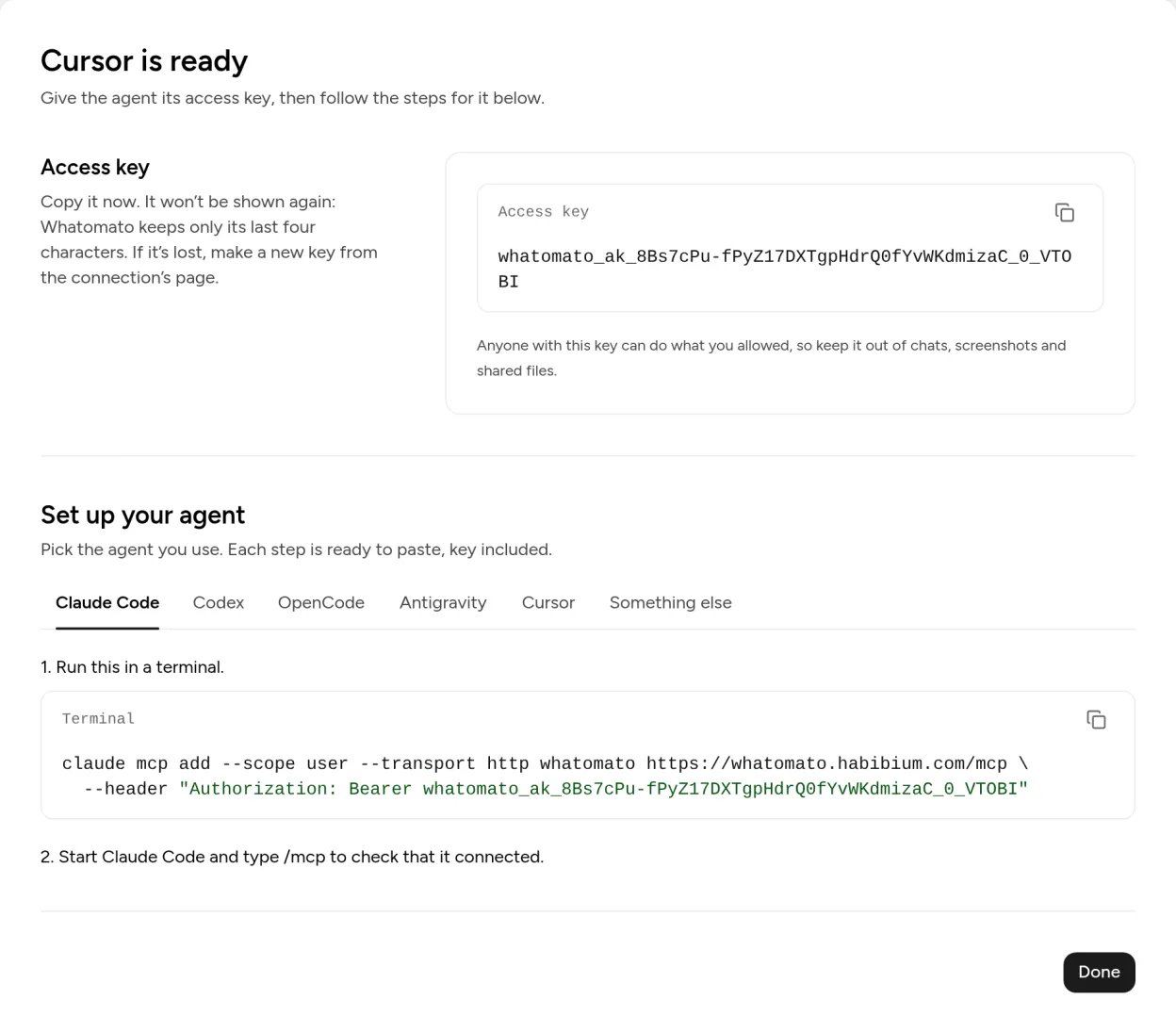
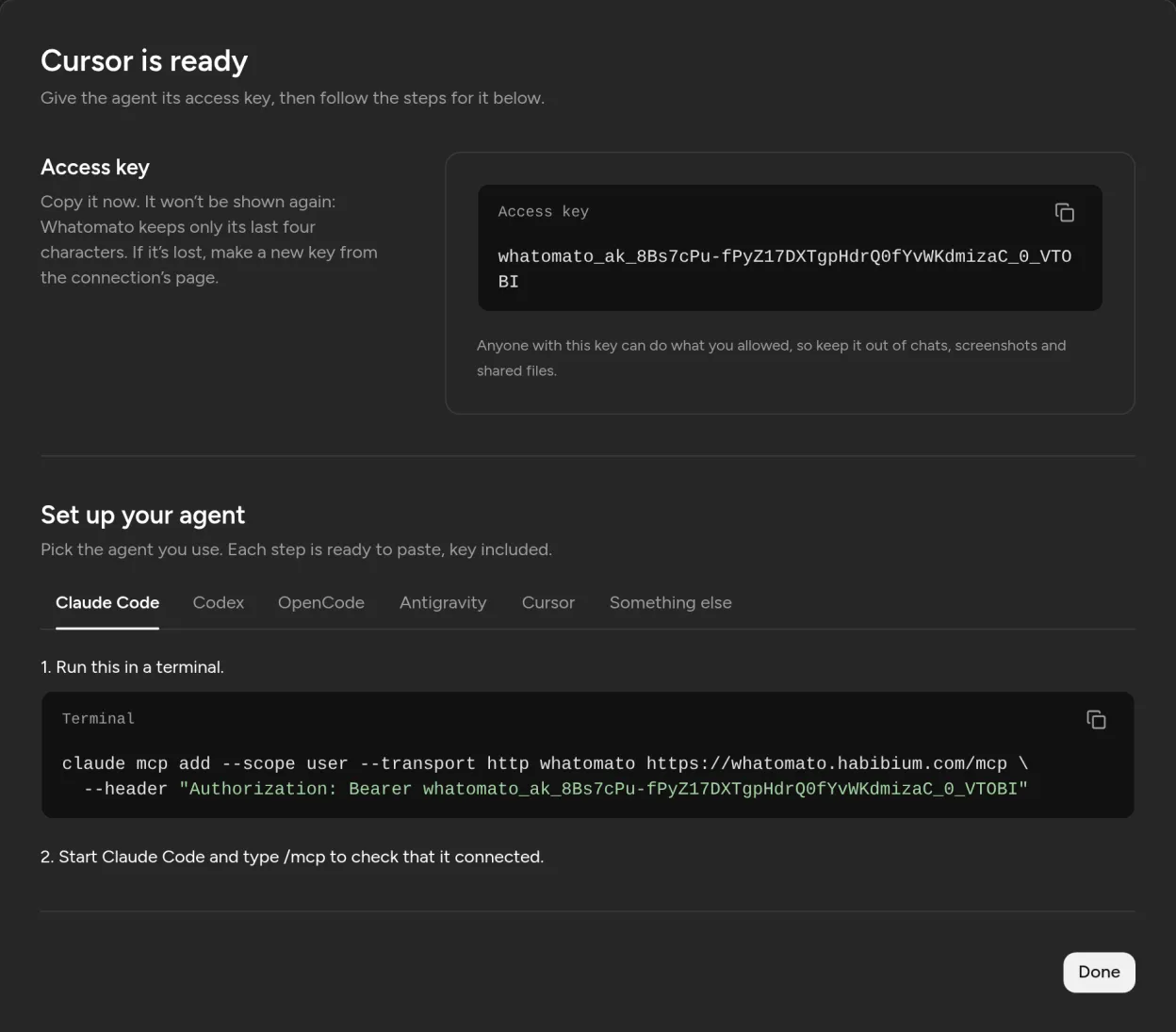
Below the key, the page gives the setup steps for each agent, ready to paste with the key filled in. They are repeated here with YOUR_ACCESS_KEY in its place.
Run this in a terminal, then start Claude Code and type /mcp to check that it connected.
claude mcp add --scope user --transport http whatomato https://whatomato.habibium.com/mcp \ --header "Authorization: Bearer YOUR_ACCESS_KEY"Add this to ~/.codex/config.toml:
[mcp_servers.whatomato]url = "https://whatomato.habibium.com/mcp"bearer_token_env_var = "WHATOMATO_KEY"Codex reads the key from your environment. Add this line to your shell’s profile, such as ~/.zshrc or ~/.bashrc, then open a new terminal:
export WHATOMATO_KEY="YOUR_ACCESS_KEY"Add this to opencode.json, next to anything already under mcp.servers. Keep "oauth": false, so OpenCode sends the key instead of trying to sign in.
{ "mcp": { "servers": { "whatomato": { "type": "remote", "url": "https://whatomato.habibium.com/mcp", "oauth": false, "headers": { "Authorization": "Bearer YOUR_ACCESS_KEY" } } } }}Add this to ~/.gemini/config/mcp_config.json, next to anything already under mcpServers:
{ "mcpServers": { "whatomato": { "serverUrl": "https://whatomato.habibium.com/mcp", "headers": { "Authorization": "Bearer YOUR_ACCESS_KEY" } } }}Add this to ~/.cursor/mcp.json, next to anything already under mcpServers:
{ "mcpServers": { "whatomato": { "url": "https://whatomato.habibium.com/mcp", "headers": { "Authorization": "Bearer YOUR_ACCESS_KEY" } } }}Add a remote MCP server at the address above. It speaks Streamable HTTP. Send this header with every request:
Authorization: Bearer YOUR_ACCESS_KEYCheck that it works
Section titled “Check that it works”Ask the agent what it’s allowed to do. It calls whoami, which reports the connection’s name, whether your WhatsApp can send right now, and its permissions. The call also shows under Activity on the Agents page.
A lost or leaked key
Section titled “A lost or leaked key”Open the connection from the Agents page and choose Replace the key. The old key stops working at once, and you see the new one once. Every agent that used the old key is refused until you give it the new one.


To set the same connection up on another machine, its page repeats the setup steps. The key isn’t shown again, so put yours where YOUR_ACCESS_KEY is, or replace the key.