
Templates and variables
Save the text you send often, and let variables fill in each person's name or the day's date as a message goes out.
Templates
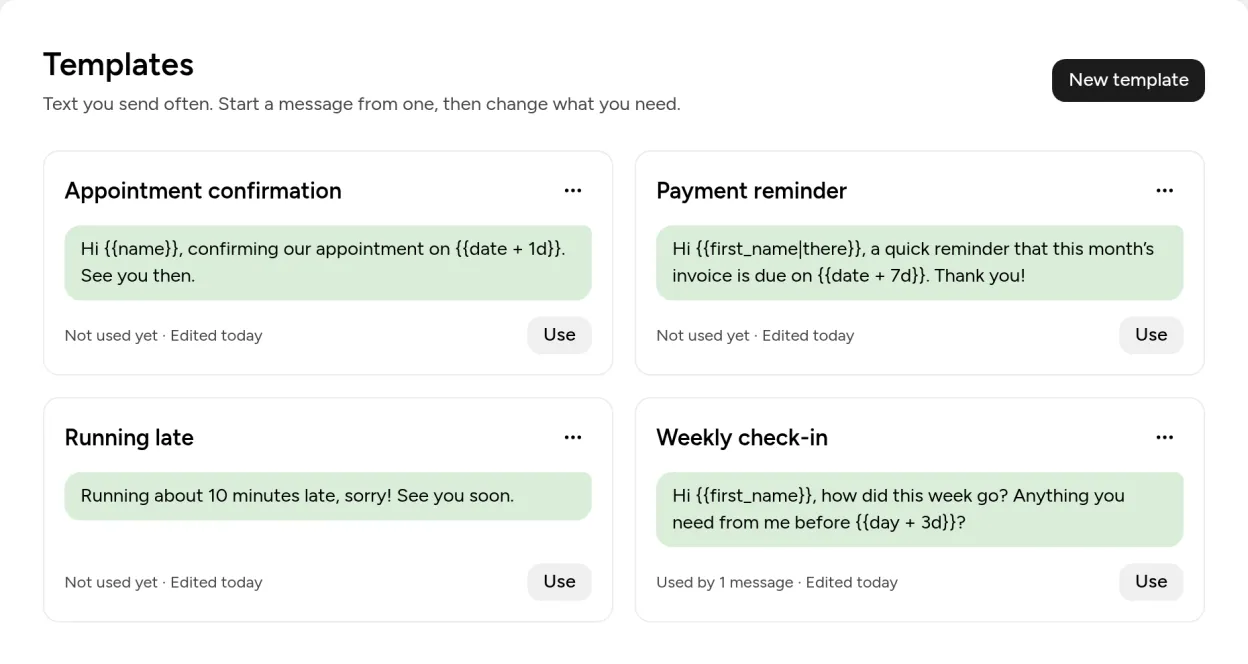
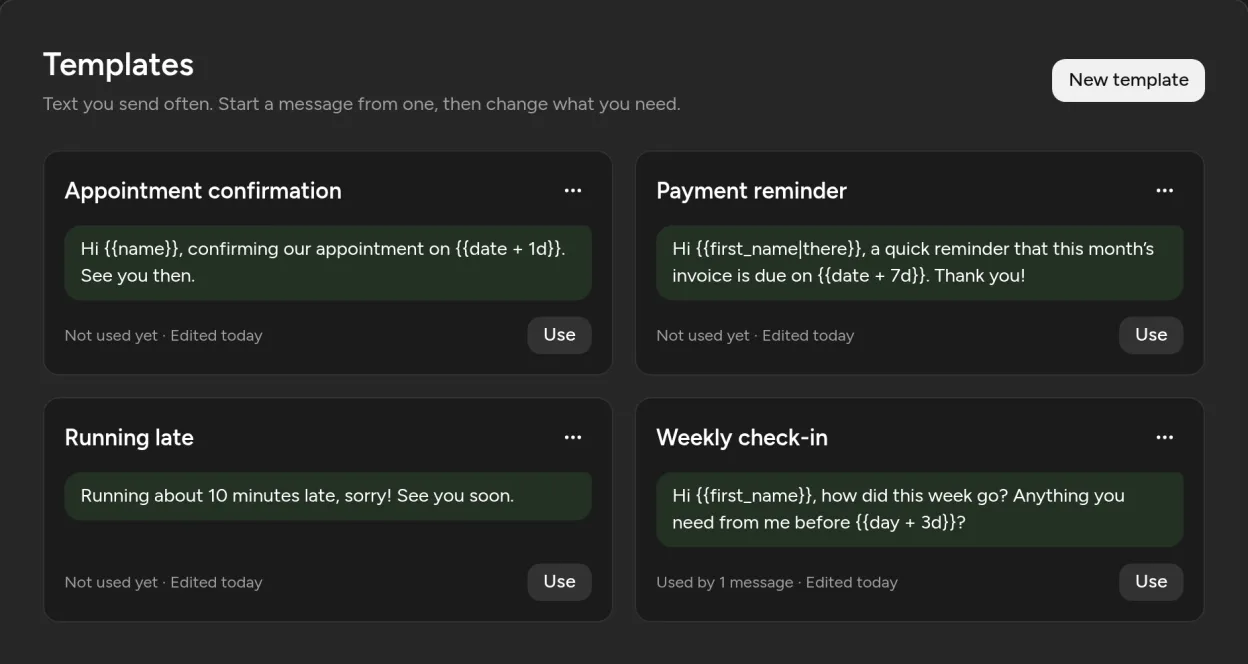
Section titled “Templates”A template is text you can drop into a message when you write one. Open Templates and choose New template, give it a name and write the text. A name can be up to 100 characters and the text up to 4096.
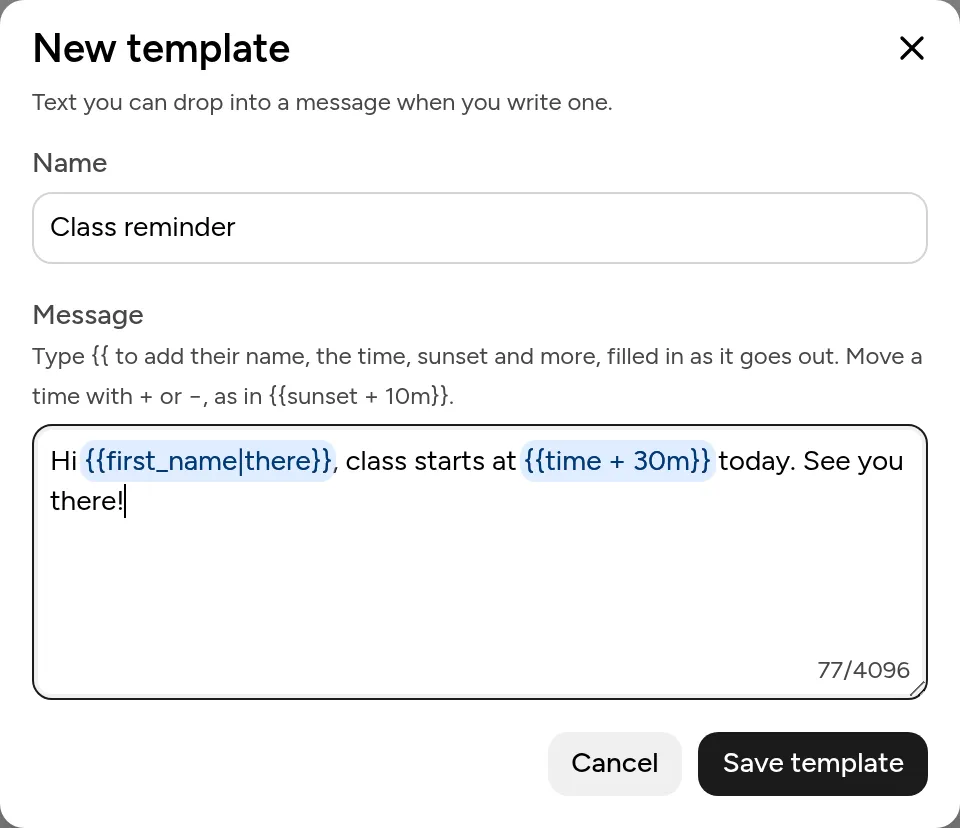
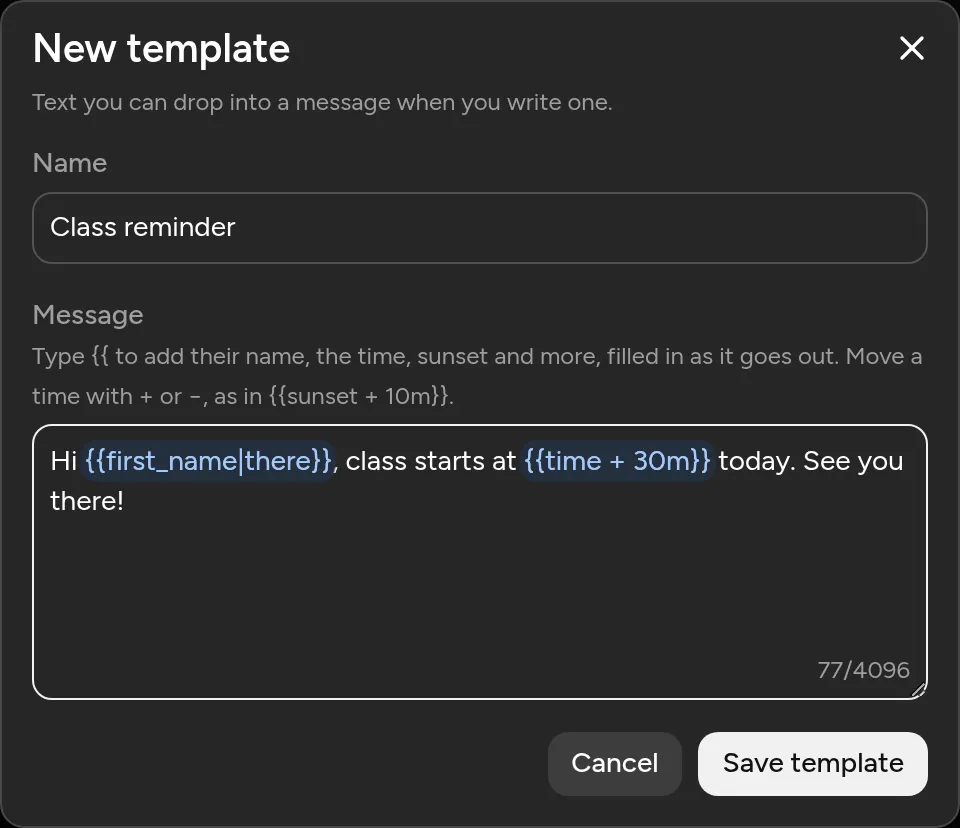
To use one:
- on the Templates page, choose Use on a template, which opens a new message with its text; or
- in the message form, pick it under Apply template, which replaces whatever the message says with the template’s text.
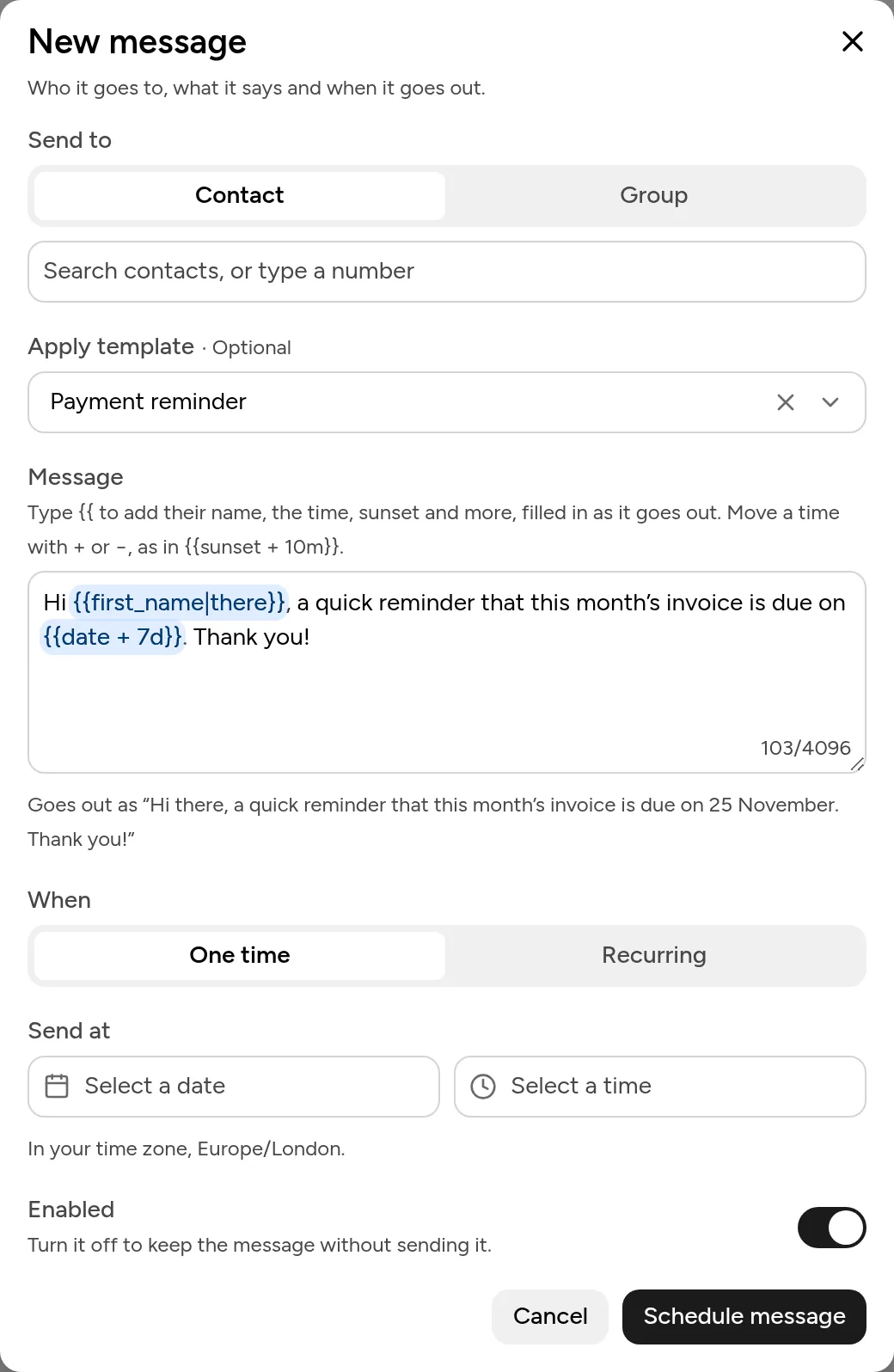
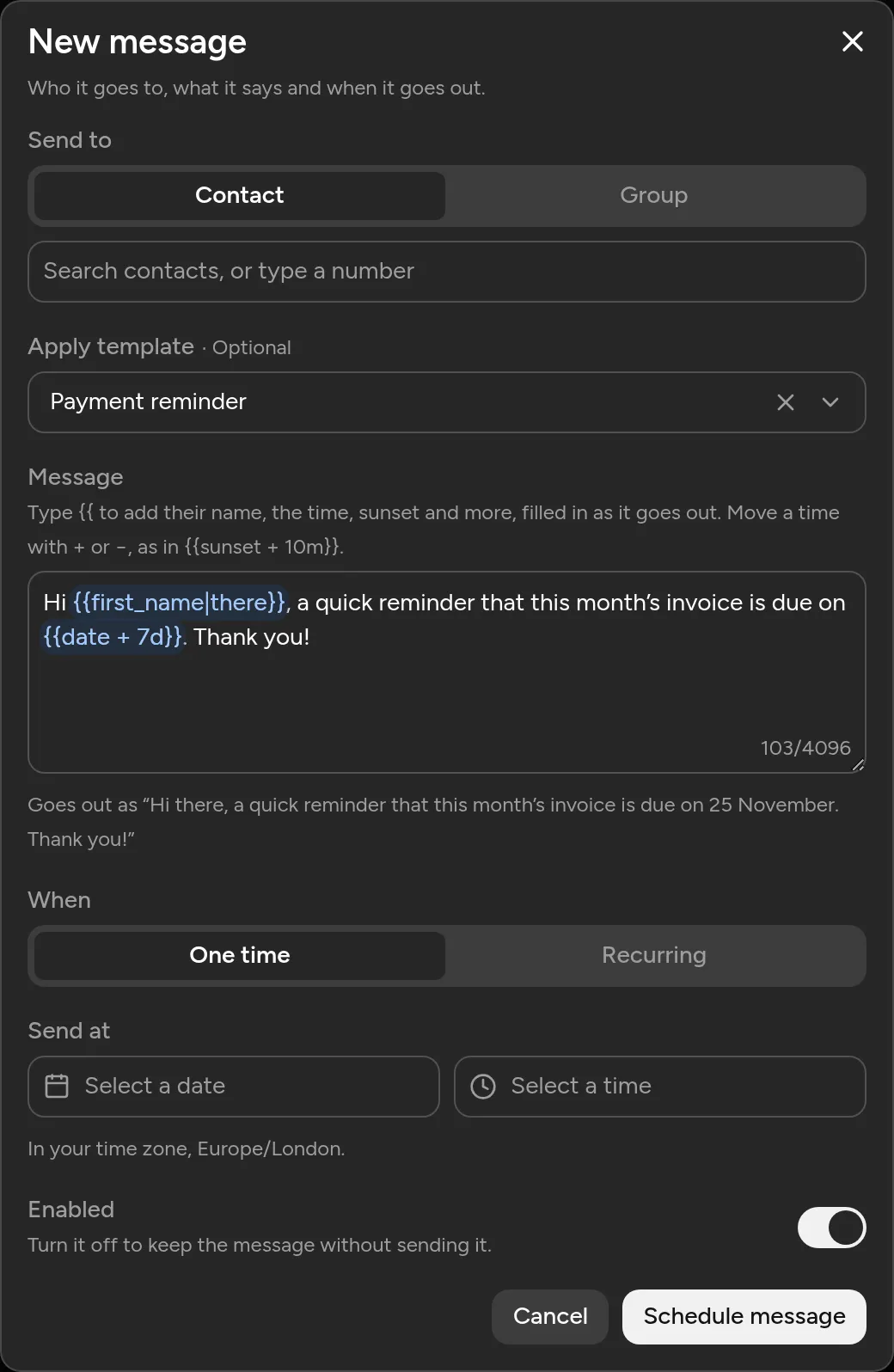
The text is copied into the message at that moment. Editing a template later doesn’t change messages already made from it, and deleting a template leaves their text alone. Each template shows how many messages use it.
Variables
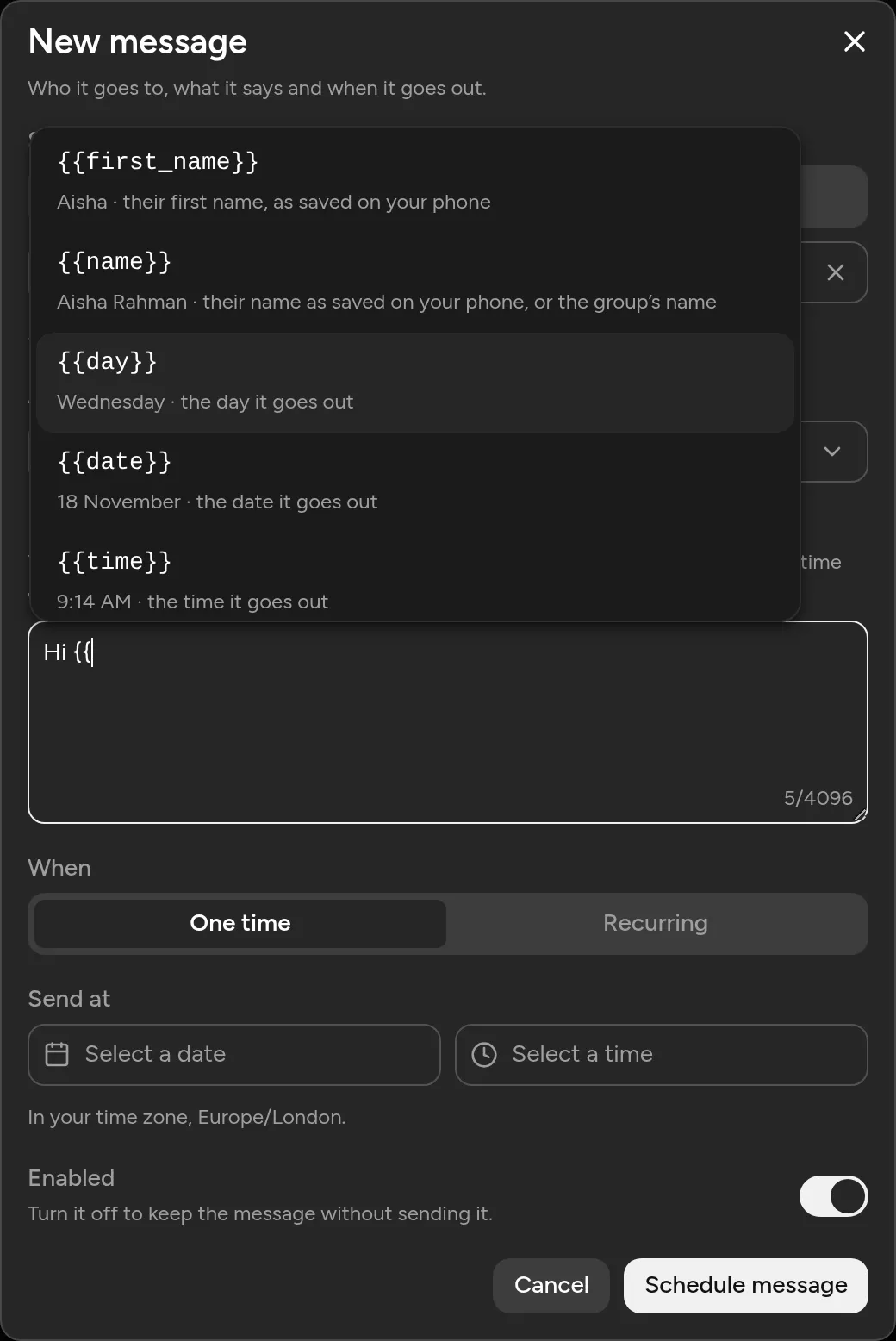
Section titled “Variables”A variable is a name in double braces that Whatomato replaces as each message goes out. Type {{ in a message or a template and pick one from the list.
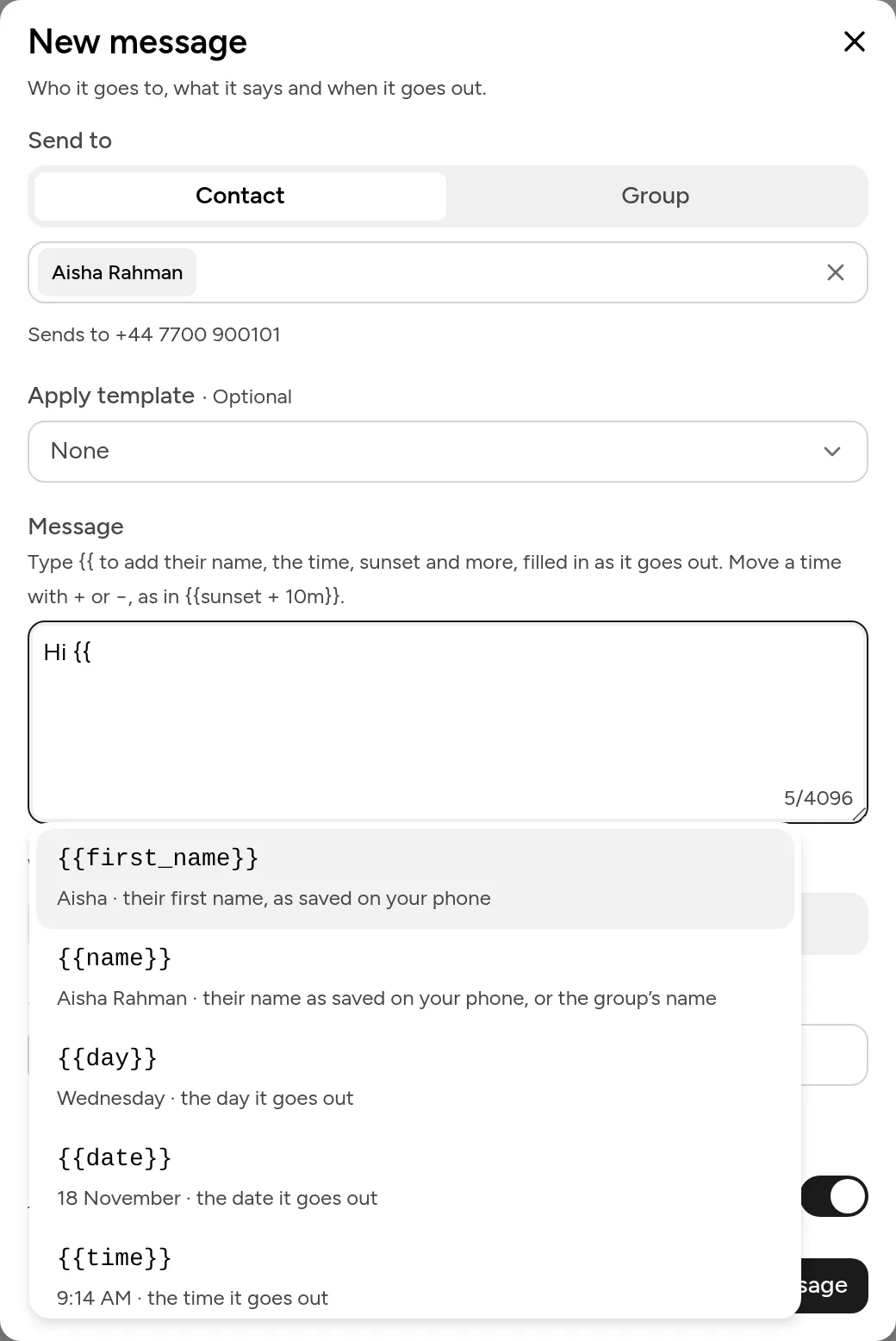
Hi {{first_name|there}}, a reminder that rent is due on {{date + 3d}}.goes out to Amina on 27 November as
Hi Amina, a reminder that rent is due on 30 November.| Variable | Becomes | Example |
|---|---|---|
{{first_name}} |
The person’s first name, as saved on your phone | Amina |
{{name}} |
Their full name as saved on your phone, or the group’s name | Amina Rahman |
{{day}} |
The day it goes out | Friday |
{{date}} |
The date it goes out | 27 November |
{{time}} |
The time it goes out | 9:05 PM |
{{month}} |
The month it goes out | November |
{{year}} |
The year it goes out | 2026 |
{{sunrise}} |
Sunrise on the day it goes out | 6:08 AM |
{{sunset}} |
Sunset on the day it goes out | 5:16 PM |
When there’s no value
Section titled “When there’s no value”A fallback goes after a bar. {{first_name|there}} says “there” when there’s no first name, which is always the case for a group. Without a fallback, a variable with no value leaves nothing behind, so Hi {{first_name}}! would go out as Hi !. The form warns you when a variable would come out empty for the recipient you chose.
Moving a time
Section titled “Moving a time”Any of the time variables can move by minutes, hours or days: {{sunset + 10m}}, {{time - 30m}}, {{date + 1d}}. Use a plain hyphen for minus.
Things to know
Section titled “Things to know”- Day and month names are in English, and times are in 12-hour form with AM or PM, whatever language your phone or the recipient’s uses.
- Dates and times read in the message’s own time zone.
- They describe the time the message was due. A message that leaves late, after a retry for instance, still says its planned time.
- Saving refuses a variable that doesn’t exist, so a typo can’t go out as raw braces.
Message variables has the full grammar and every rule.