
Link your WhatsApp
Connect your WhatsApp account as a linked device, by scanning a QR code or typing a code on your phone, and pause or unlink it later.
Whatomato joins your account the way WhatsApp Web does, as a linked device. Your phone keeps working as usual, and messages go out from your own number.
Each Whatomato account links one WhatsApp account. Linking and unlinking ask for your Whatomato password again.
Link with a QR code
Section titled “Link with a QR code”You need the phone that has WhatsApp, and a second screen to show the code on.
-
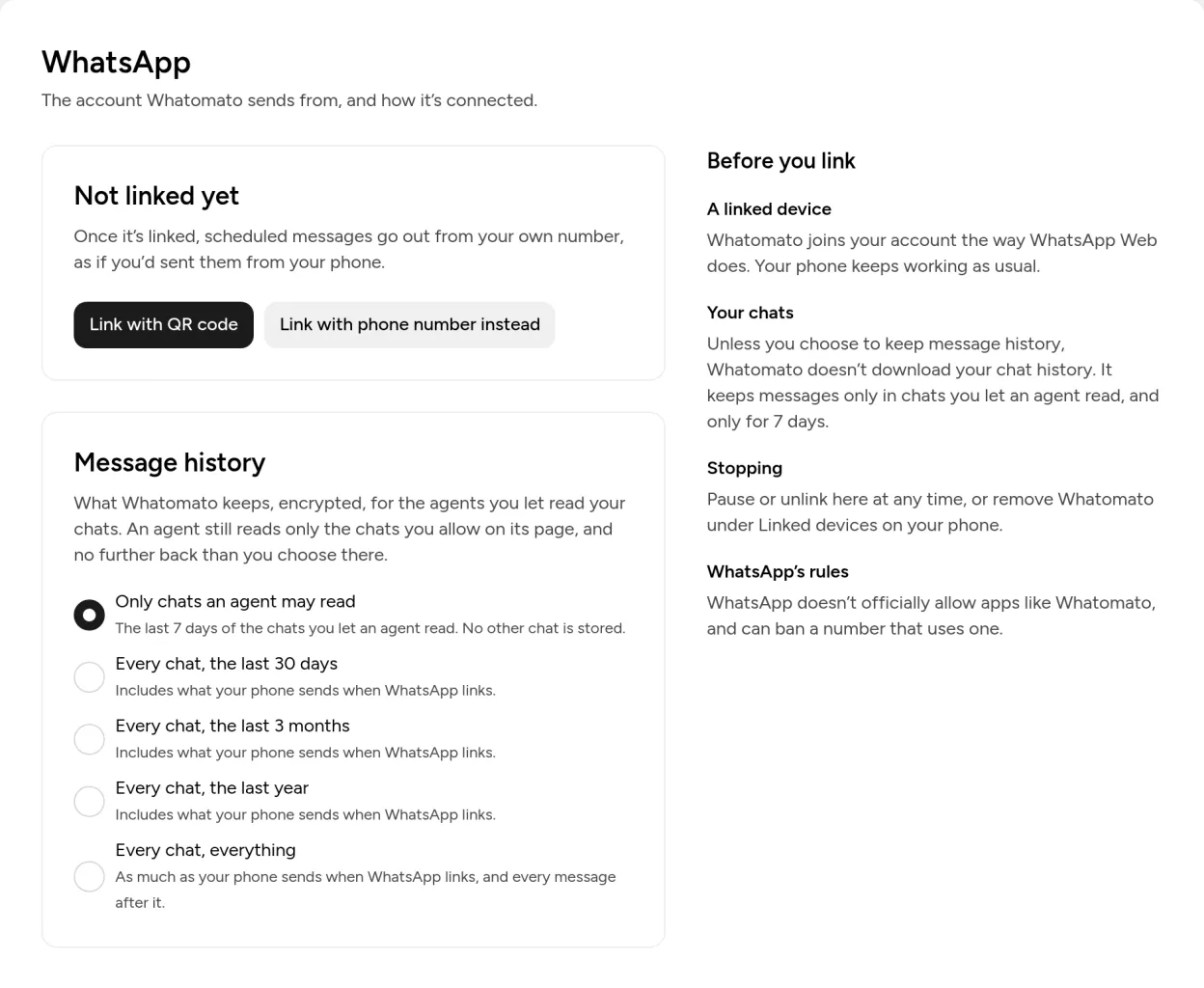
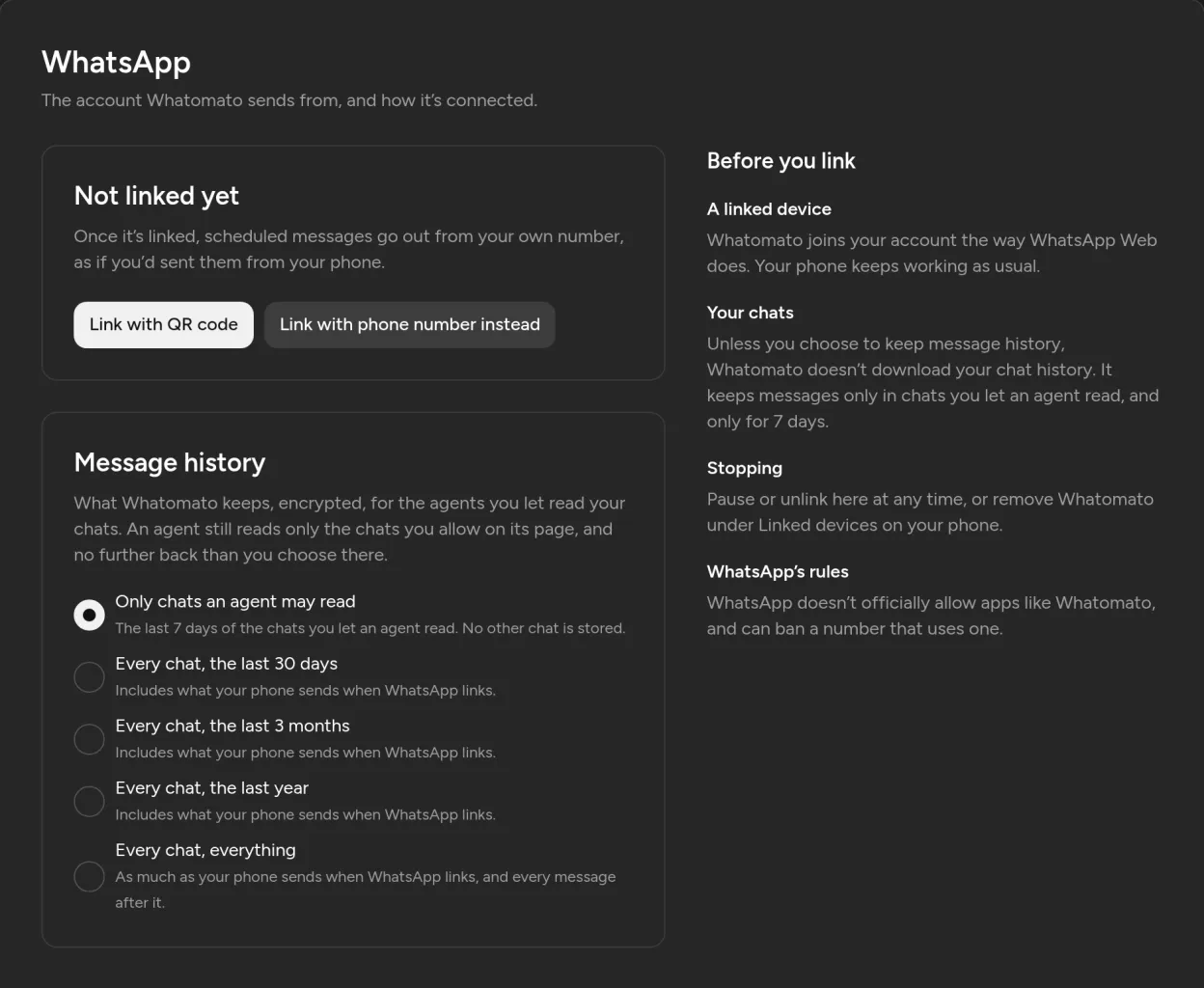
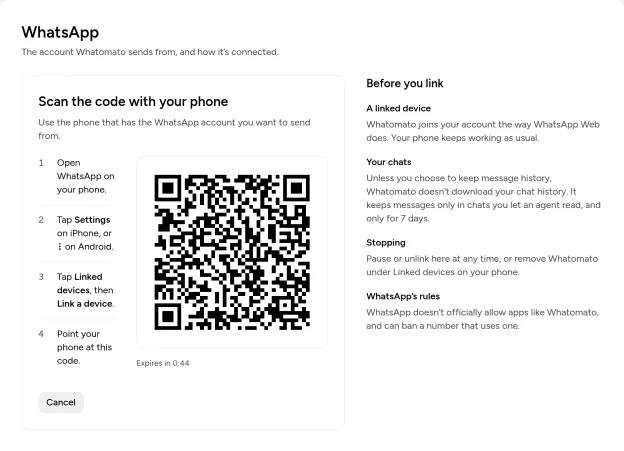
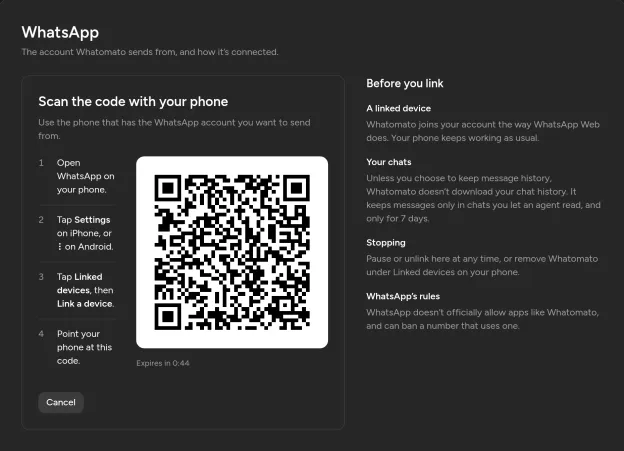
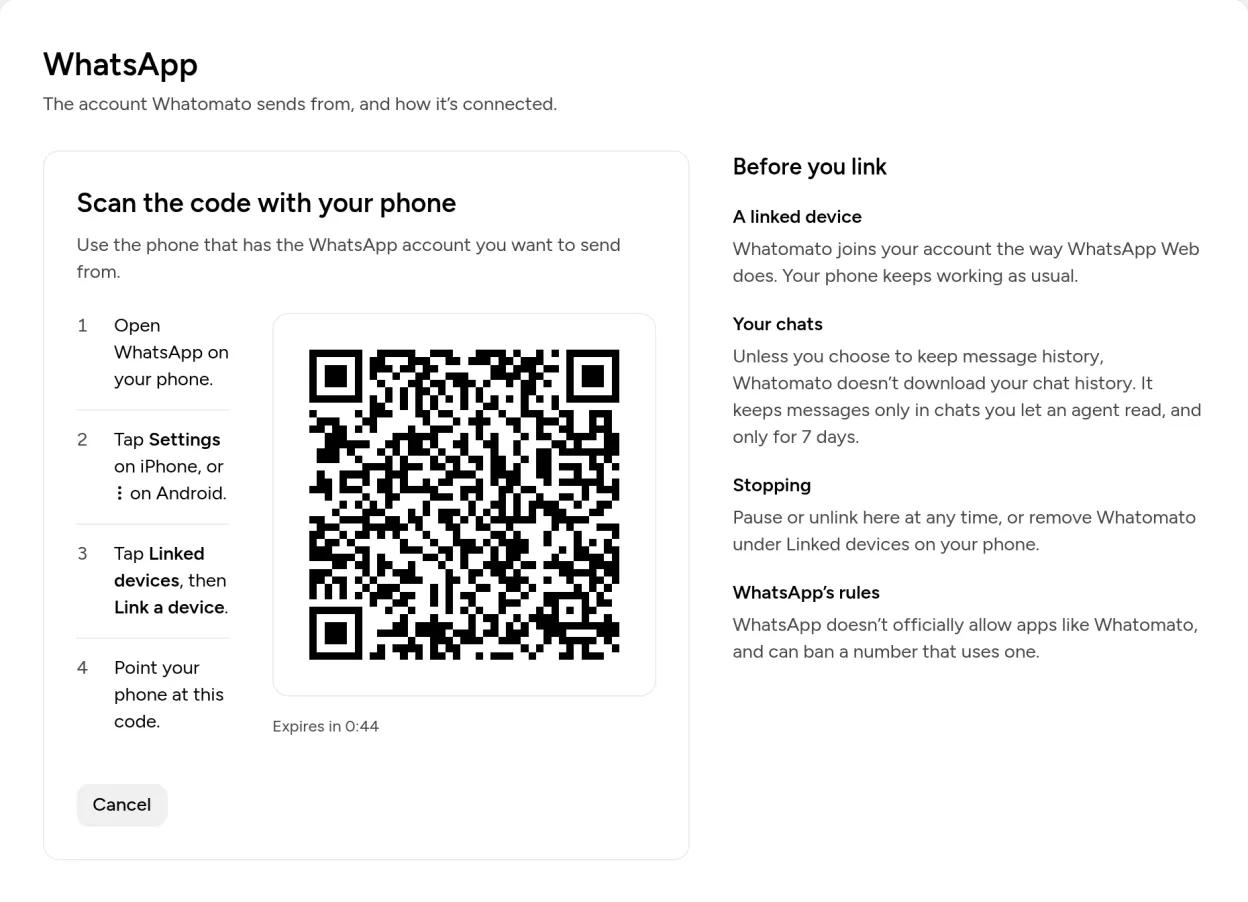
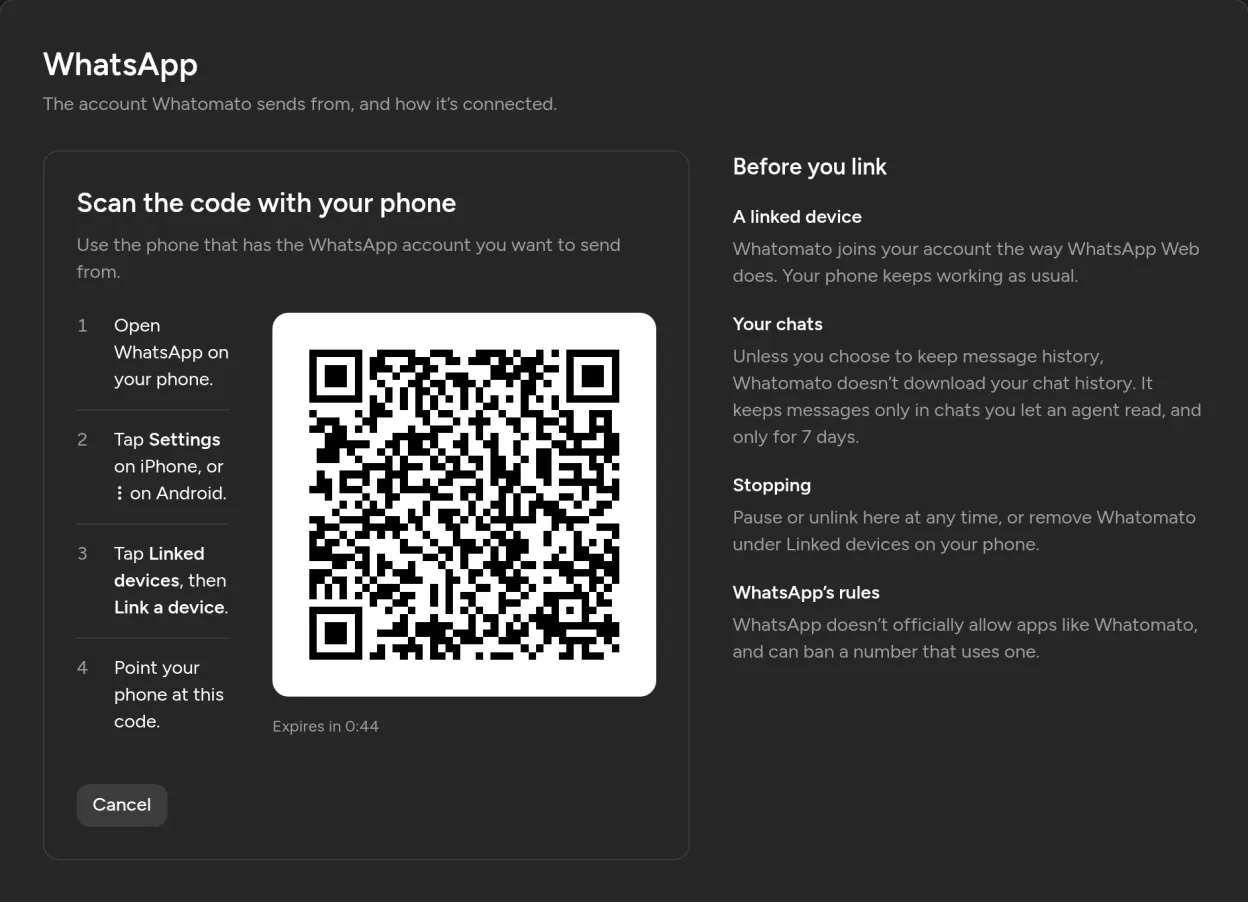
In Whatomato, open WhatsApp and choose Link with QR code.
-
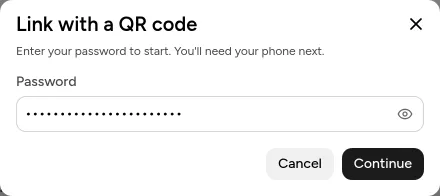
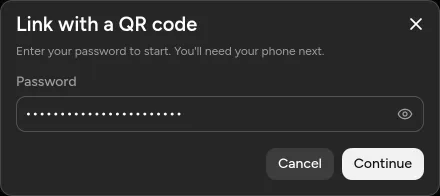
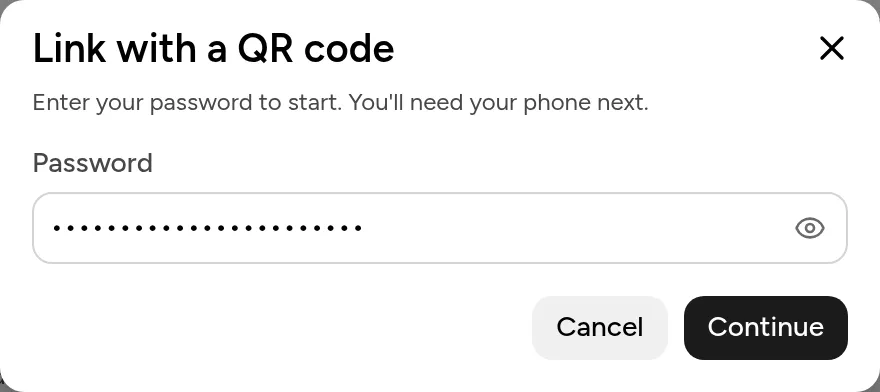
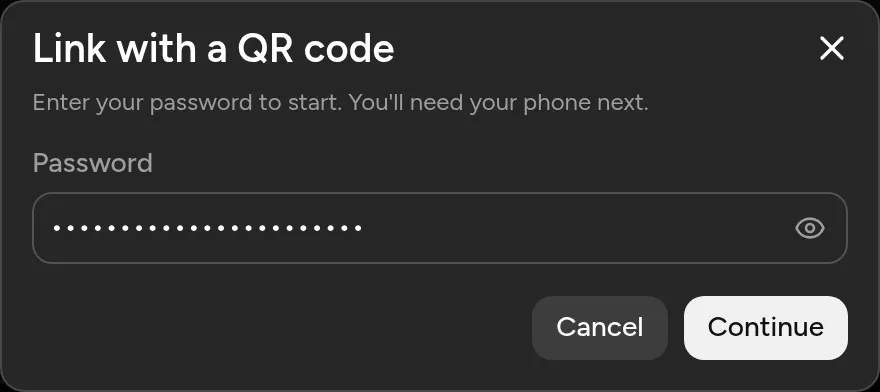
Enter your password and choose Continue.
-
On your phone, open WhatsApp. Tap Settings on iPhone, or ⋮ on Android.
-
Tap Linked devices, then Link a device.
-
Point your phone at the code on the screen.
Link with a phone number
Section titled “Link with a phone number”Use this when Whatomato is open on the same phone that has WhatsApp, so there’s nothing to point the camera at.
-
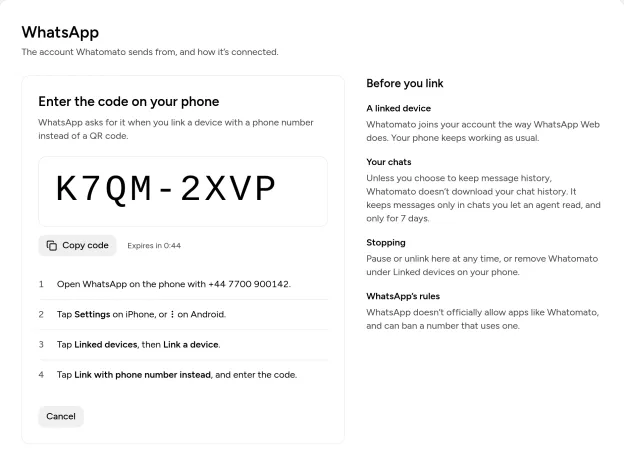
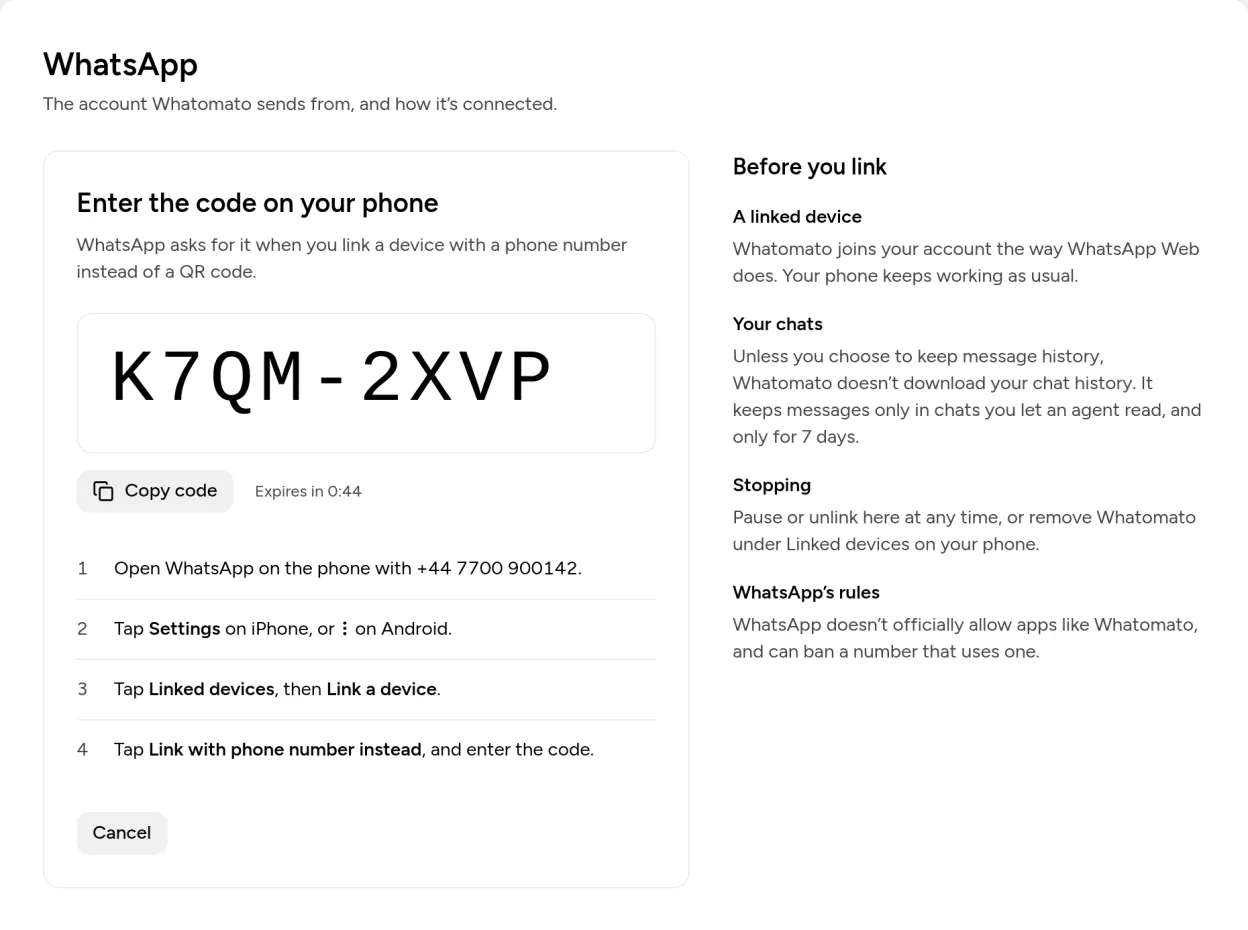
In Whatomato, open WhatsApp and choose Link with phone number instead.
-
Enter the number of the phone that has WhatsApp, with its country code, then your password, and choose Continue.
-
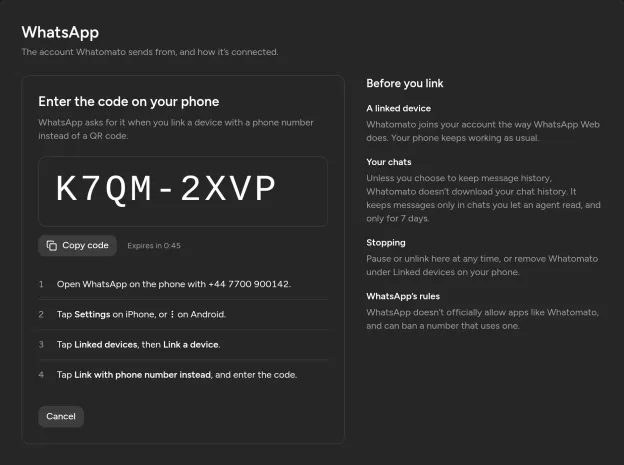
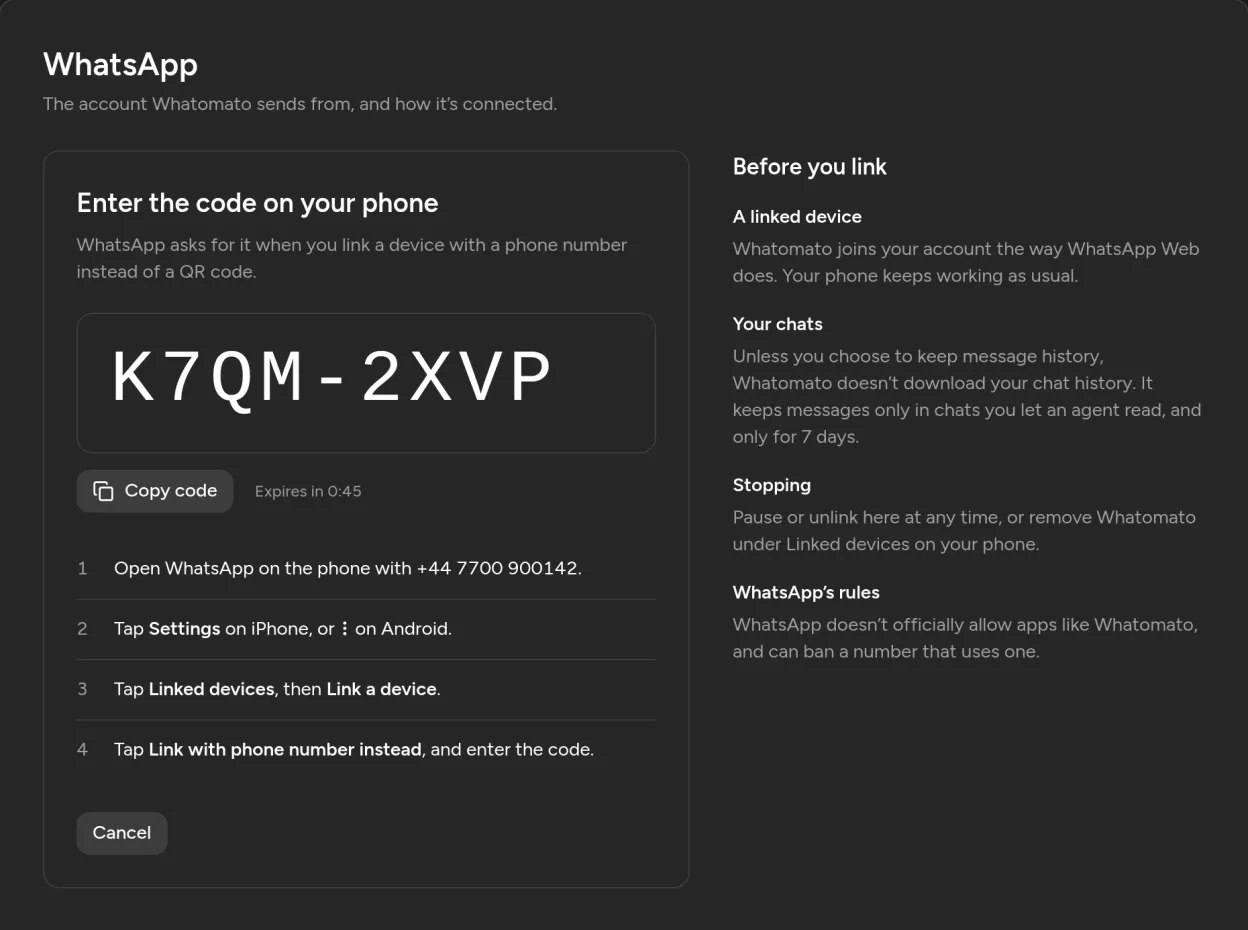
Whatomato shows an 8-character code. Copy code copies it.
-
On your phone, open WhatsApp. Tap Settings on iPhone, or ⋮ on Android.
-
Tap Linked devices, then Link a device.
-
Tap Link with phone number instead and enter the code.
While you’re linking
Section titled “While you’re linking”- Each code expires quickly, and a new one replaces it by itself. The page counts down to each change.
- A linking attempt ends after 5 minutes. QR codes run out sooner, after about 3 minutes. If that happens you see Linking stopped; start again for a new code.
- Linking runs on the server, so leaving the page doesn’t stop it. Cancel does.
- You can start linking 5 times, then once every 10 minutes.
If the page says there’s no room for another WhatsApp account on this server, the instance has reached the number of accounts its operator allows. Try again later.
After your phone links
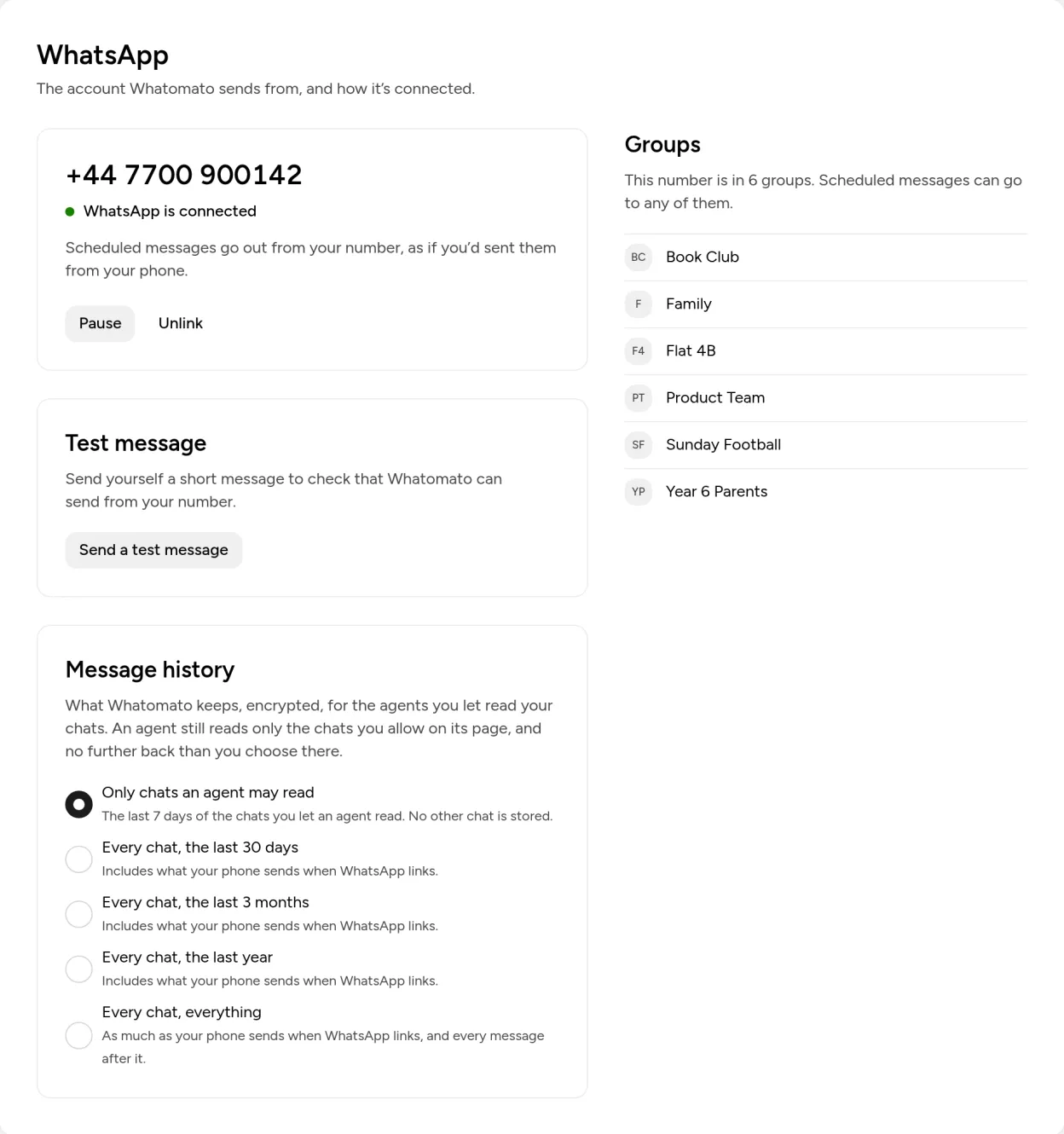
Section titled “After your phone links”The page shows WhatsApp is linked while it syncs for the first time, which can take a few minutes. You can leave the page while it does. Whatomato emails you to say a number was linked, and your phone starts sharing its saved contacts.
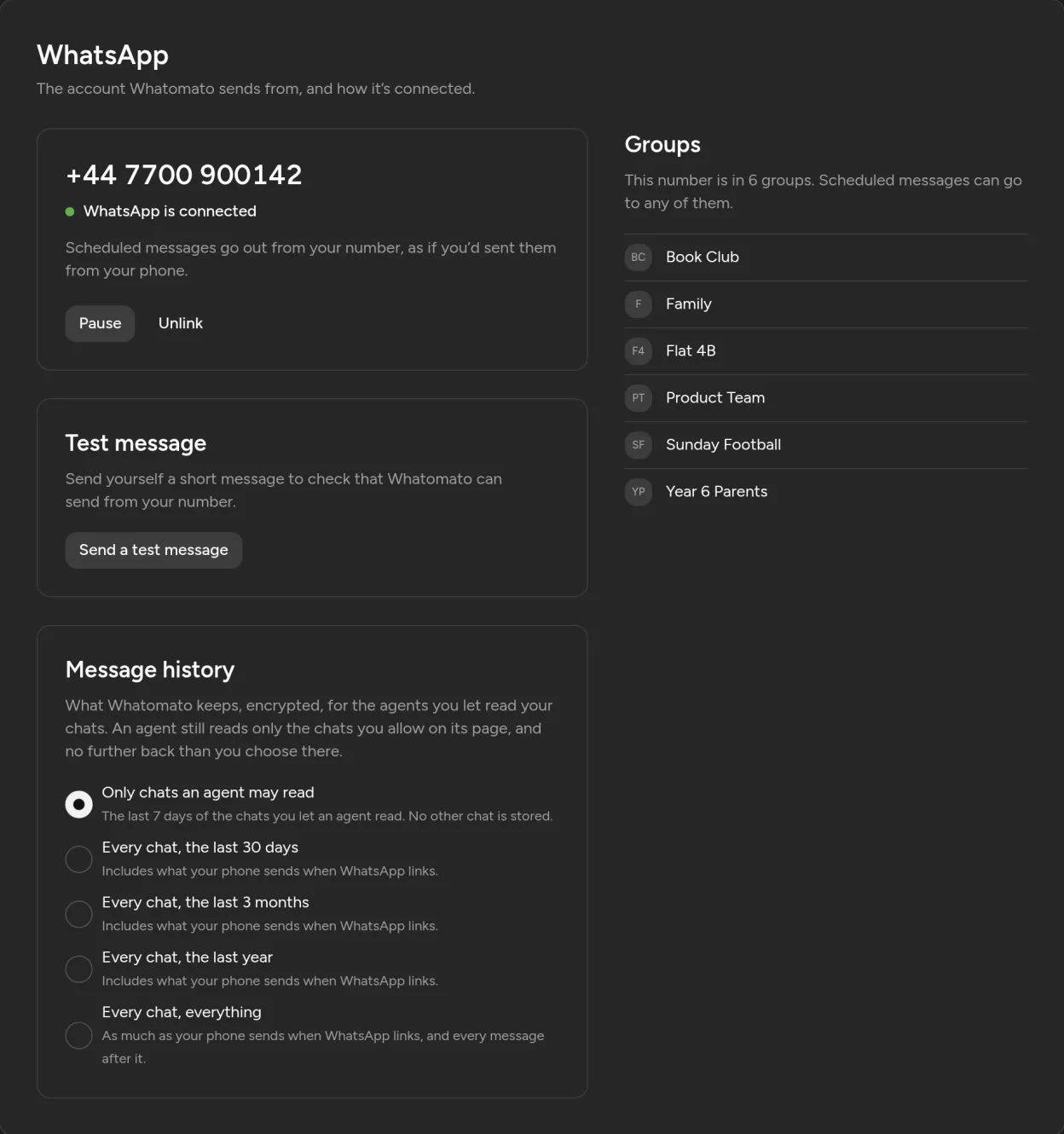
Once it says WhatsApp is connected, Send a test message sends a short message to your own “Message yourself” chat, to prove that sending works.
On your phone, Whatomato is listed under Linked devices with your other devices.
What each status means
Section titled “What each status means”The WhatsApp item in the side navigation carries a status dot, and the page says more.
| The page says | What it means | What you can do |
|---|---|---|
| WhatsApp is linked | The first sync is running. | Wait, or Unlink. |
| WhatsApp is connected | Messages go out from your number. | Pause, Unlink. |
| Reconnecting to WhatsApp | The connection dropped and Whatomato is reconnecting by itself. Sends wait, and keep trying for about half an hour. | Nothing is needed. |
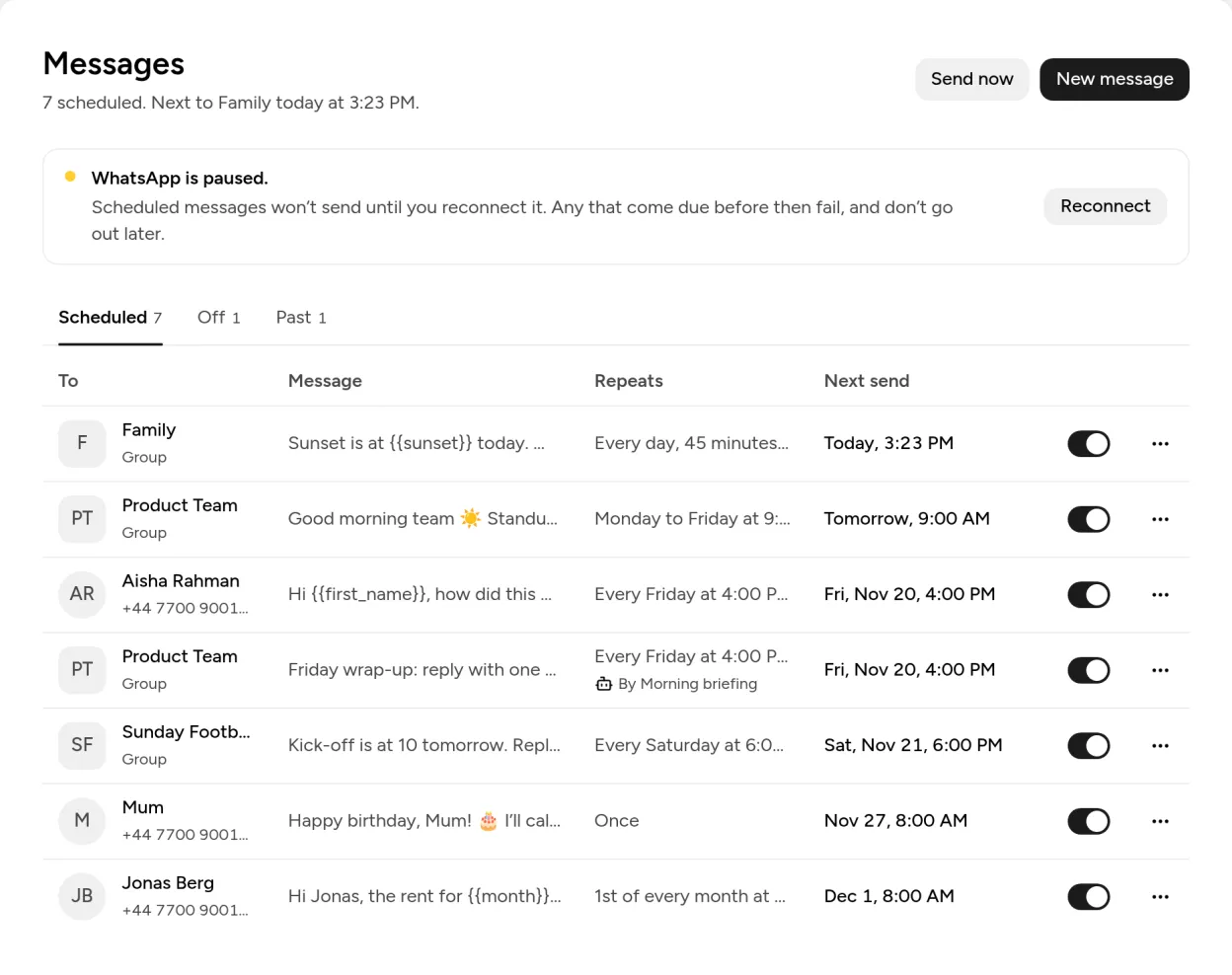
| WhatsApp is paused | You disconnected it and kept the link. Nothing is sent. | Reconnect, Unlink. |
| Another session took over | Something else connected with the keys that link Whatomato to your account. | Unlink, then link again for new keys. |
| WhatsApp has banned this number for now | A temporary ban. The page gives its end time when WhatsApp does. | Reconnect once the ban is over. |
| Whatomato needs an update | WhatsApp stopped accepting the version Whatomato connects with. | Try Reconnect later. |
| WhatsApp refused the connection | WhatsApp gave no reason. | Reconnect. If it keeps happening, unlink and link again. |
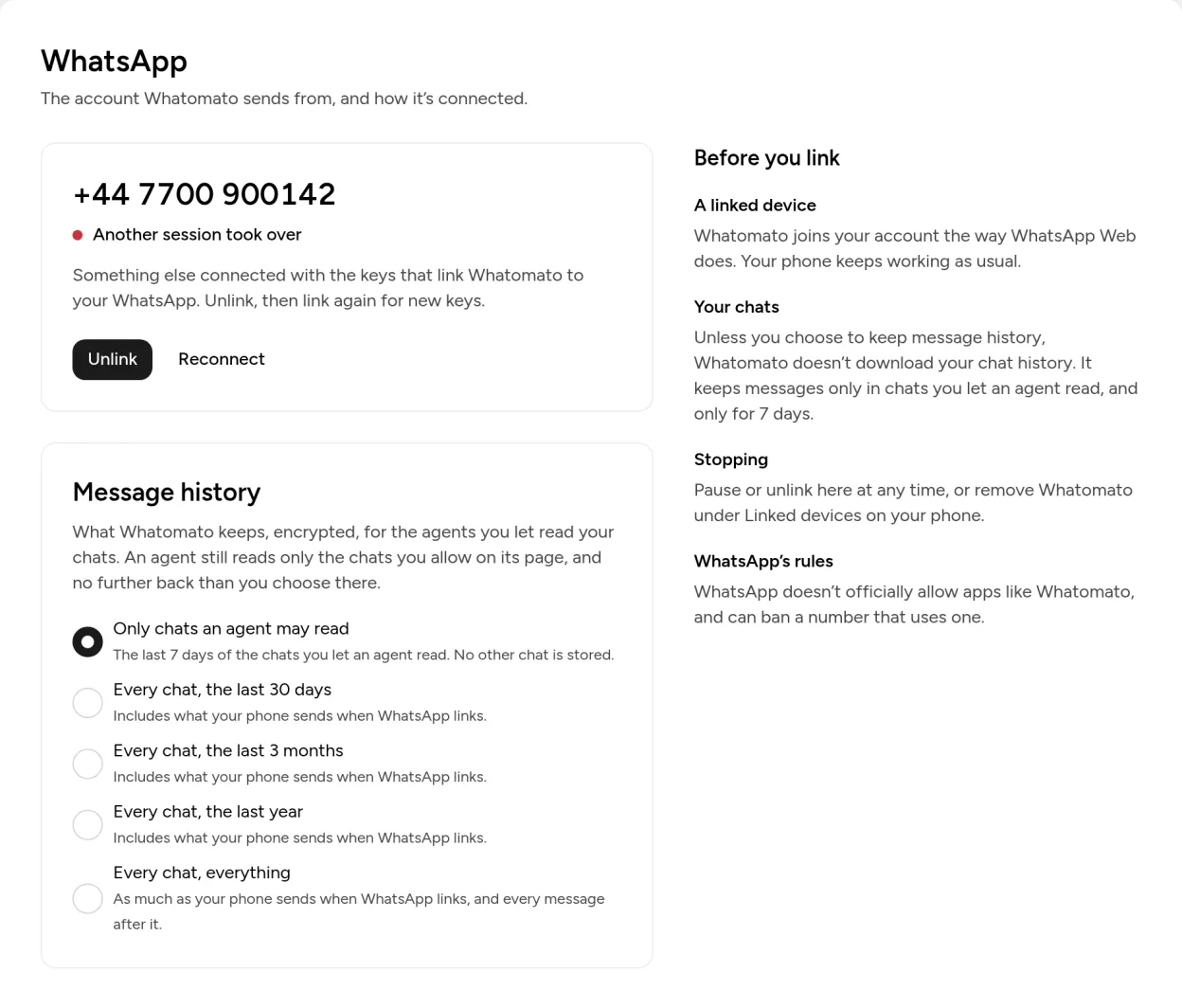
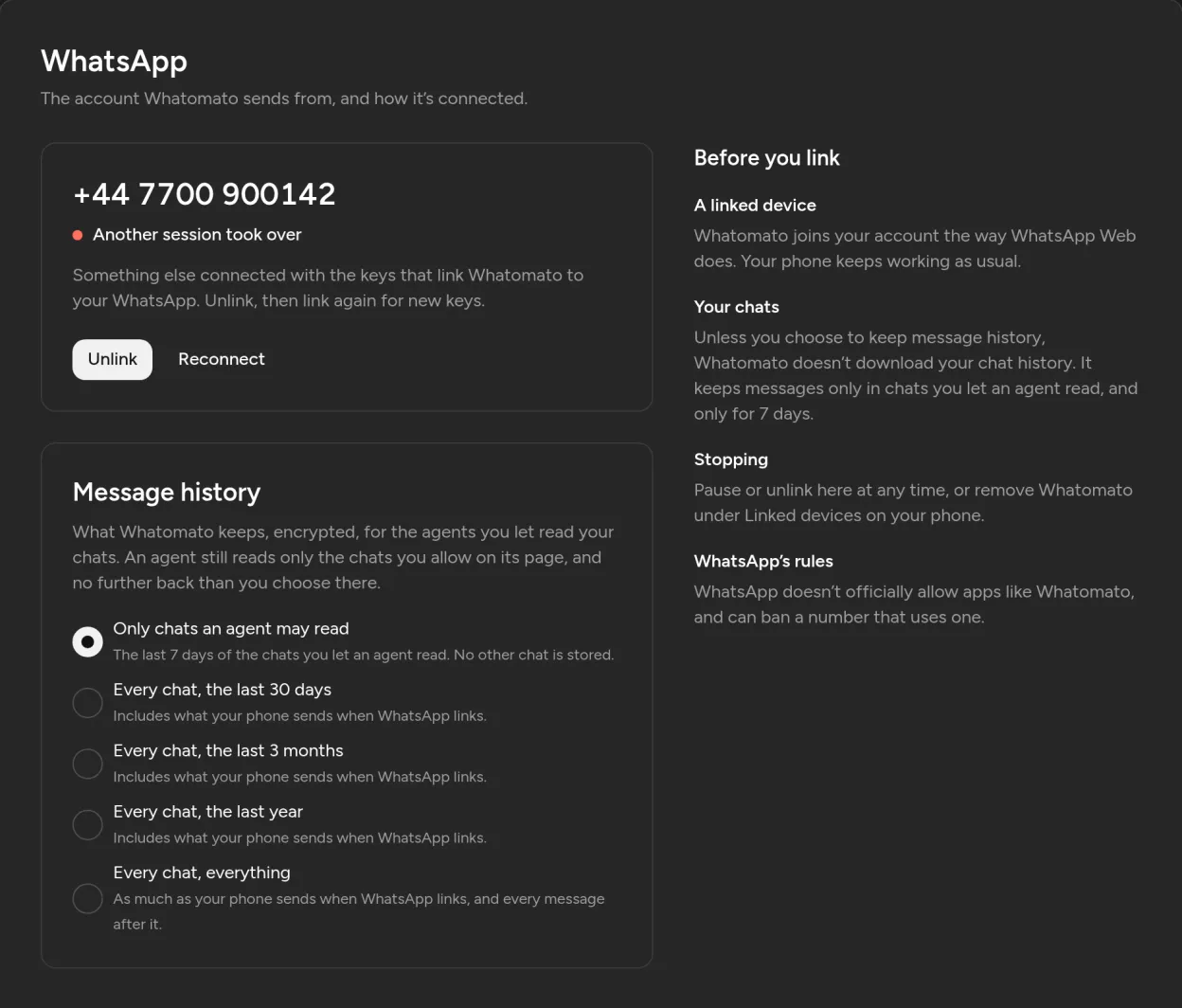
You get an email when a number is linked or unlinked, when the device is removed from your phone, when another session takes over, and when WhatsApp bans the number. Pausing and reconnecting send no email.
Pause and reconnect
Section titled “Pause and reconnect”Pause disconnects Whatomato and keeps the link, so reconnecting needs no new code. Neither asks for your password.
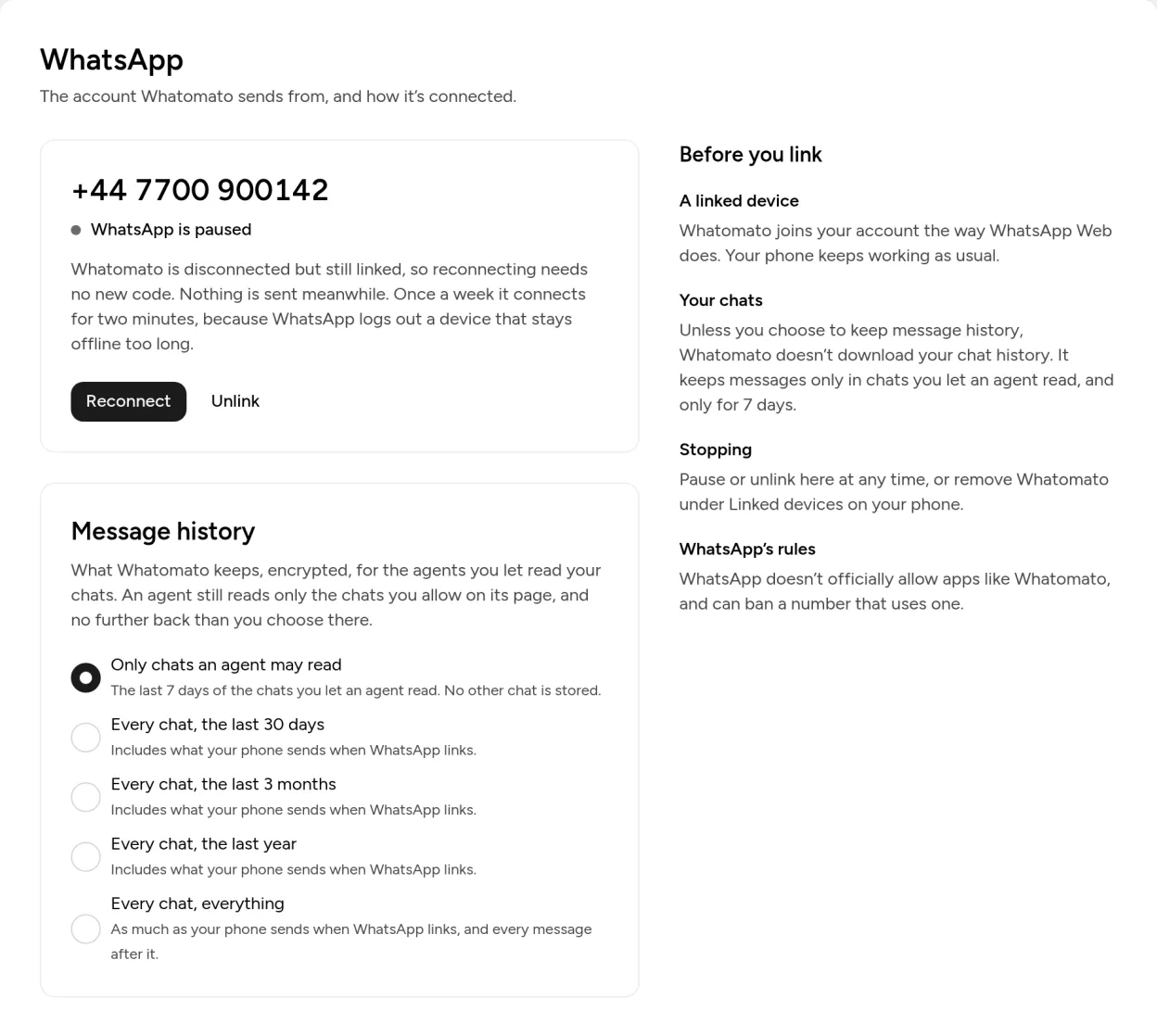
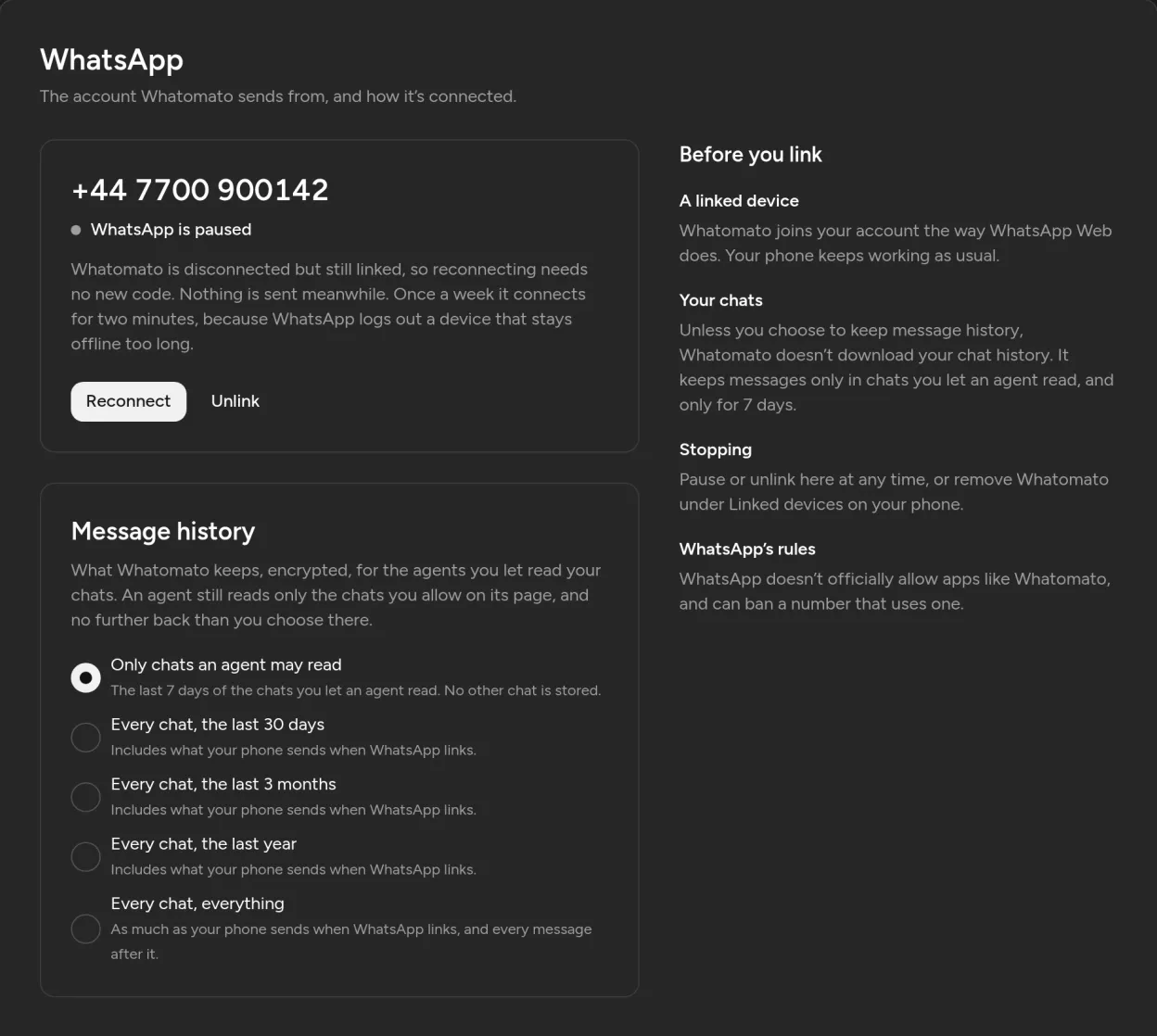
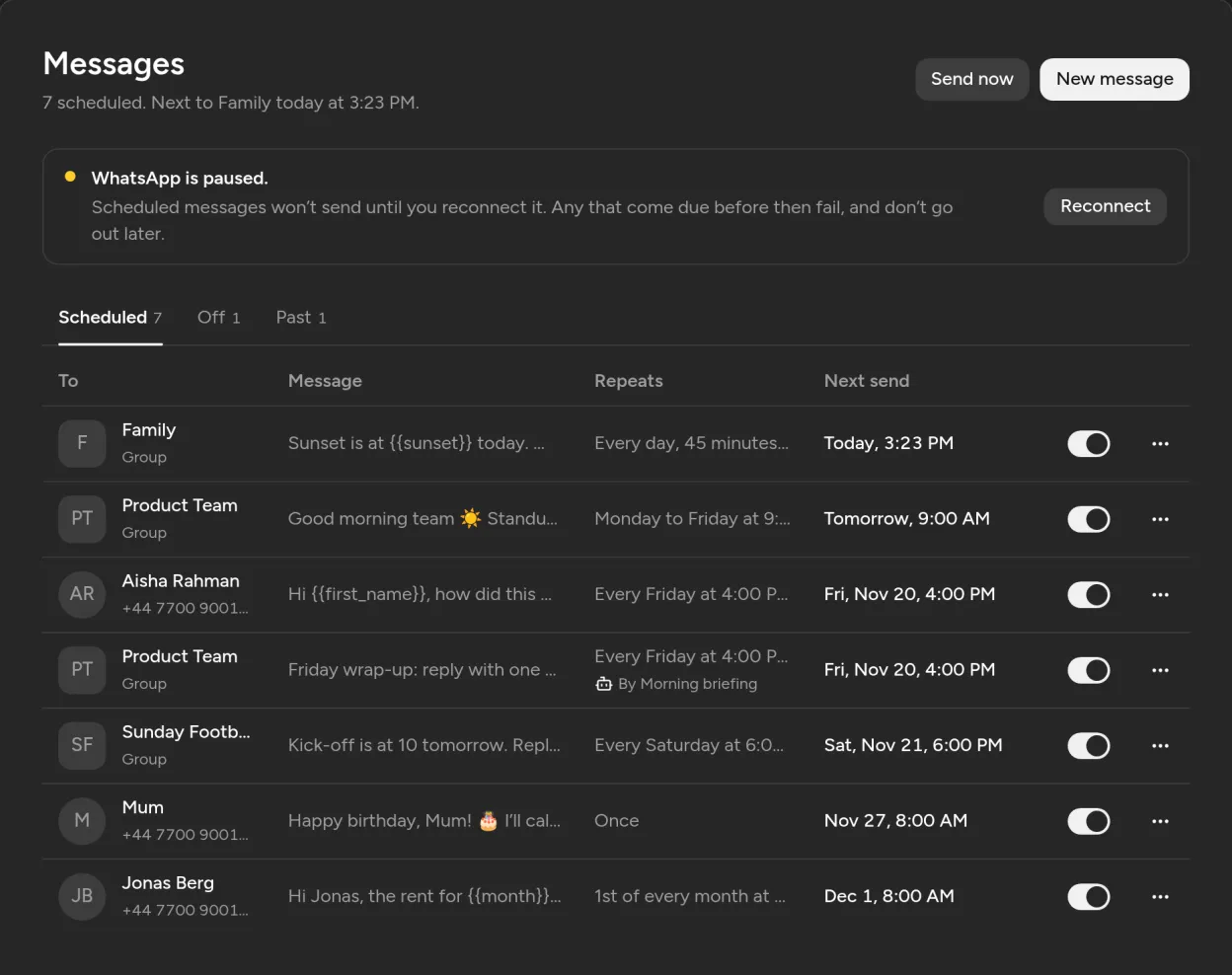
While it’s paused, nothing is sent. A scheduled message that comes due fails, and doesn’t go out later, so pause only when that is what you want.
WhatsApp logs out a linked device that stays offline too long. To keep the link alive, a paused account connects for about two minutes once a week and sends nothing.
Unlink
Section titled “Unlink”Unlink asks for your password. Whatomato then logs out of your WhatsApp and deletes the keys that linked it, together with its copy of your contacts and the messages it kept for agents to read. Your scheduled messages, templates and history stay; the messages stop sending until you link again.
If WhatsApp can’t be reached, the keys are deleted anyway and the page tells you to remove Whatomato from your phone too: open Linked devices on your phone, tap Whatomato, then Log out.
Removing Whatomato under Linked devices on your phone does the same as unlinking here.
Staying linked
Section titled “Staying linked”- WhatsApp logs out every linked device when the phone itself stays unused for about two weeks. Nothing in Whatomato can prevent that, so open WhatsApp on your phone now and then.
- A connected account shows as online for 45 seconds once a day, which keeps the phone from flagging the device as inactive.
- An account stopped by a takeover or a ban stays offline until you reconnect it.