
Account and security
Signing in, resetting a password, and the two things that keep a stolen password from being enough, two-step verification and passkeys.
Whoever gets into your Whatomato account can send WhatsApp messages from your number. A password alone shouldn’t be enough, so turn on two-step verification or add a passkey.
Your account
Section titled “Your account”An account is an email address and a password of 8 to 128 characters. Sign-up refuses a password that appears in a known data breach.
The account can’t sign in until the address is verified through the emailed link, which works once, for 24 hours. Opened in the browser that signed up, the link also signs you in. Anywhere else it only verifies the address, so a link opened in someone else’s browser can’t sign them into your account. If the link has expired, the page it opens offers to send a new one.
A session lasts 30 days and extends while you use it.
A few things an account can’t do yet: change its email address, change its password while signed in, list its signed-in devices, or delete itself. To change your password, use Forgot your password? on the sign-in page.
Reset your password
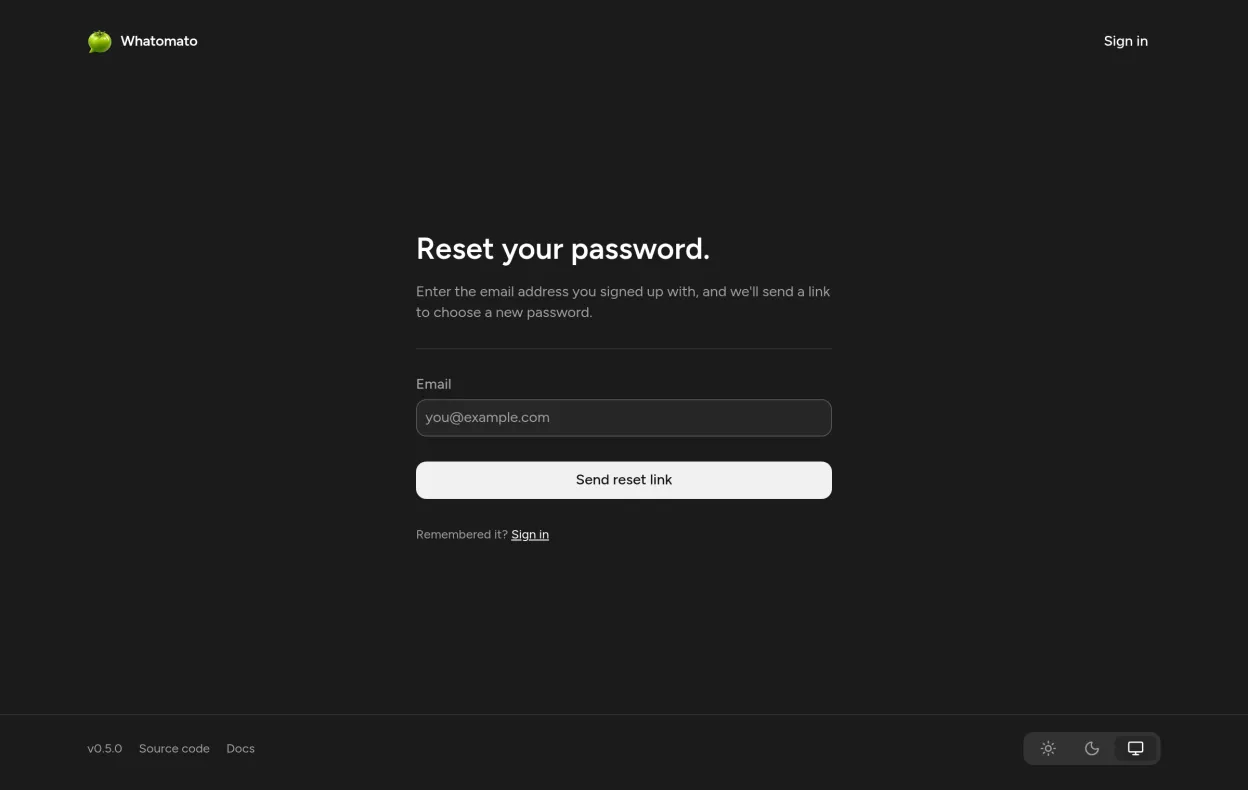
Section titled “Reset your password”On the sign-in page choose Forgot your password? and enter your email. The link in the email works once, for an hour.
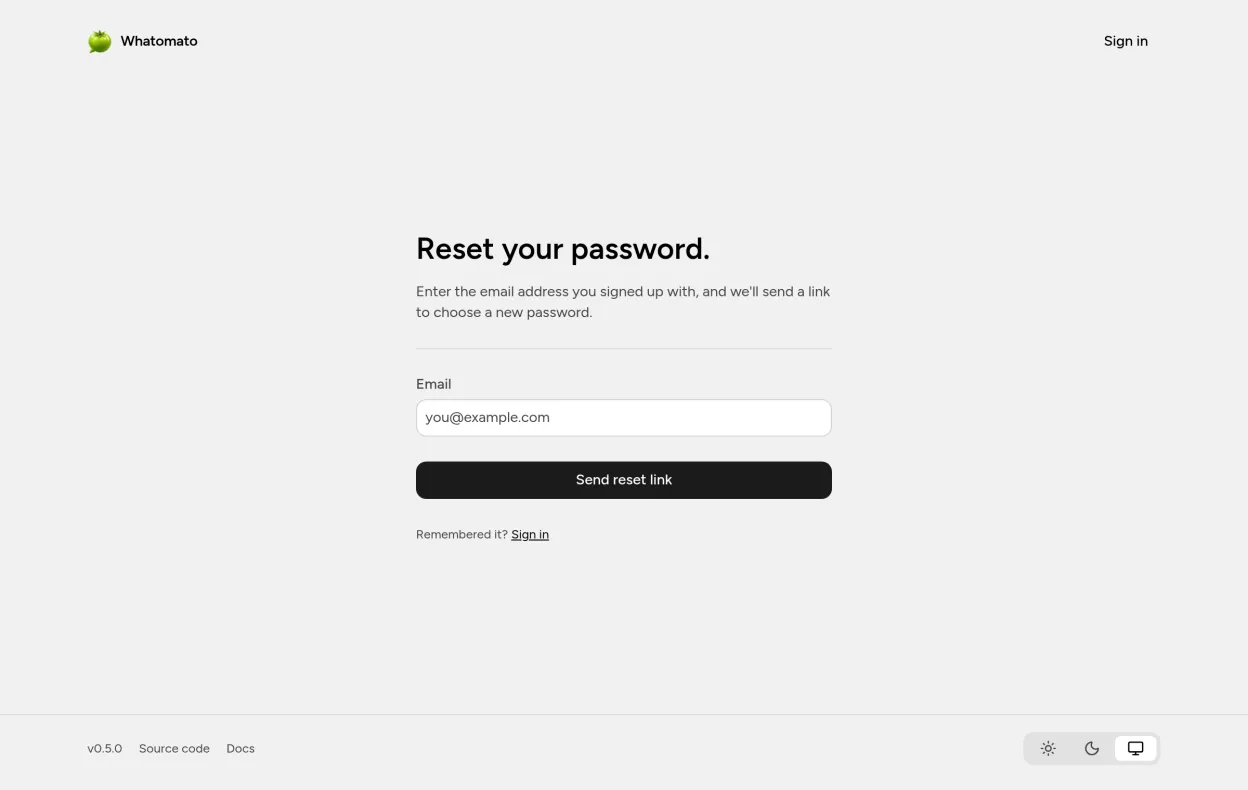
Saving a new password:
- signs out every device, including the one you’re on;
- cancels every other emailed link and any sign-in that was waiting for a code;
- leaves two-step verification on and your passkeys working.
A reset is therefore also how you sign out a device you’ve lost. If someone else added a passkey to your account, remove it under Settings as well, since a reset doesn’t.
Two-step verification
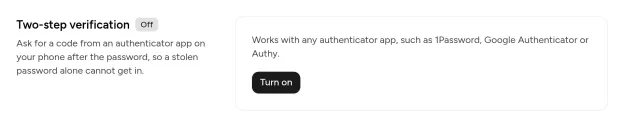
Section titled “Two-step verification”With two-step verification on, signing in asks for your password and then a 6-digit code from an authenticator app on your phone. Any authenticator app works, such as 1Password, Google Authenticator, Microsoft Authenticator or Authy.
Turn it on
Section titled “Turn it on”-
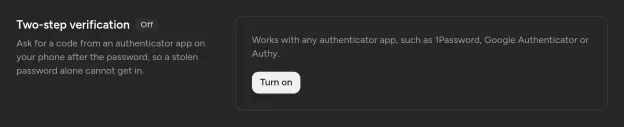
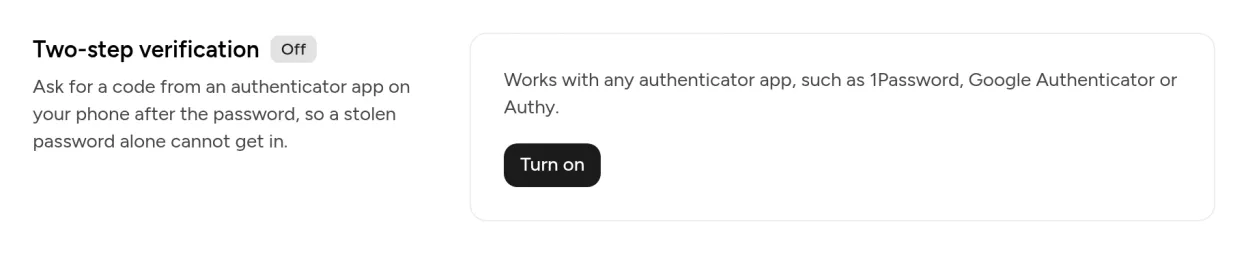
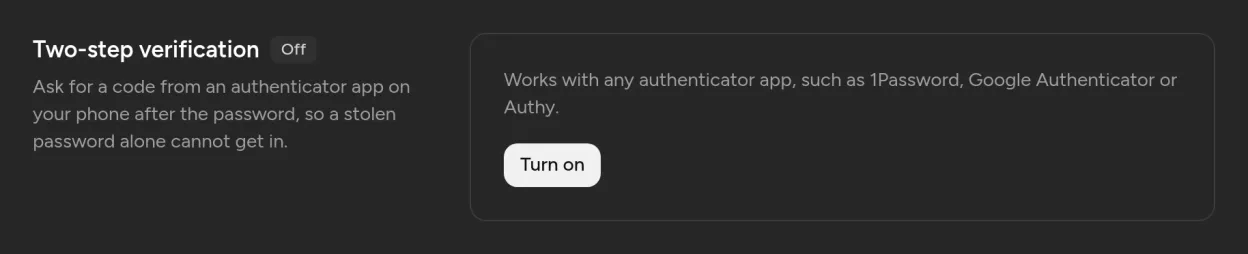
Open Settings. Under Two-step verification, choose Turn on and enter your password.
-
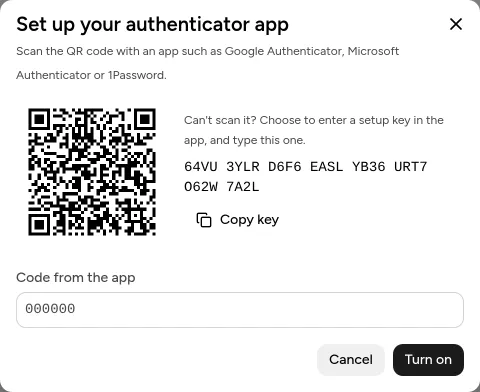
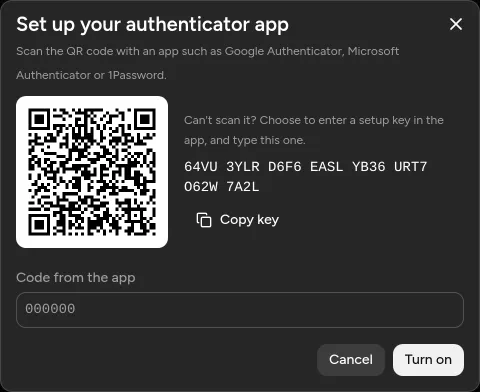
Scan the QR code with your authenticator app. If you can’t scan it, choose to enter a setup key in the app and type the key shown beside the code.
-
Enter the 6-digit code the app shows and choose Turn on.
-
Save the ten recovery codes somewhere safe. Copy and Download are there to help, and this is the only time the codes are shown. Tick I saved these codes somewhere safe, then choose Done.
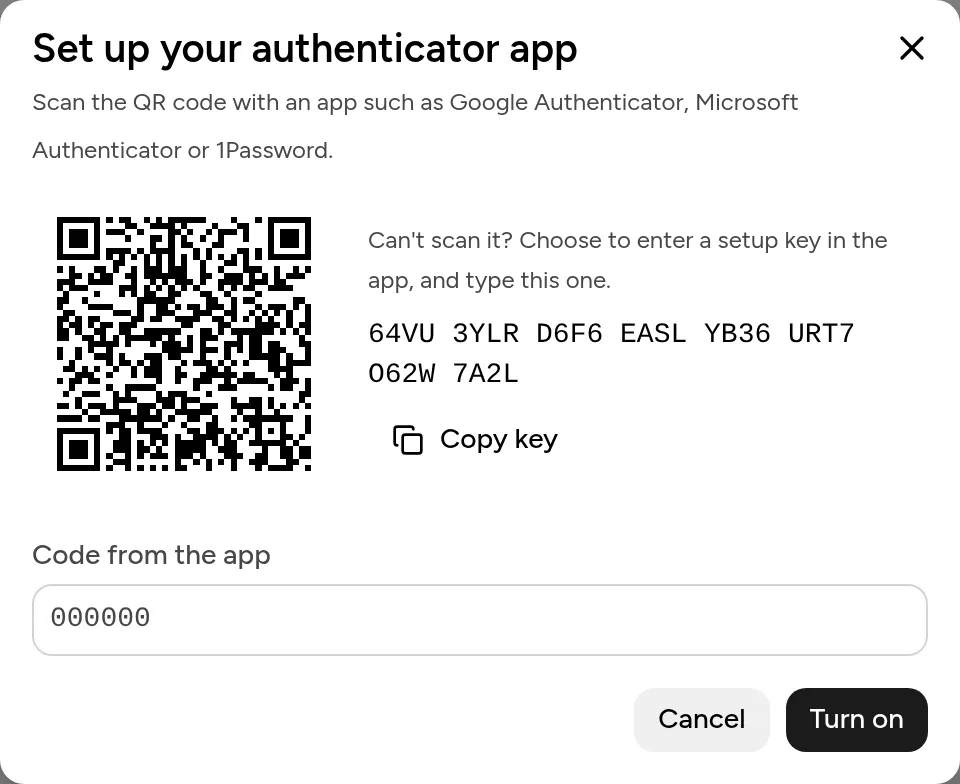
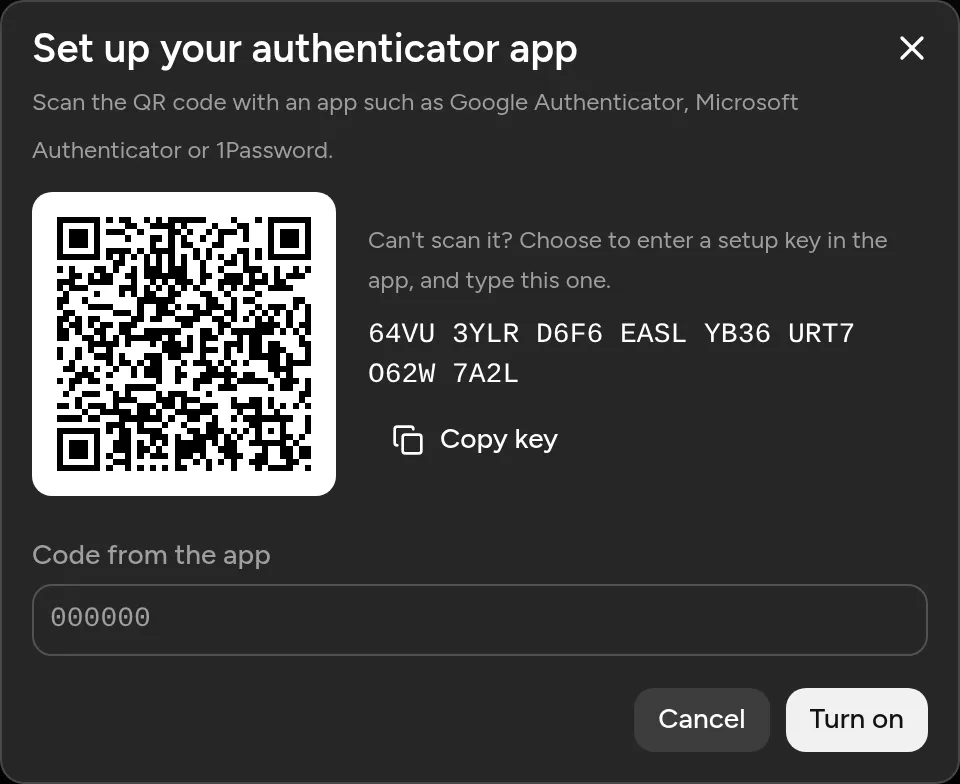
A setup lasts 15 minutes and allows five wrong codes. Turning it on signs out every other device and sends you an email.
Sign in with it
Section titled “Sign in with it”After your password, enter the code from the app. Each code works once. If you can’t use the app, choose Use a recovery code instead; each recovery code also works once, and a sign-in with one emails you with how many are left.
The code step ends after five minutes or five wrong codes. Five wrong codes also email you, because whoever tried had your password. An account takes 30 wrong codes a day across all its sign-ins. Past that, every code is refused, even a right one, until the day is up or you reset your password.
Recovery codes
Section titled “Recovery codes”Settings shows how many codes are left and warns you at three. New recovery codes replaces them all, used or not.
Turn it off
Section titled “Turn it off”Turn off under Two-step verification asks for your password. Signing in then asks for your password only, and the recovery codes stop working.
Passkeys
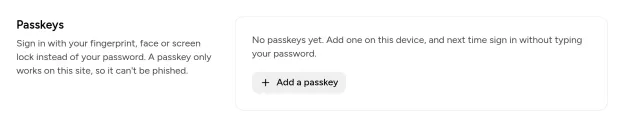
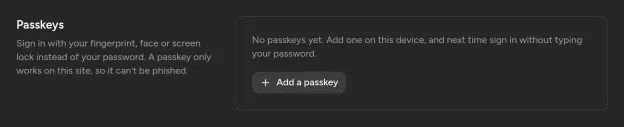
Section titled “Passkeys”A passkey signs you in with your fingerprint, face or screen lock in place of your password. It only works on the site it was made for, so it can’t be phished.
Add one
Section titled “Add one”-
Open Settings. Under Passkeys, choose Add a passkey and enter your password.
-
Follow your device’s prompt to create the passkey.
-
Give it a name that tells it apart from the others, such as “MacBook”, or choose Skip.
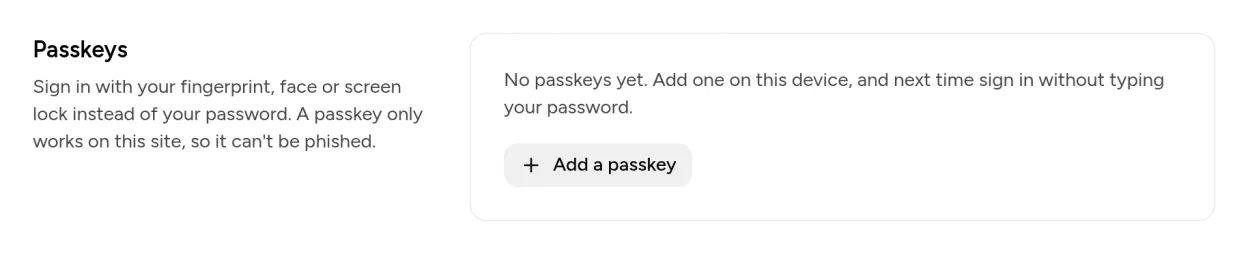
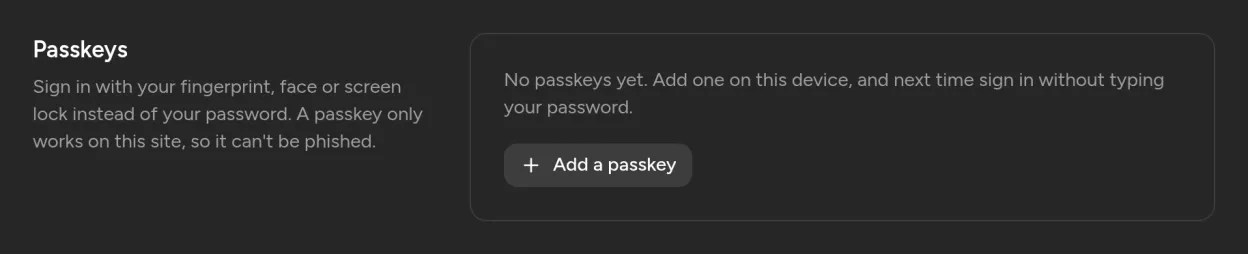
An account holds up to 20 passkeys. A passkey can’t be renamed afterwards; remove it and add it again.
Sign in with one
Section titled “Sign in with one”On the sign-in page choose Sign in with a passkey, or pick the passkey when your browser offers it in the email field. There’s no email or password to type.
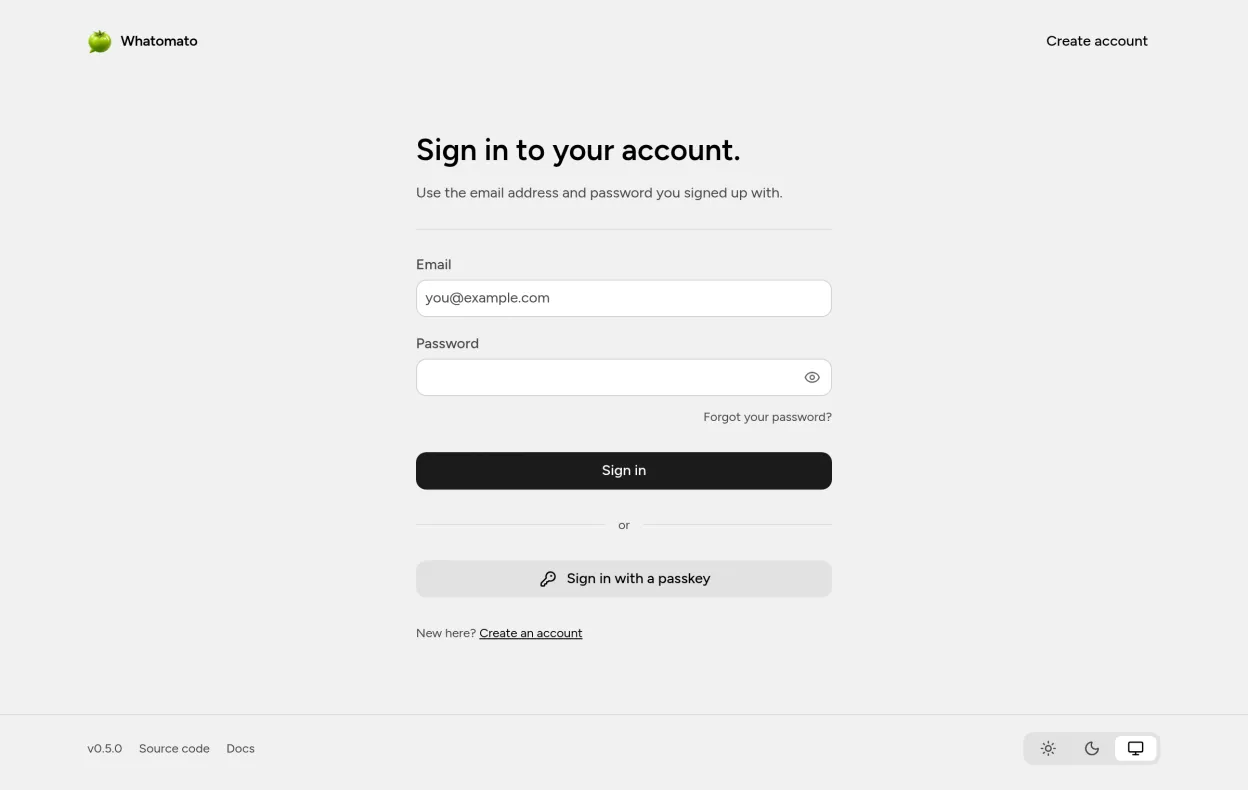
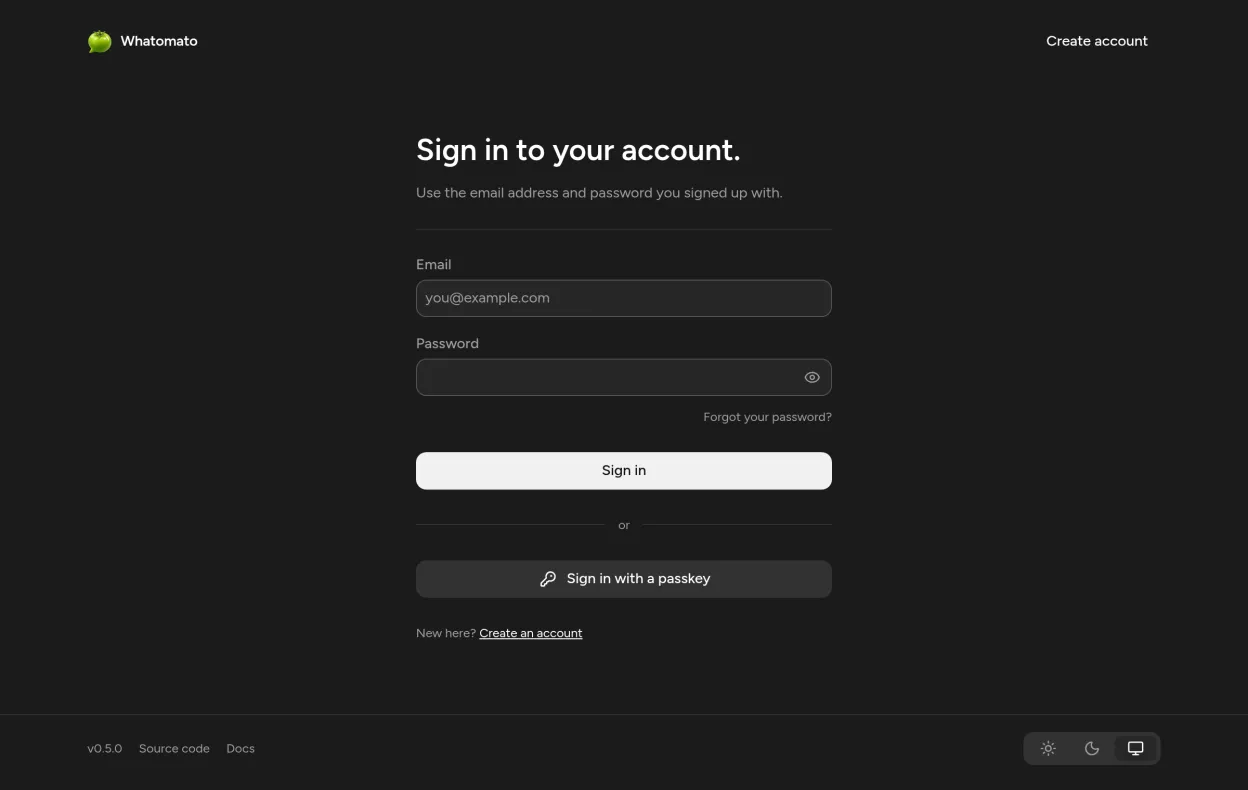
A passkey always checks that it’s you with a PIN or biometrics, so a passkey sign-in asks for no two-step code, even with two-step verification on.
Remove one
Section titled “Remove one”Remove beside a passkey asks for your password. The passkey stops working at once.
Passkeys are tied to the address of the site. If an instance moves to another address, the passkeys made for the old one stop working.
When your password is asked for again
Section titled “When your password is asked for again”Being signed in isn’t enough for the things that matter most. These ask for your password again:
- linking and unlinking WhatsApp;
- turning two-step verification on or off, and creating new recovery codes;
- adding and removing a passkey;
- creating an agent connection and changing its permissions.
Emails about your account
Section titled “Emails about your account”Whatomato emails you when two-step verification is turned on or off, when recovery codes are replaced or one is used, when a passkey is added or removed, when your password changes, and when five wrong codes follow a right password. If one arrives that you didn’t cause, reset your password and review Settings.
Sign-in limits
Section titled “Sign-in limits”Sign-in attempts are limited so a password can’t be guessed by trying: 10 attempts for an account, then one every 90 seconds, however many addresses they come from. If you see Too many attempts, wait for the time it gives. Limits lists the rest.