
Schedule a message
Send a message once at a set time, or on a repeat that follows the calendar, the clock, or sunrise and sunset.
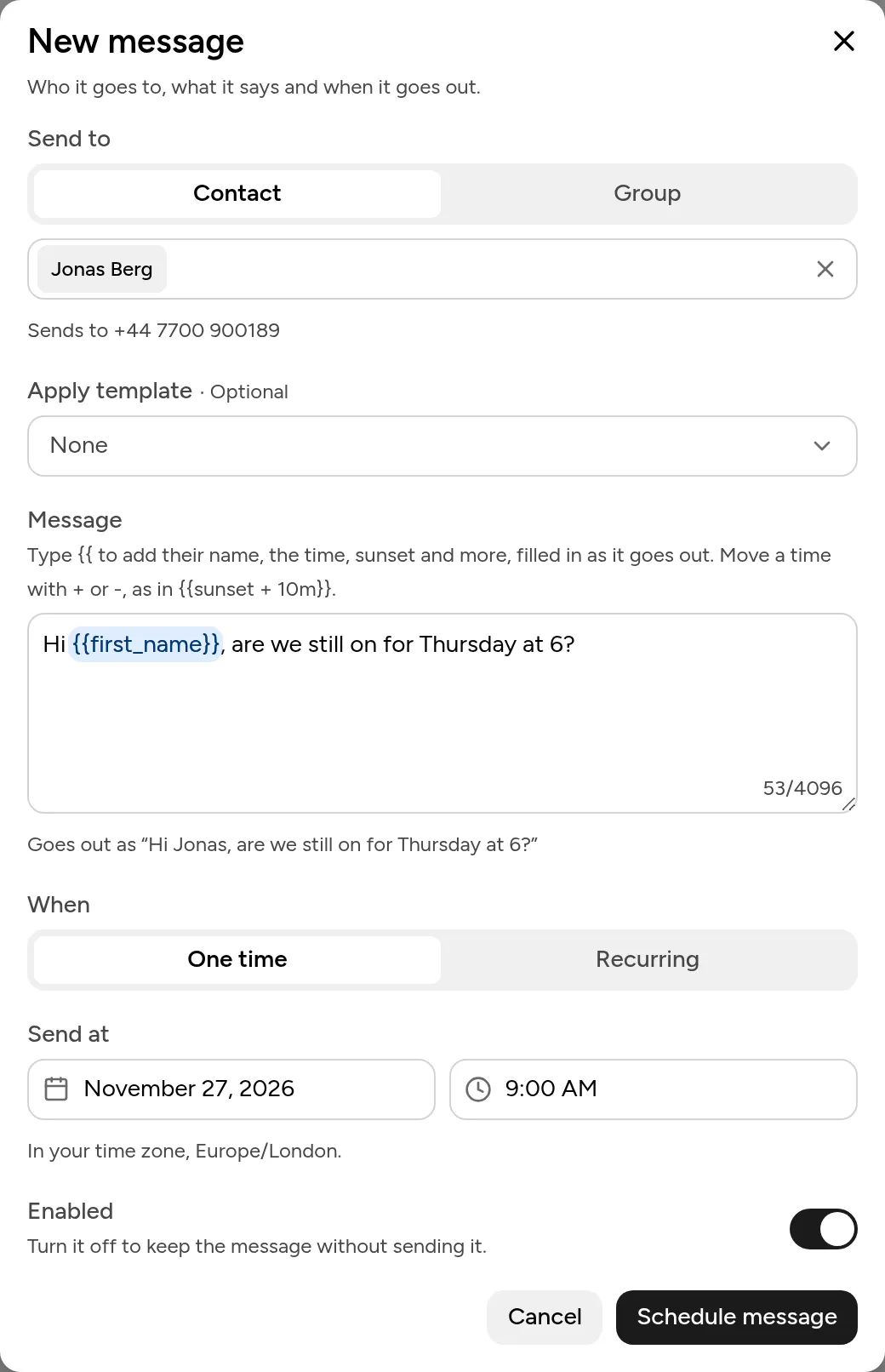
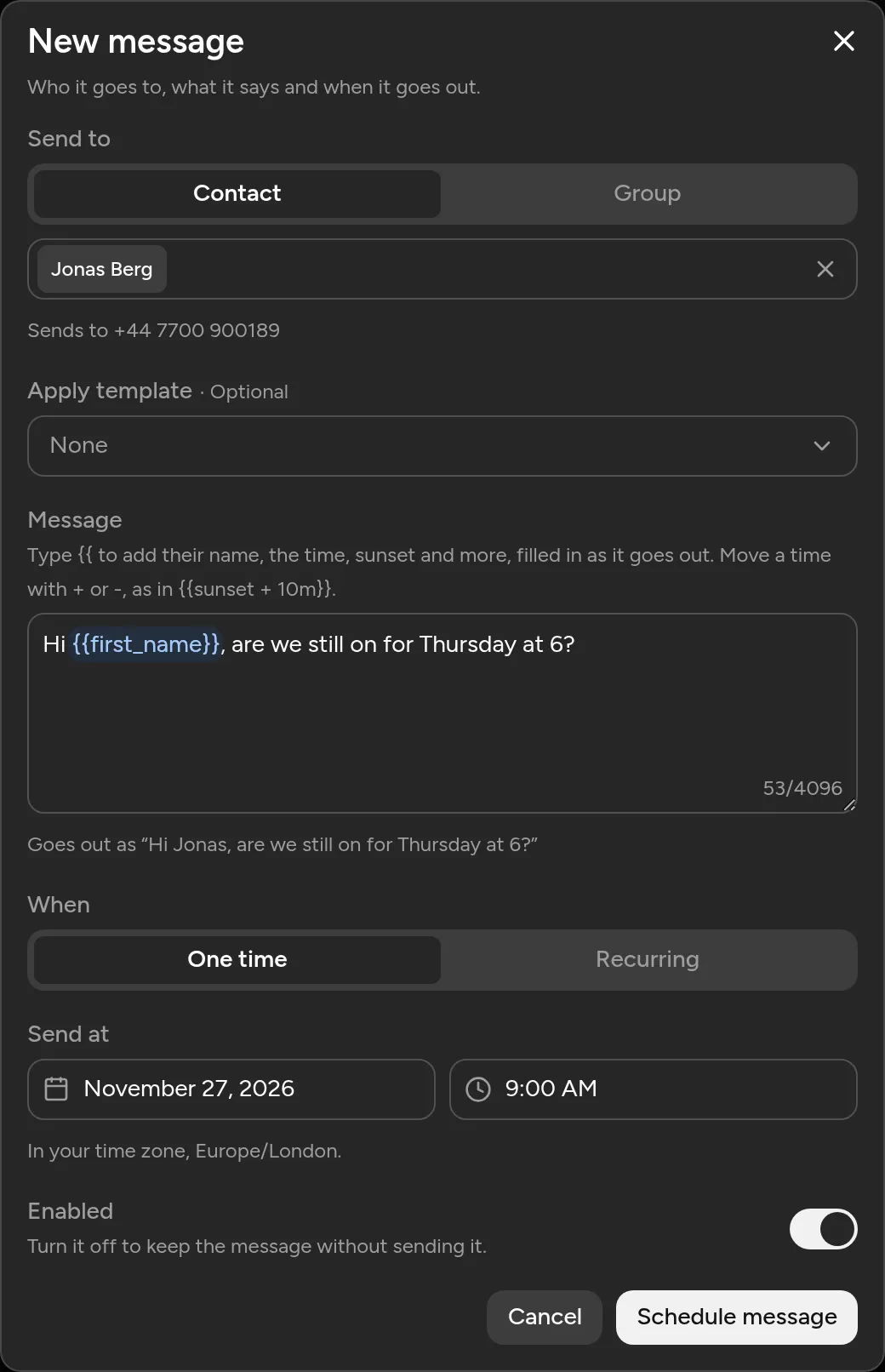
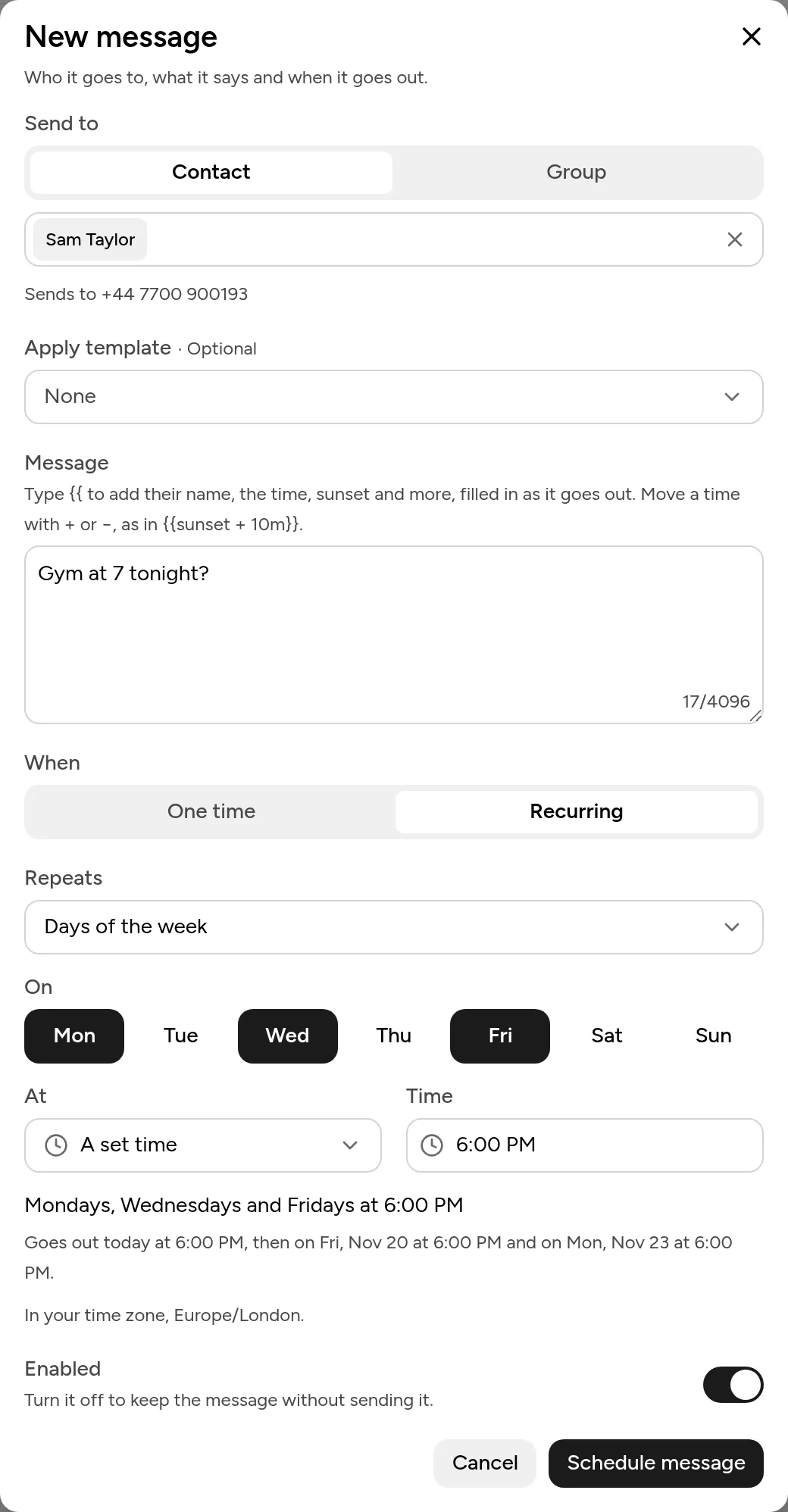
Open Messages and choose New message. The form asks who the message goes to, what it says and when it goes out. Nothing is checked until you choose Schedule message.
Who it goes to
Section titled “Who it goes to”Under Send to, choose Contact or Group.
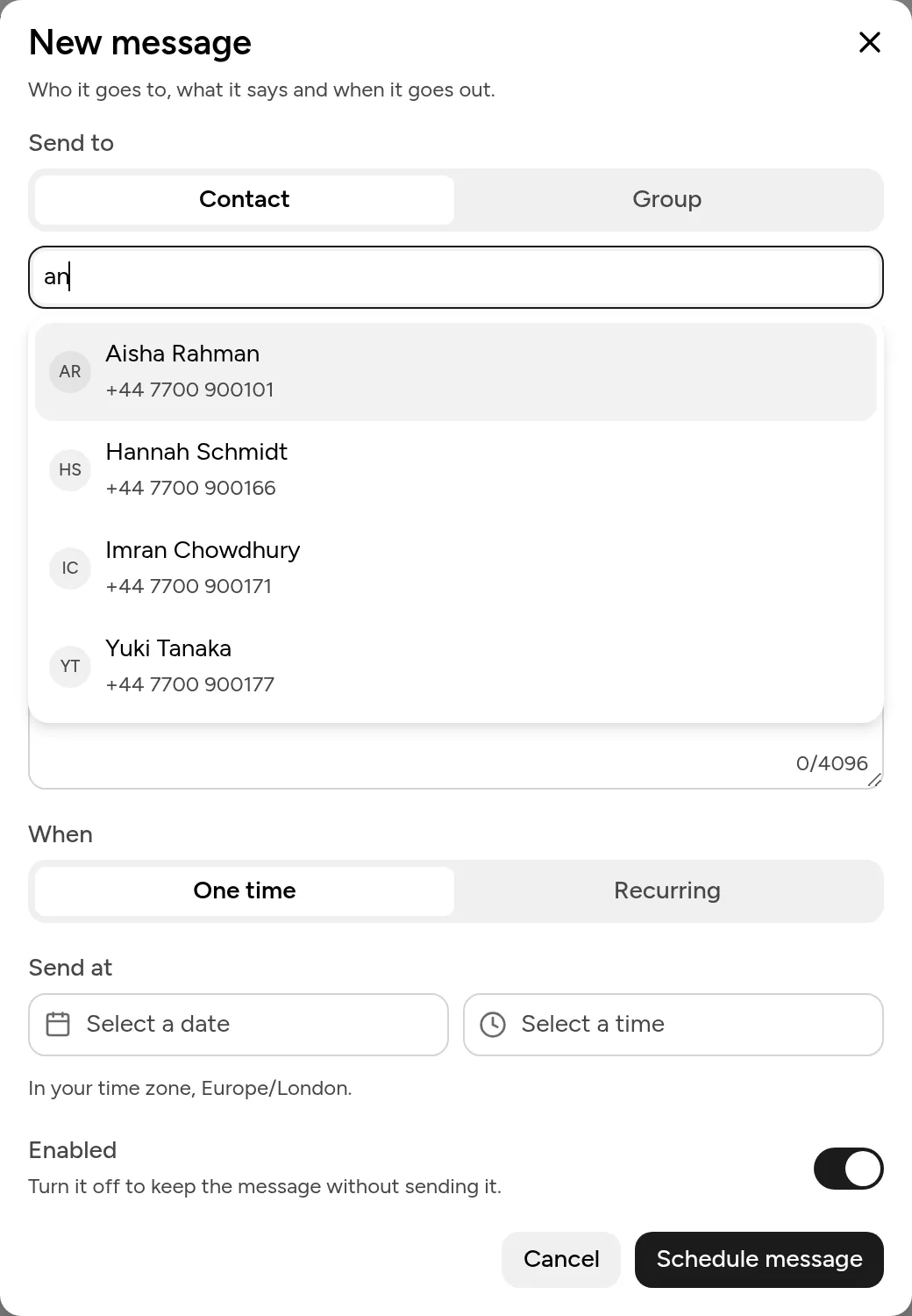
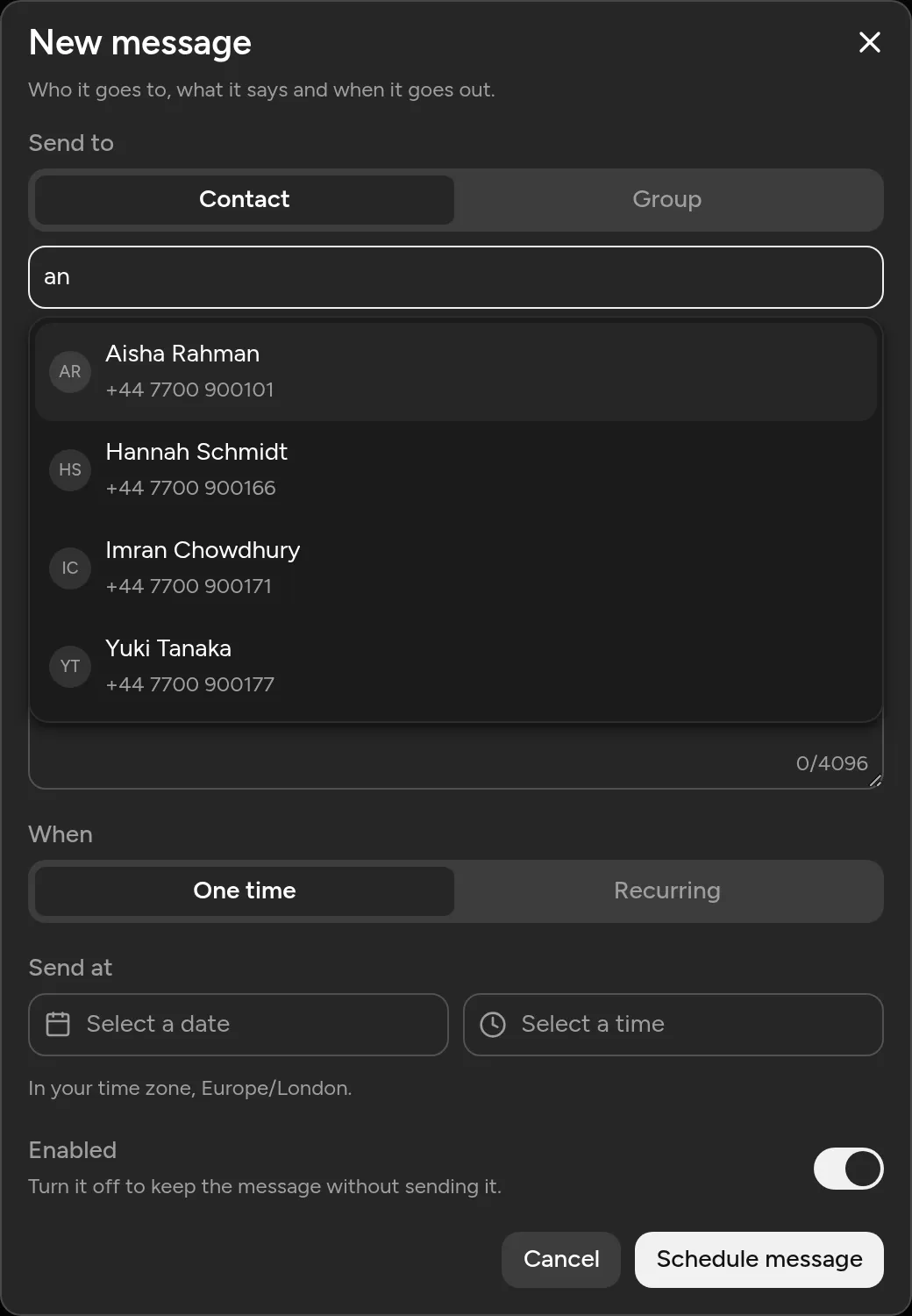
- Contact searches the contacts saved on your phone by name or number. To send to someone who isn’t saved, type their whole number with its country code.
- Group lists the groups your number is in. It needs WhatsApp to be connected.
Whatomato doesn’t check that a number is on WhatsApp when you save. It checks when the message is due, and a number that isn’t on WhatsApp shows in History as failed. Contacts and groups has the details.
What it says
Section titled “What it says”Write up to 4096 characters under Message.
If you have saved templates, Apply template replaces the text with a template’s. Type {{ to add a variable such as {{first_name}} or {{date}}, which is filled in as the message goes out. Once the text holds a variable, the form shows it filled in under Goes out as, with the real recipient and send time.
When it goes out
Section titled “When it goes out”Under When, choose One time or Recurring.
One time
Section titled “One time”Pick a date and time under Send at. It has to be in the future.
Recurring
Section titled “Recurring”Choose how it repeats under Repeats:
| Option | You choose | Example |
|---|---|---|
| Days of the week | Any of Mon to Sun | Monday to Thursday at 9:00 AM |
| Day of the month | A day from 1 to 31, or Last day | 15th of every month at 9:00 AM |
| Weekday of the month | First, Second, Third, Fourth or Last, and a weekday | First Monday of every month at 9:00 AM |
| Date each year | A month and a day | Every year on 12 March at 9:00 AM |
| Custom cron | A five-field cron expression | 0 9 * * 1-5 |
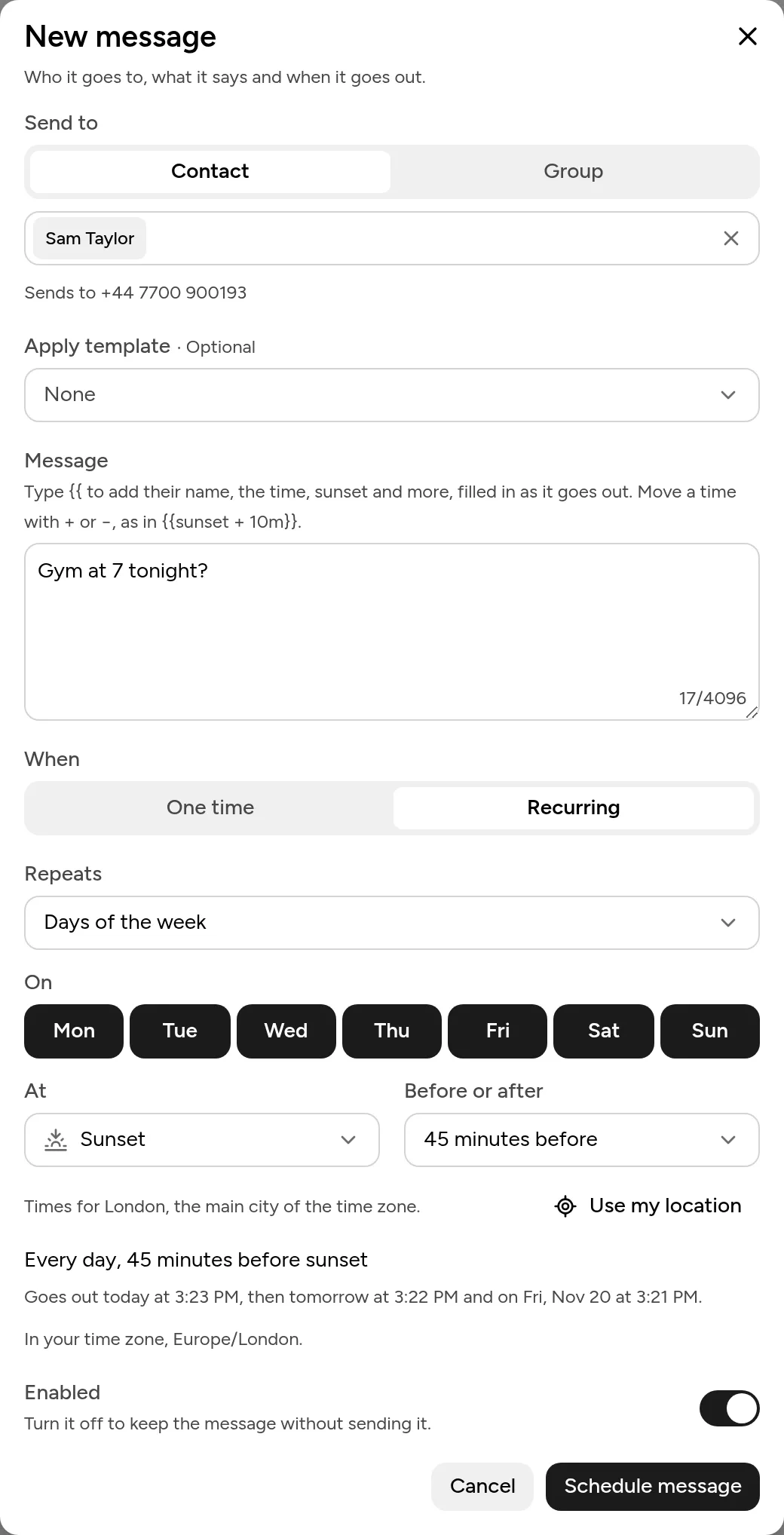
There’s no separate daily option: Days of the week with all seven days on is every day, and that’s what a new recurring message starts with.
A day of the month that some months don’t have is skipped in those months. For the end of every month, choose Last day. A message set for 29 February goes out in leap years only.
Then choose the time under At:
- A set time: a time of day, to the minute.
- Sunrise or Sunset: the moment itself, or from 5 minutes to 2 hours before or after it.
Below the form, Whatomato writes the schedule out as a sentence and lists the next three times it will send. Schedules covers cron syntax and how sunrise and sunset are worked out.
Sunrise and sunset
Section titled “Sunrise and sunset”Sun times depend on where you are. Whatomato starts from the main city of your time zone and says so: “Times for Dhaka, the main city of the time zone.” Use my location asks your browser where you are and uses that instead, rounded to about 10 km.
On a day with no sunrise or sunset, as happens near the poles, the message skips to the next day that has one.
Time zones
Section titled “Time zones”A message keeps the time zone of the browser it was created in. A recurring message set for 9:00 goes out at 9:00 in that zone, through daylight-saving changes too. Editing or duplicating a message keeps its zone, and the zone can’t be changed afterwards. To move a message to another zone, create it again from a browser set to that zone.
Keep it without sending it
Section titled “Keep it without sending it”The Enabled switch at the bottom of the form, and the switch on each row of the Messages page, turn a message off without deleting it.
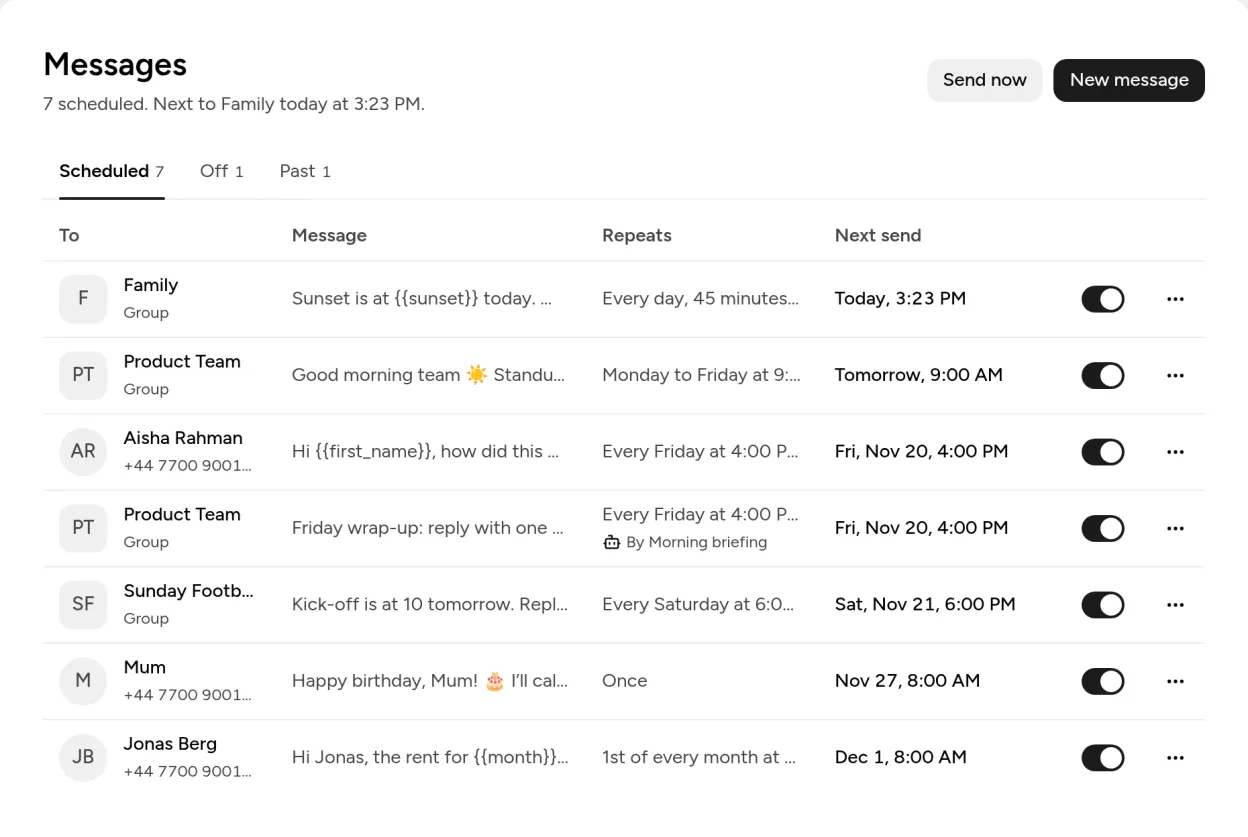
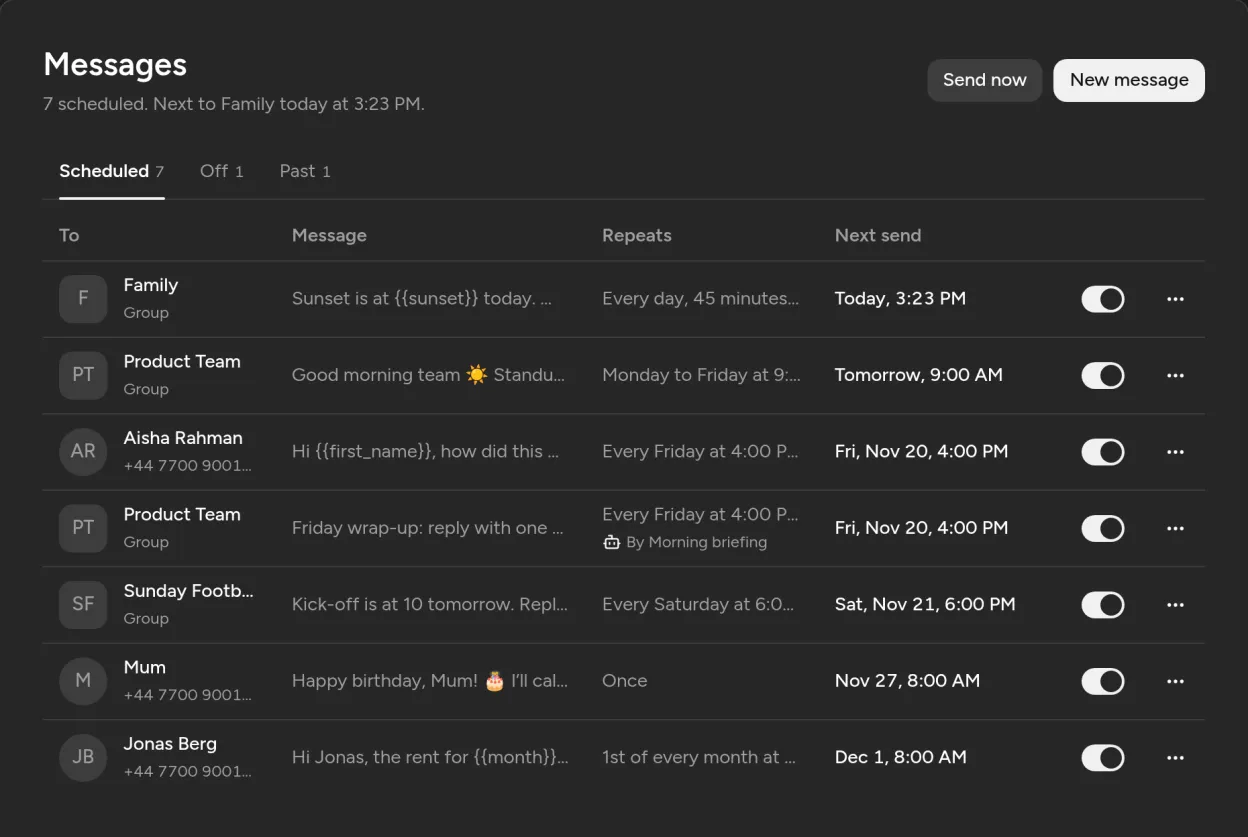
Switching a recurring message back on continues from its next time; the runs it missed while off aren’t sent. A one-time message whose time has passed can’t be switched on: edit it and pick a new time.
Send something right away
Section titled “Send something right away”Send now on the Messages page sends a message without scheduling it. It asks only who and what. The message joins the same queue as scheduled ones, shows in History, and leaves nothing on the Messages page.
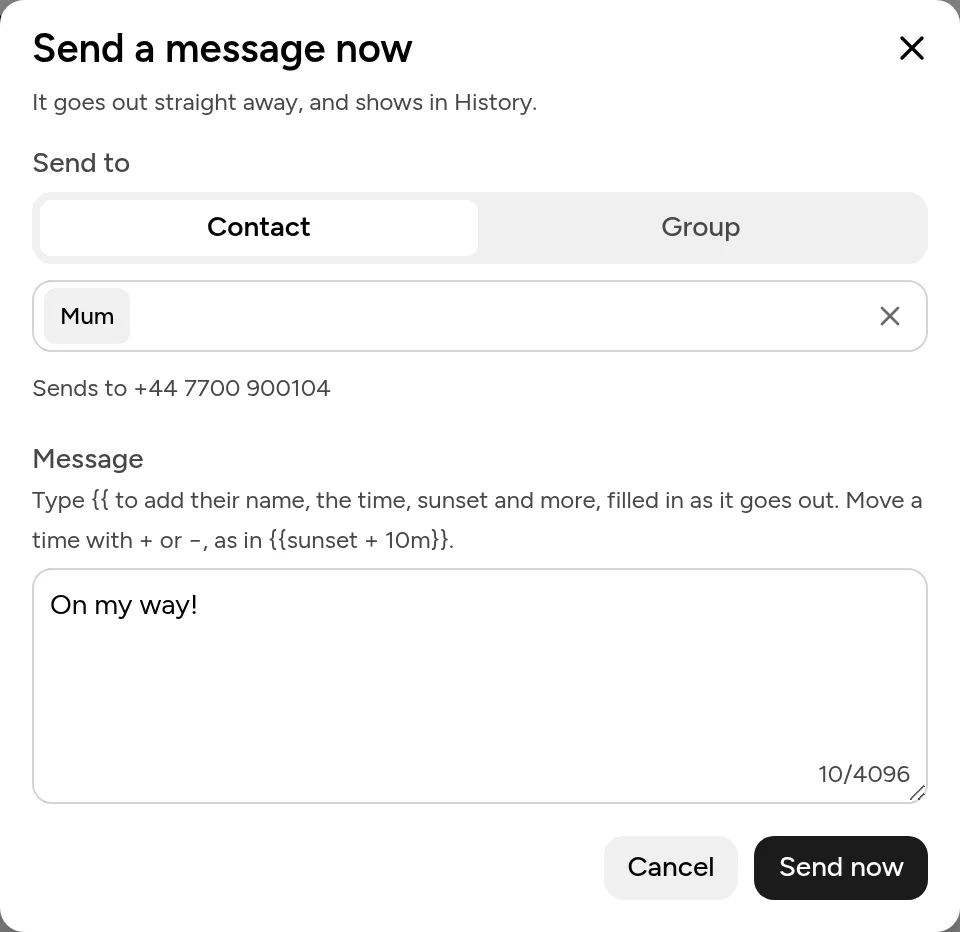
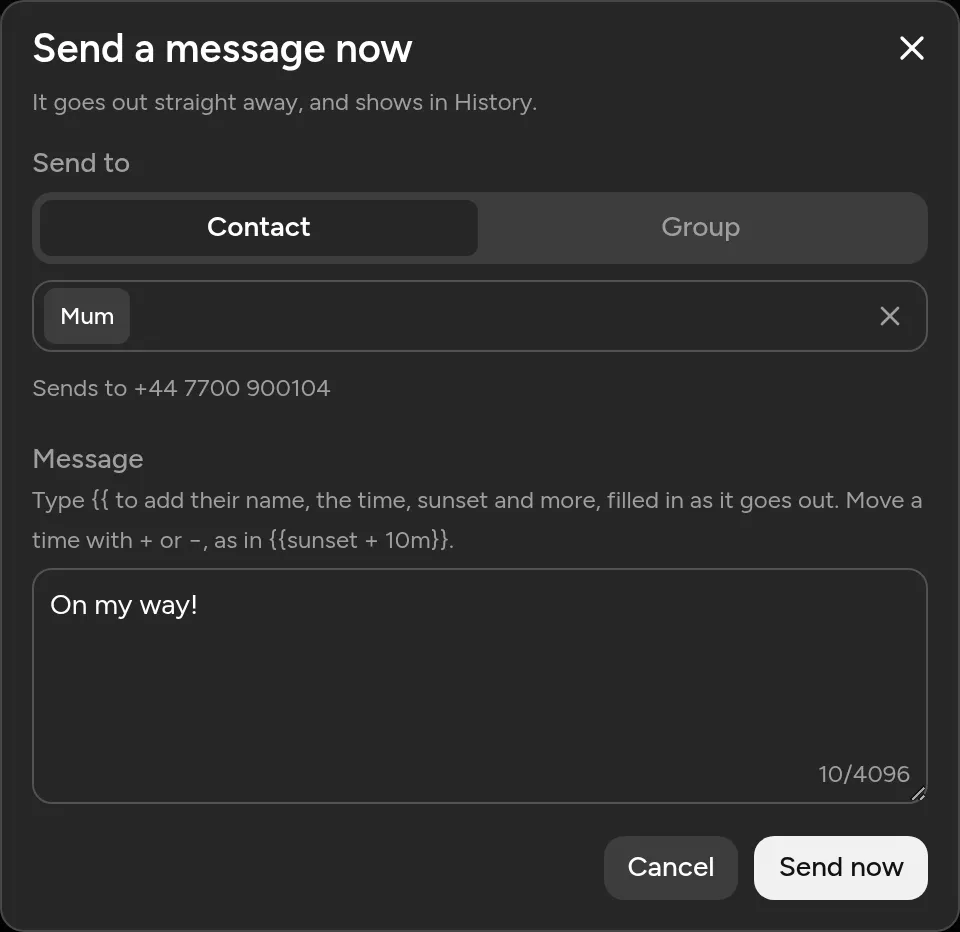
Send now is refused while WhatsApp isn’t linked, is paused or has stopped.
Change or remove a message
Section titled “Change or remove a message”Each row’s ⋯ menu has:
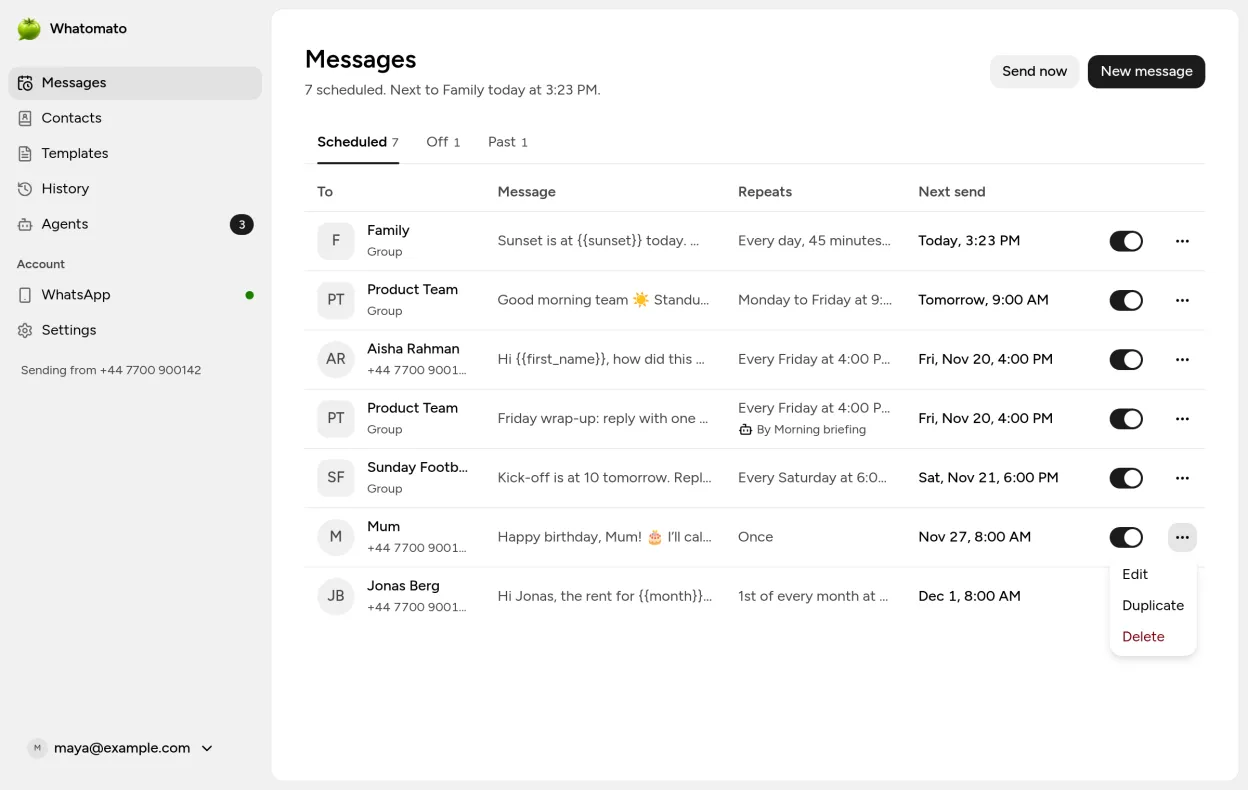
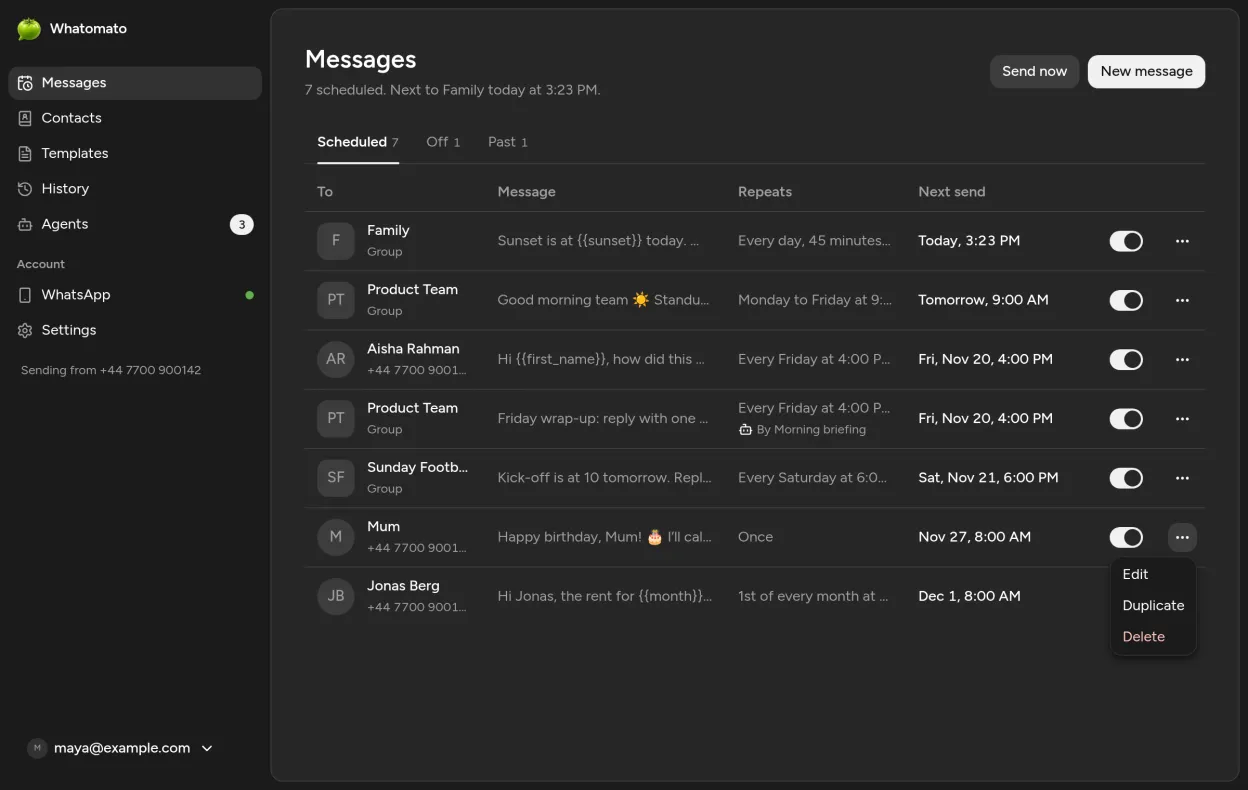
- Edit, which replaces any part of the message. The next send is worked out again from the moment you save.
- Duplicate, which opens a copy to change and save as a new message.
- Delete. What the message already sent stays in History.
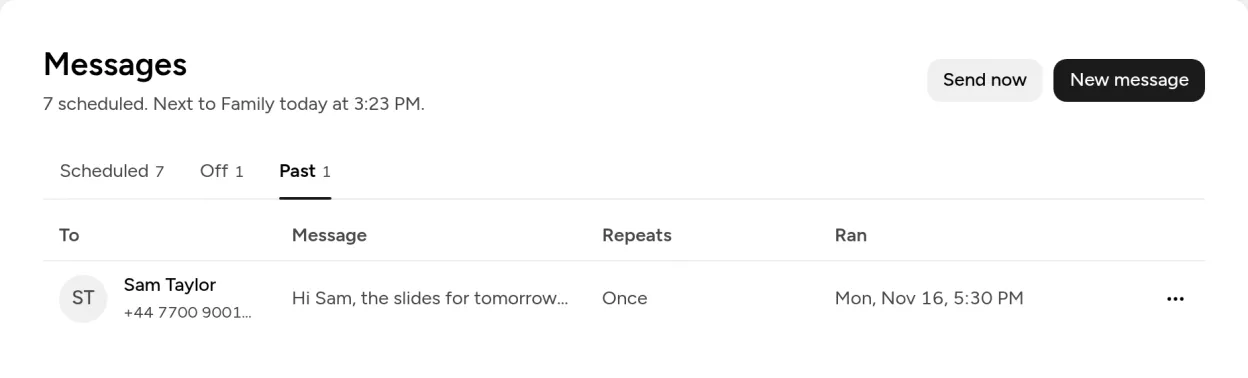
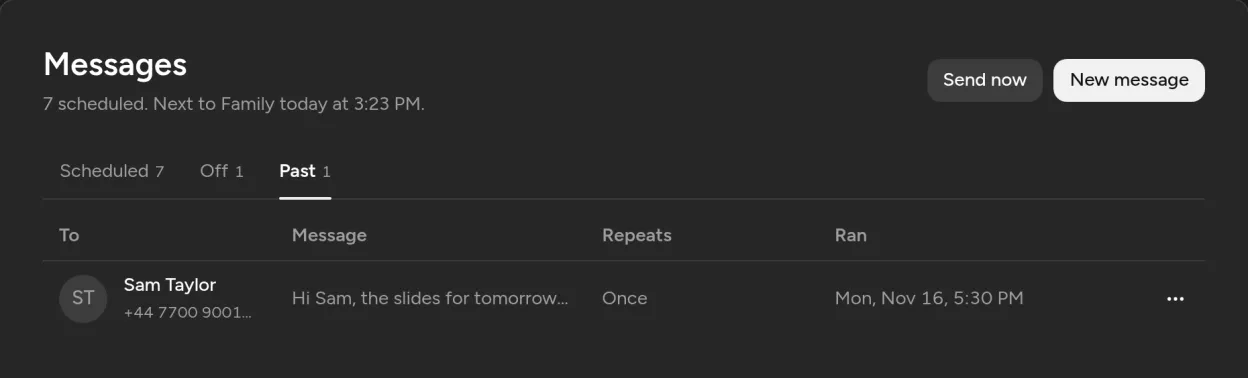
Once some messages are off or have run, the page splits into three tabs: Scheduled, Off and Past. A one-time message moves to Past after it runs, where its menu offers Schedule again.
Switching a message off or deleting it doesn’t recall a send that is already on its way or waiting to retry.
A message an agent scheduled is marked with the agent’s name. Editing it makes it yours, and the agent’s limits stop applying to it.
What happens when a message is due
Section titled “What happens when a message is due”- Pace. Each account sends at most one message every 3 seconds, oldest first, however many are due.
- Reconnecting. If WhatsApp is reconnecting, the send waits and tries again: after 1, 2, 4, 8 and 15 minutes, six tries over about half an hour. History shows it as Waiting to retry.
- Not linked, paused or stopped. The send fails straight away and doesn’t go out later, because only you can fix that.
- Unsure whether it went. If WhatsApp doesn’t confirm a message, or the server restarts in the middle of a send, the send fails with a note that it may or may not have gone out. Whatomato never retries those, since a retry could deliver a second copy.
- Server downtime. A server that was down sends what it missed once when it’s back, however late that is. A recurring message sends one copy, not one for each missed run, and then moves on to its next time.
The Messages page warns you when WhatsApp isn’t in a state to send.